IMM Settings
SigmafineHub� Admin users can use the IMM Settings page to view the status of the IMM Server and license, and to edit and configure the connection to the IMM Server.
IMM License Status
This page shows the status of the IMM licenses available on the registered IMM servers.
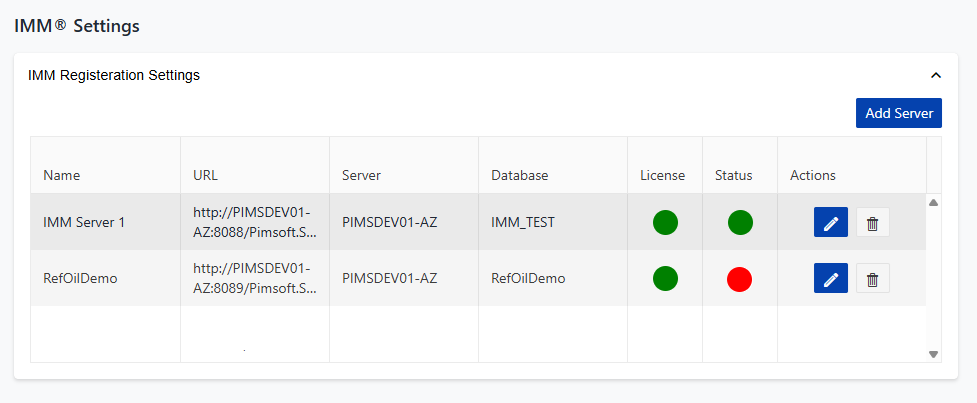
| Column | Description |
|---|---|
| Name | The name assigned to the IMM Instance. |
| URL | The URL of the IMM instance |
| Server | The Sigmafine Server name where the IMM instance is running. |
| Database | The Sigmafine database referenced by the IMM Server |
| License | The IMM Server license status. The red icon indicates that there is no valid IMM license (e.g. IMM license expired or not available), while the green icon indicates that there is a valid IMM license. |
| Status | The IMM Server status. The red icon indicates that the IMM Server is not reachable, while the green icon indicates that the IMM Server is reachable. |
| Actions | Allows you to edit or remove the IMM Server registration. |
Add IMM Server
To register a new IMM Server, click the Add Server button. See IMM Server Registration for more details.
note
You can configure multiple IMM server instances in SigmafineHub.