Upload Display
The Upload Display feature enables you to bring PI ProcessBook displays into SFHub Visualizer. Before importing, you must first convert your PI ProcessBook displays using the SFHub Display Converter, a separate standalone tool designed for this purpose. The SFHub Display Converter supports both Sigmafine and IMM displays from PI ProcessBook, converting them into a format compatible with SFHub Visualizer.
To upload a display into SFHub Visualizer:
Open the SFHub Visualizer application.
Click the Choose Display or Report from List icon
 on the Command Bar to open the Display and Report selection dialog.
In the Display and Report selection dialog, click the Add Display button.
Select the Import tab
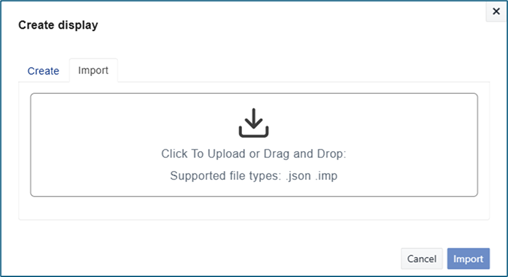
Click the Browse button to locate and select the display file (.inp) you want to upload.
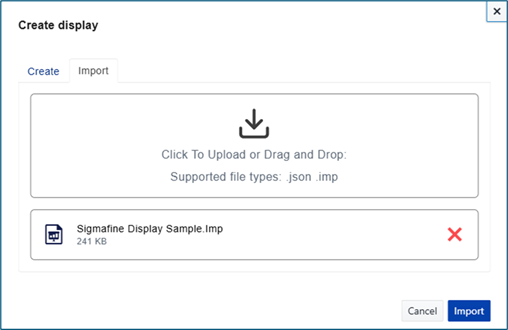
Click Import
Uploading a converted PI Processbook display into SFHub Visualizer does not allow to select the model version. PI ProcessBook's Sigmafine Modeler doesn't support model versioning and displays were always designed to work with only the current/latest model. There's no option to pick a specific model version because the original display never had this concept.
Displays created directly in SFHub Visualizer have full model versioning capabilities, since SFHub natively supports this feature.