Export/Import Display
You can export and import SFHub Visualizer displays using the Export Display and Import Display features. This allows you to share displays between different SFHub Visualizer instances or back up your displays.
The Export Display is currently only supported for displays associated with a single version of a Sigmafine Model. Displays associated with multiple versions of a Sigmafine Model cannot be exported.
This feauture will be included in the next release or service pack.
Export Display
To export a display into SFHub Visualizer:
Open the SFHub Visualizer application.
Click the Choose Display or Report from List icon
 on the Command Bar to open the Display and Report selection dialog.
In the Display and Report selection dialog, locate the display you want to export.
Select the Export Display button associated with the display.
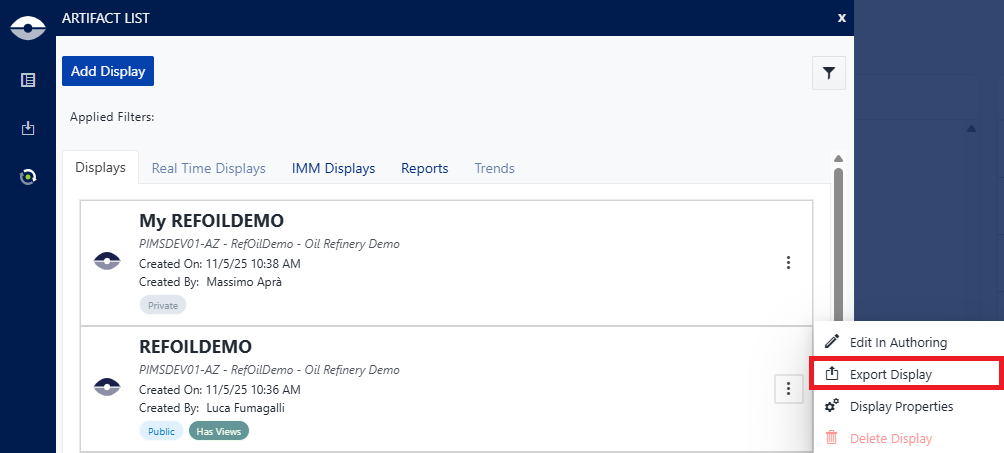
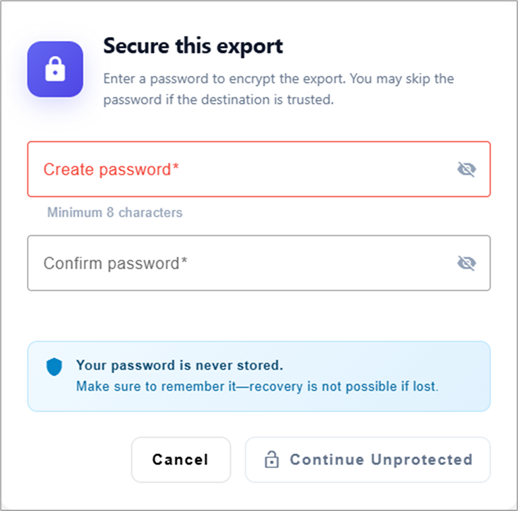
In the Export Display dialog, you can choose to protect the exported display file with a password.
To do so, enter the desired password in the Password field.
tipIf you choose to protect the exported display with a password, make sure to remember the password as it will be required during the import process.
Import Display
To Import a display into SFHub Visualizer:
Open the SFHub Visualizer application.
Click the Choose Display or Report from List icon
on the Command Bar to open the Display and Report selection dialog.In the Display and Report selection dialog, click the Add Display button.
Select the Import tab
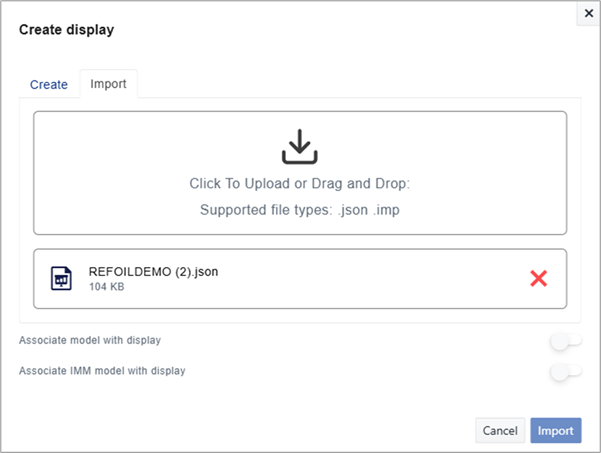
Click the Browse button to locate and select the display file (.json) you want to import.
Select the Associate model option you want to use to bound the display
- Associate model with display: Select this option to associate the imported display with an existing Sigmafine model.
- Create IMM model with display: Select this option to associate the imported IMM display with an existing IMM model.
Select the Server, database and model to be associated to the imported display.
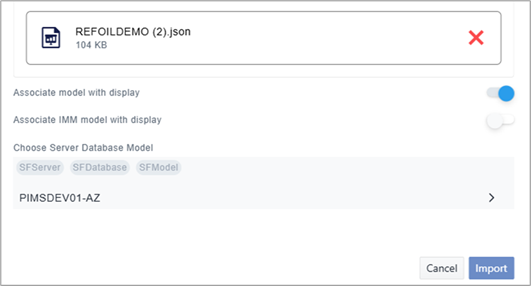 info
infoIf the selected model has multiple versions, you will be prompted to select the desired version before clicking the Import button.
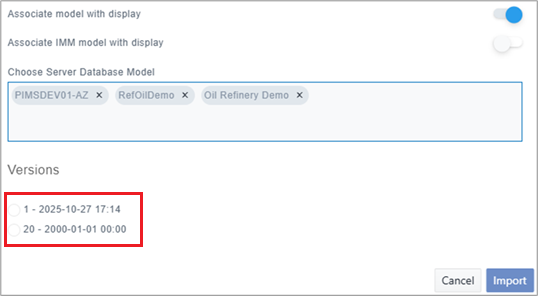
Each model version listed in the dialog shows two information:
- the model revision number, and
- the effective date and time.
Click the Import button to start the import process.
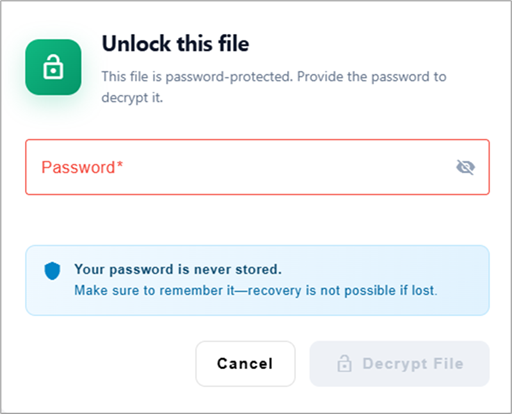
If the display file is password protected, enter the password in the Password field.