Share a Display
When you upload a display in SFHub Studio, you are automatically made the "owner" of that display and it is not accessible by anyone else but you. All other SFHub users can neither view nor access the display to work with it, unless you share the display with them.
In SFHub Visualizer, a Display can be shared with others in one of two ways; you can share with only certain SFHub users (share with individuals) or share with any users (share publicly) who have access to SFHub Visualizer at your company.
If you own a display that you currently have open in SFHub Visualizer, you can share the display with other individuals or publicly, directly from the Display Property panel. When you share a display, it allows those you've shared with to view and work with the display.
You cannot share a display both publicly and individually at the same time, you need to choose one or the other.
- Share a Display with Individuals
- Share a Display Publicly
Share a Display with Individuals
To share your display with one or more SigmafineHub users, you use the 'share' feature. This feature allows you to select each person you want to share with, and assign their individual access permissions (currently, only the 'read' permission applies to displays). Choosing to share on an individual basis gives you the greatest control over what someone else can do with your display.
To share your display with one or more specific SigmafineHub users:
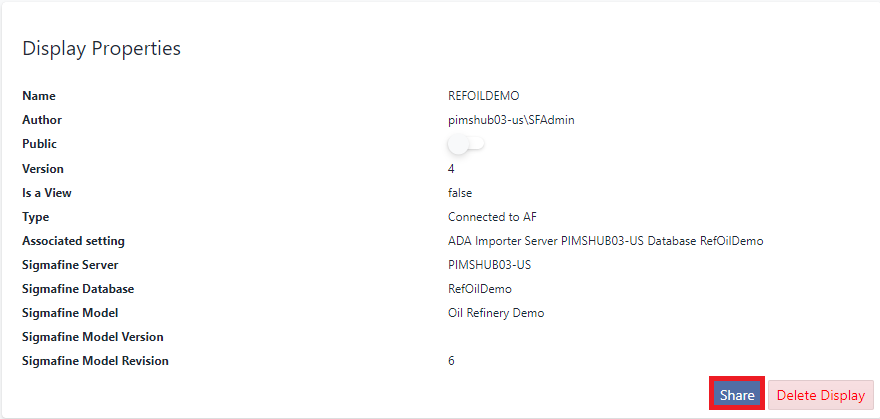
Open the Display Properties panel for the display you want to share and click the Share button.
Properties panel - Share button
A Share panel opens to the Share tab.
Share panel - Share tab - select user
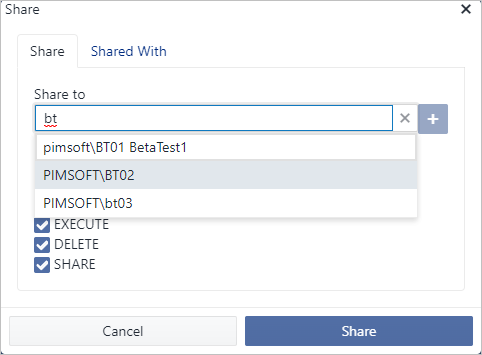
The Share tab is where you find and add the users you want to share the display with. As you begin typing the name of a user, all users with that character (or those characters) appear in a list.
In the Share to box, begin typing the name of a user you want to share with (as shown in Figure 4).
As you type characters, the names of a users with those characters appear in a list.
Choose the name of the person you want.
Click the
 Add button.
The name appears directly below the Share to box.
Share panel - Share tab - selected username displayed

At this point you can do one of two things; assign this person access permissions on this tab, or continue to add more people's names and then assign their permissions on the 'Shared With' tab, after saving their names to the shared list. If this is the only person you want to share your display with, then you can choose to assign their permissions now. If however, you want to share the display with additional people, you may want to add them all first and then assign permissions to each on the 'Share With' tab.
To assign permissions for a person on the Share tab:
a. Uncheck the Full access checkbox.
Assign display access rights on the Share tab

:::info Note Currently, you can only assign the 'Read' permission for displays. :::
b. Check each box next to the permission you want to assign. (See Access Permissions for descriptions of the assignable permissions.)
c. Click Share.
The user and their permissions are added to the display. To view their permissions, reopen the display Property's "Share" panel and click on the Shared With tab; the person's name displays, along with the permissions you assigned them. Note that you can change their permissions here and save them.
To assign permissions to multiple people on the Shared With tab:
a. Repeat steps 4 - 6 for each person you want to share the display with.
Several selected individuals to add to the display
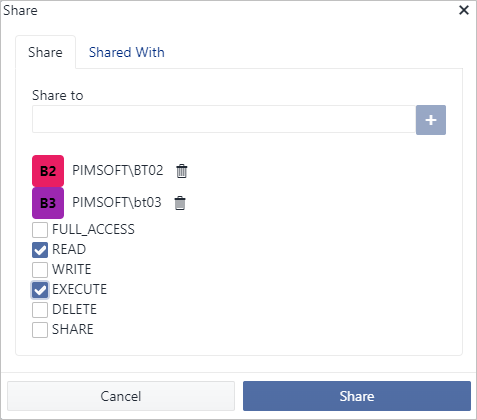
b. When finished adding people, click Share.
Every person you have selected is automatically assigned the default permissions (Full access) and their accounts are added to the project. The Share window closes.
c. Click the
 vertical ellipsis again, in the top-right corner of the
display Property panel, to display the quick menu.
vertical ellipsis again, in the top-right corner of the
display Property panel, to display the quick menu.d. Click Share on the quick menu, to open the Share window.
e. Click the Share With tab to open the Share With panel.
'Share With' panel showing all people with access to the display
 a
a to be replaced by project-SharePNL-SharedWithTAB-sharePerms.png
a
a to be replaced by project-SharePNL-SharedWithTAB-sharePerms.pngThe Share With panel displays the names of all the people who currently have access permissions to the display, and what their individual permissions are. The people you just added show ALL permissions, because you added them with the default (Full access). In this panel, you modify their permissions as you wish, on a person-per-person basis.
:::info Note To assign Full Access to a person, [do not]{.underline} check the Full Access checkbox; instead, check the checkbox under each permission (Read, Write, Delete and Share). :::
:::info Note Currently, you can only assign the 'Read' permission for displays. :::
f. Uncheck all checkboxes except for 'Read'. For each person; uncheck the permission(s) you do not want them to have for this display, and make sure the permissions you do want them to have, are checked. (See Access Permissions for descriptions of the assignable permissions.)
g. Click Update Share to save your changes.
Share a Display Publicly
To share your display with every SigmafineHub user at your company, you use the 'Public' share feature. Once a display is Public, any SFHub user can view and work with the display in the SFHub Visualizer application.
To publicly share your display:
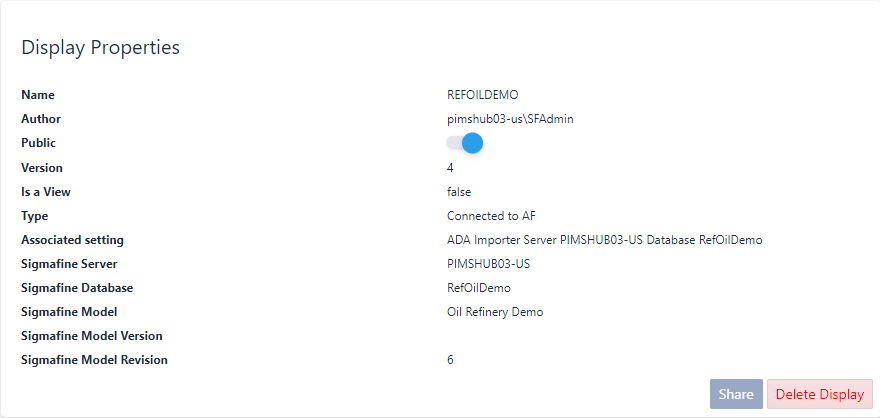
Click on Public toggle to enable the Public option.
Public access selected
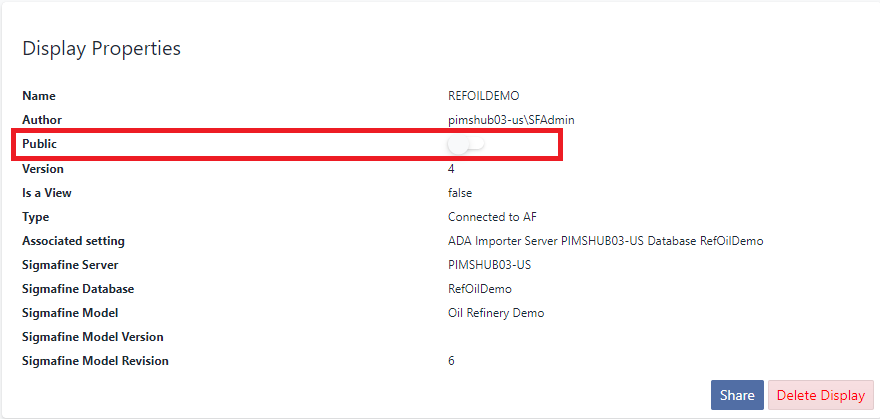
As you click, the slider moves to the right and turns blue (as shown in the following image); indicating that Public access is now enabled for this display.
Display Property panel with the "Public" tag