Save a Copy of a Report
A copy of an existing report can be created to use as the basis for a new report or as a backup copy you try different layouts or configurations on. Making a copy can be accomplished by using the Save As feature from the Report quick menu.
To make a copy of an existing report, you must either be the report's owner, or have "Read" permission for the report. If the 'Save As option' is grayer out, you need to request "Read" permission from the report's owner. For further information about sharing reports, see Share a Report and Access Permissions.
To save a copy of a report as a new report:
Open your Studio Projects dashboard, if you have not done so already. To open, click
 Home in the command bar.
Studio Projects - select project
Studio Projects - Select Project
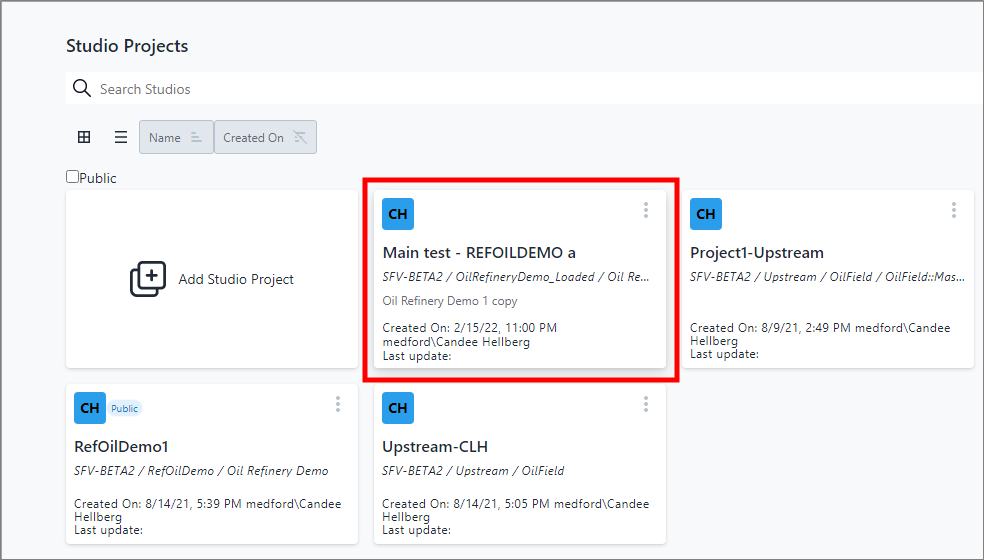
Click on the project that contains the report you want to copy.
The Studio Project [name of selected project] dashboard opens.
Studio Projects [project name] Dashboard
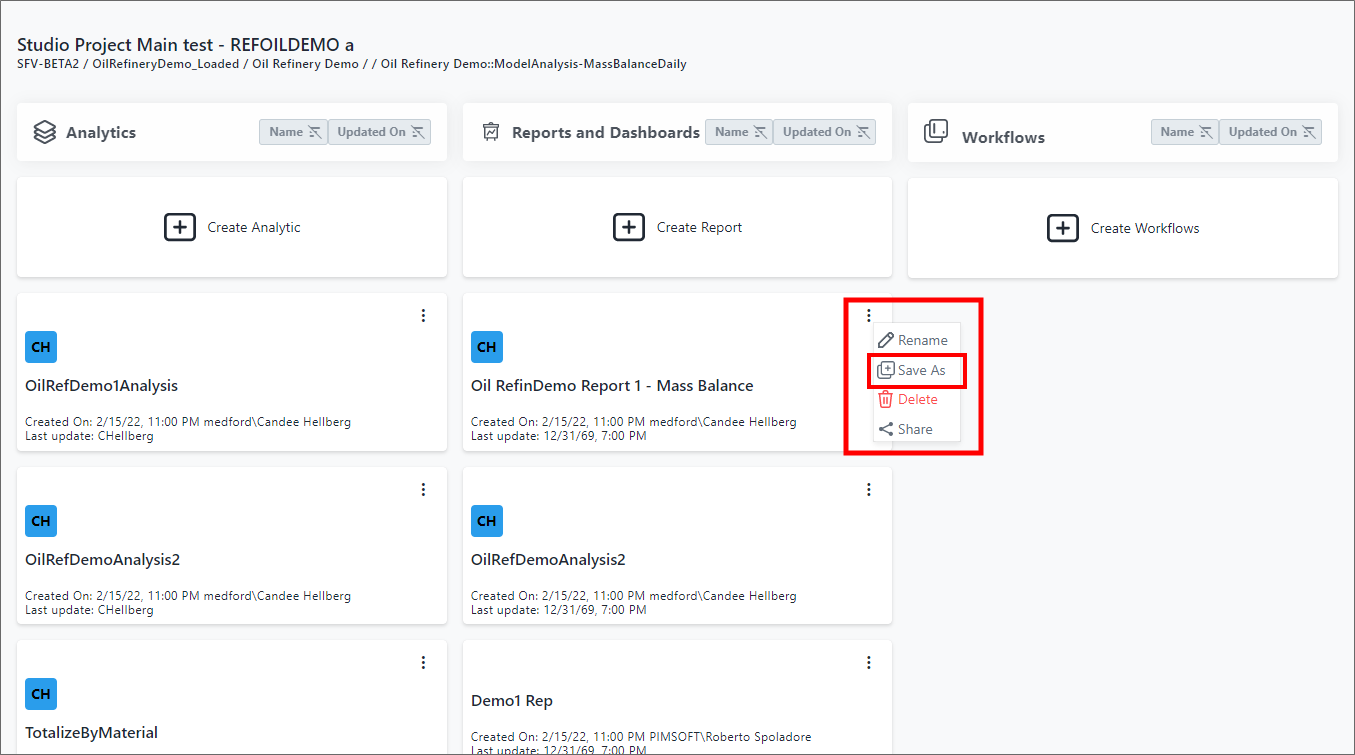
A panel opens in which you can save the report under a different name.
Panel for naming a report copy

In the Name box, type a name for the copy you want to save.
Click Save, to save the copy of the report under the new name.
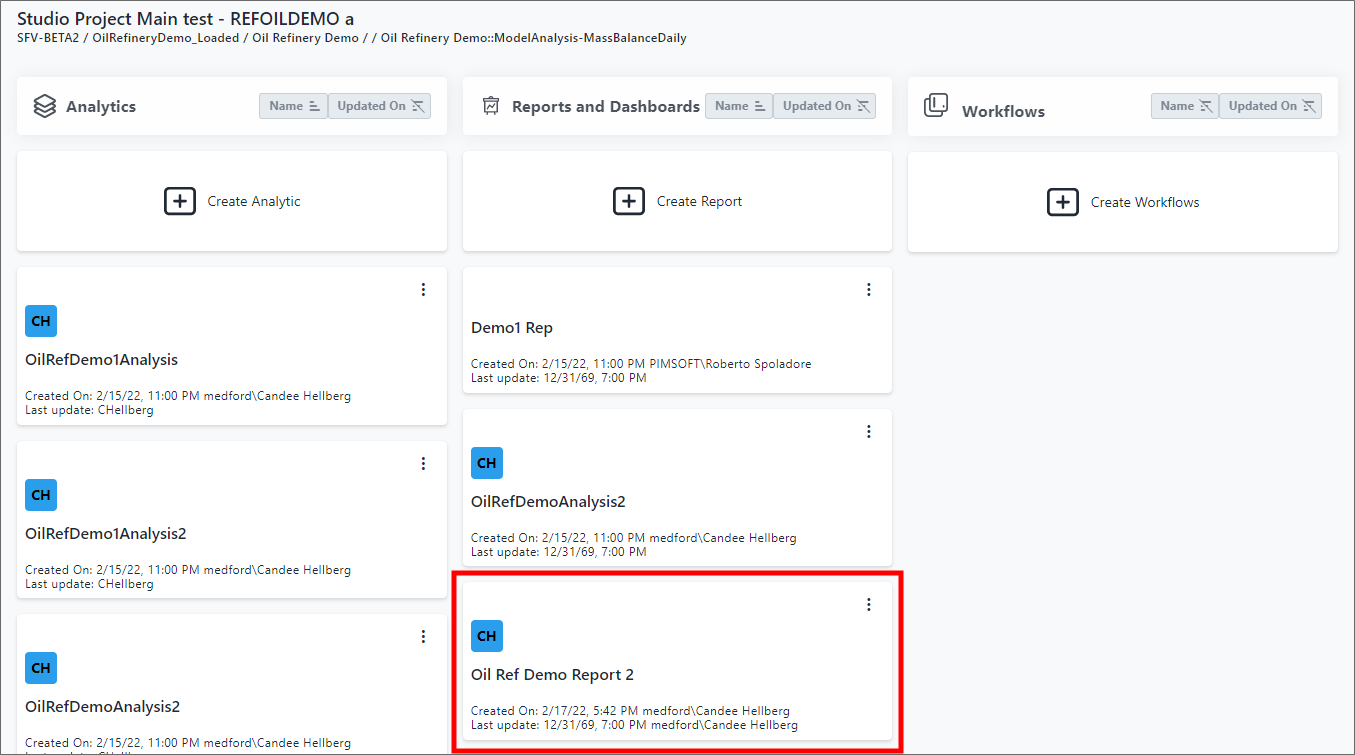
The copy is saved and appears on the dashboard, as shown in the following example.
Report copy saved and displayed