Delete a Report
A Report can be deleted from your SFHub Studio Project only if it is not referenced in a display setting. If such a reference currently exists for the report you need to delete, you will need to first remove the reference in the project display, before attempting to delete the report.
SFHub Studio takes care to check if the report is used or referenced by any display setting before to physically delete the report. If any, the delete operation is canceled and following message is show up.
To remove a report:
Open your Studio Projects dashboard, if you have not done so already.
 Home in the command bar.
Studio Projects - select project
Home in the command bar.
Studio Projects - select project
Studio Projects - Select Project
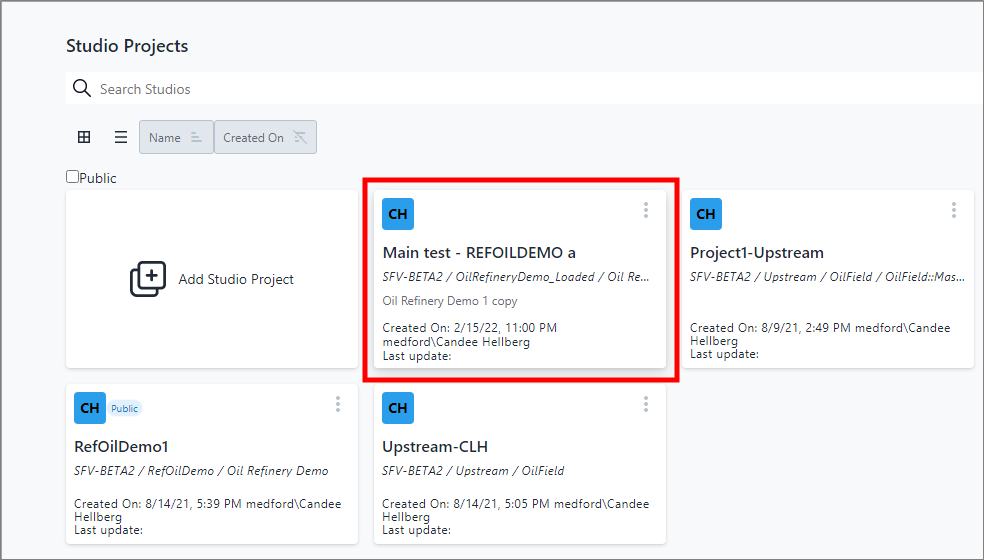
Click on the project that contains the report you want to delete. The Studio Project [name of selected project] dashboard opens. Studio Project [project name] dashboard
Studio Project [project name] Dashboard
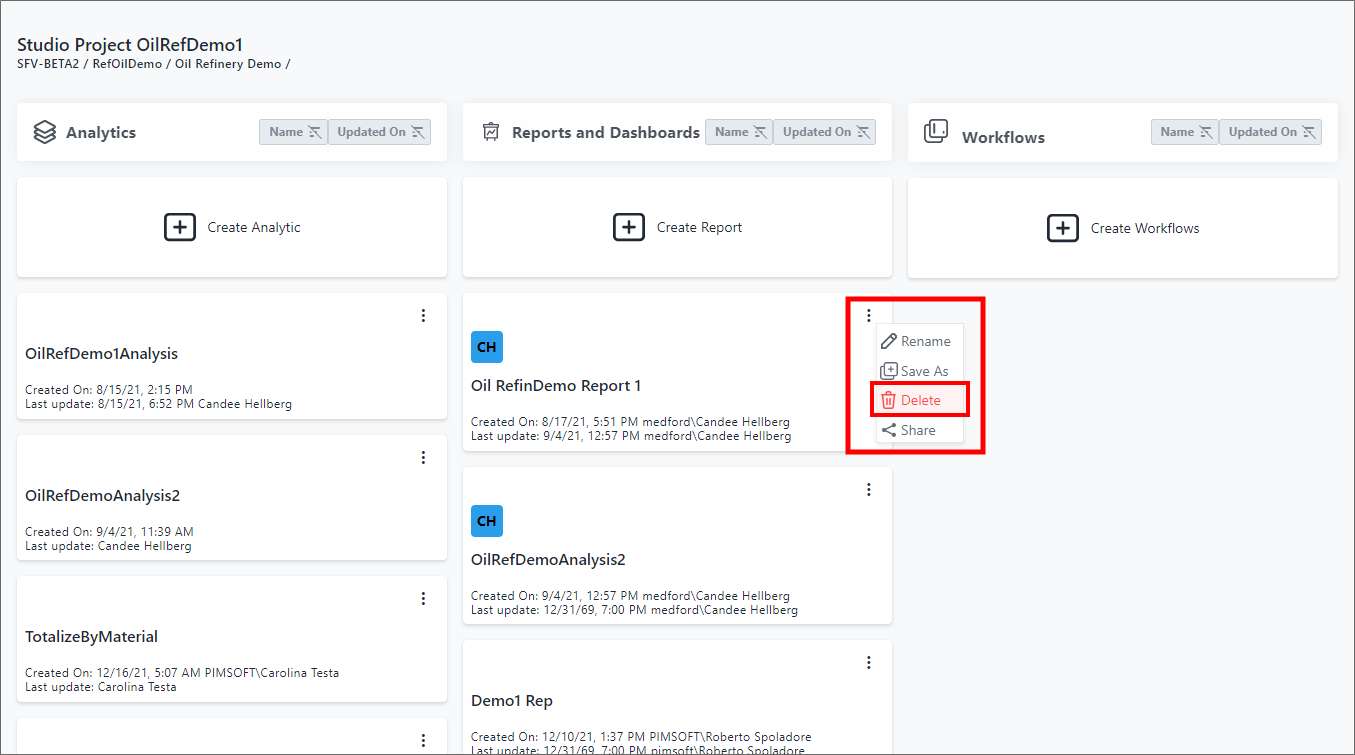
Click the
 vertical ellipsis in the top-right corner of the report block to
and choose Delete from the Report quick menu (as shown in Figure
382).
vertical ellipsis in the top-right corner of the report block to
and choose Delete from the Report quick menu (as shown in Figure
382).
A Delete panel opens.
Delete Panel

Click Confirm to confirm the deletion and close the Delete panel.
The report is deleted and removed from all dashboards that it appears in, unless it is referenced by a display setting.
If the report is referenced by any display settings, the following message appears and the report is not deleted.
Report Is Referenced ...Message
