Rename a Report
On your Studio Analytics dashboard you have the ability to change the name and description of a report at any point in time.
The renamed report is reflected in any SFHub Visualizer setting where the report is referenced.
To rename a report:
Open your Studio Projects dashboard, if you have not done so already. To open, click
 Home in the command bar.
Studio Projects - select project
Home in the command bar.
Studio Projects - select project
Studio Projects - Select Project
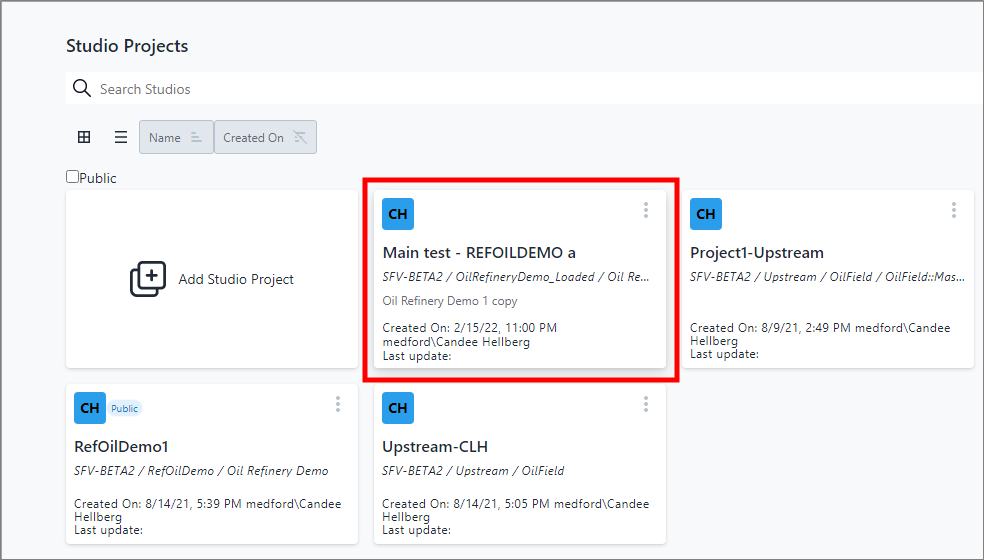
Click on the project that contains the report you want to rename. The Studio Project [name of selected project] dashboard opens. Studio Project [project name] dashboard
Studio Projects [project name] Dashboard
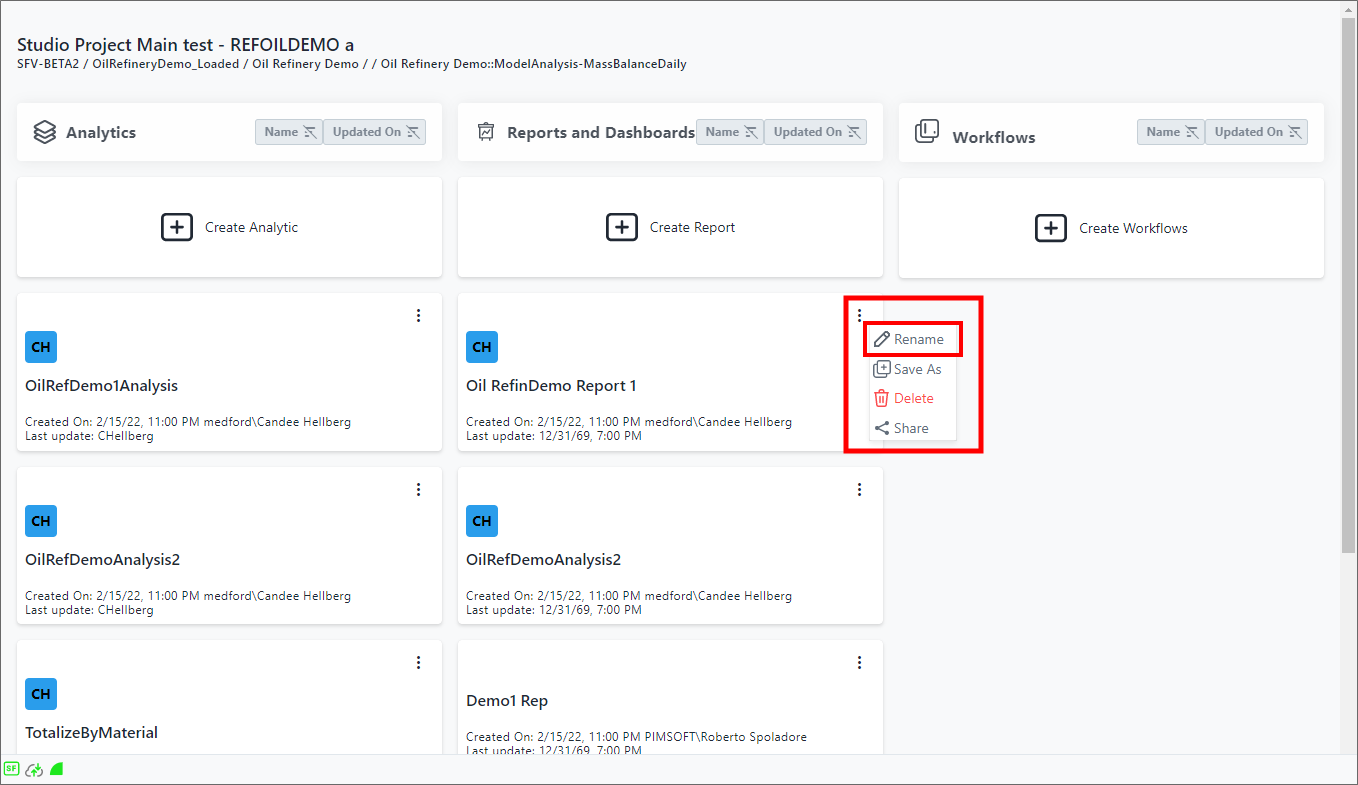
Click the
 vertical ellipsis in the top-right corner of the report block to
and choose Rename from the Reports quick menu (as shown in
Figure 374).
A Rename panel opens.
vertical ellipsis in the top-right corner of the report block to
and choose Rename from the Reports quick menu (as shown in
Figure 374).
A Rename panel opens.
Rename Panel

In the Name box, type in the new name.
(Optional) In the Description box, type a description or change the current one.
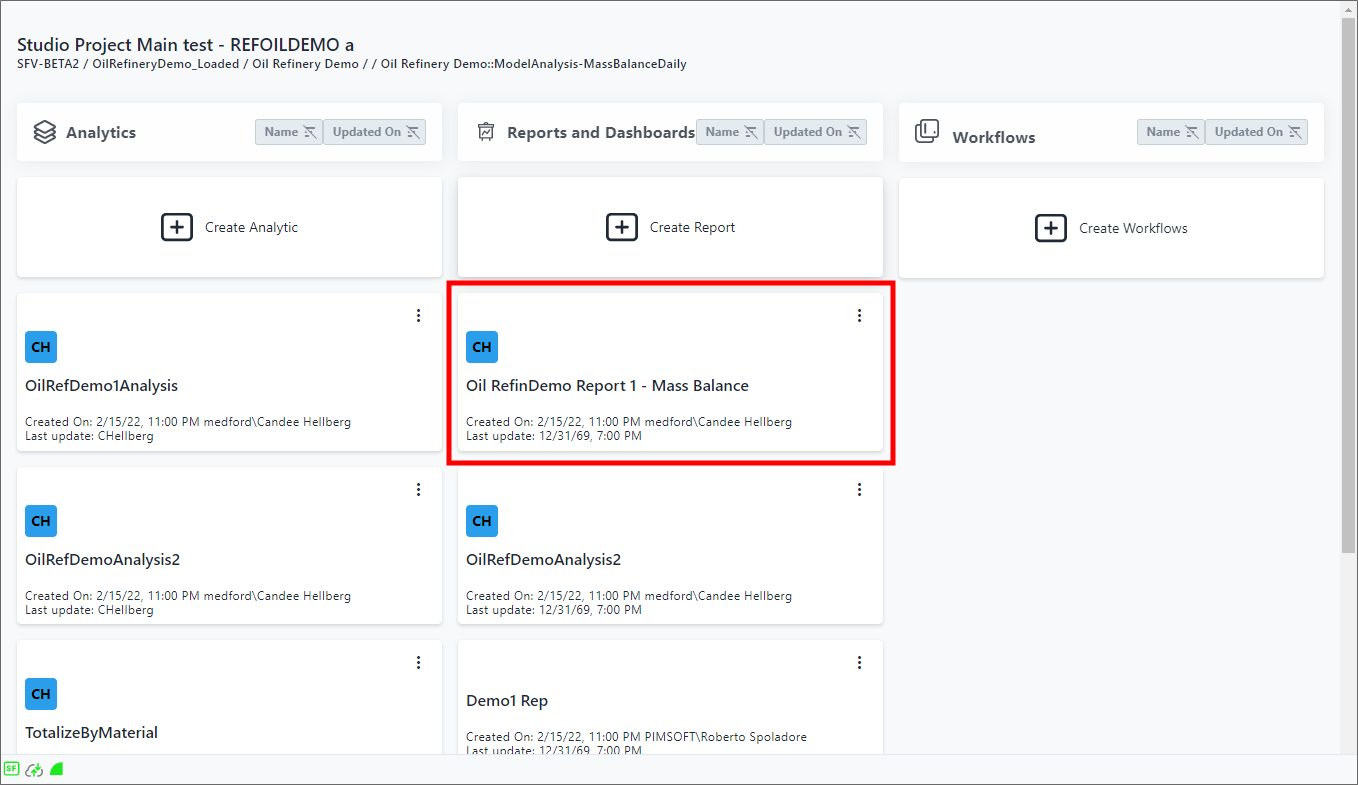
Click Save. Your changes are saved and now visible on your Studio Projects [project name] dashboard, as shown in the following example. Renamed report shown on dashboard
Renamed Report Shown On Dashboard