Save an Existing Analytic as New
SFHub Studio Analytics allows you to save an existing analytic as the basis for a new analytic, basically using the existing analytic as a template for a new analytic. You can select the existing analytic from either your Home dashboard or from the Analytics dashboard.
To save an existing analytic as a new analytic:
Open your Studio Projects dashboard, if you have not done so already.
To open click [home icon] Home in the command bar.
Studio Projects
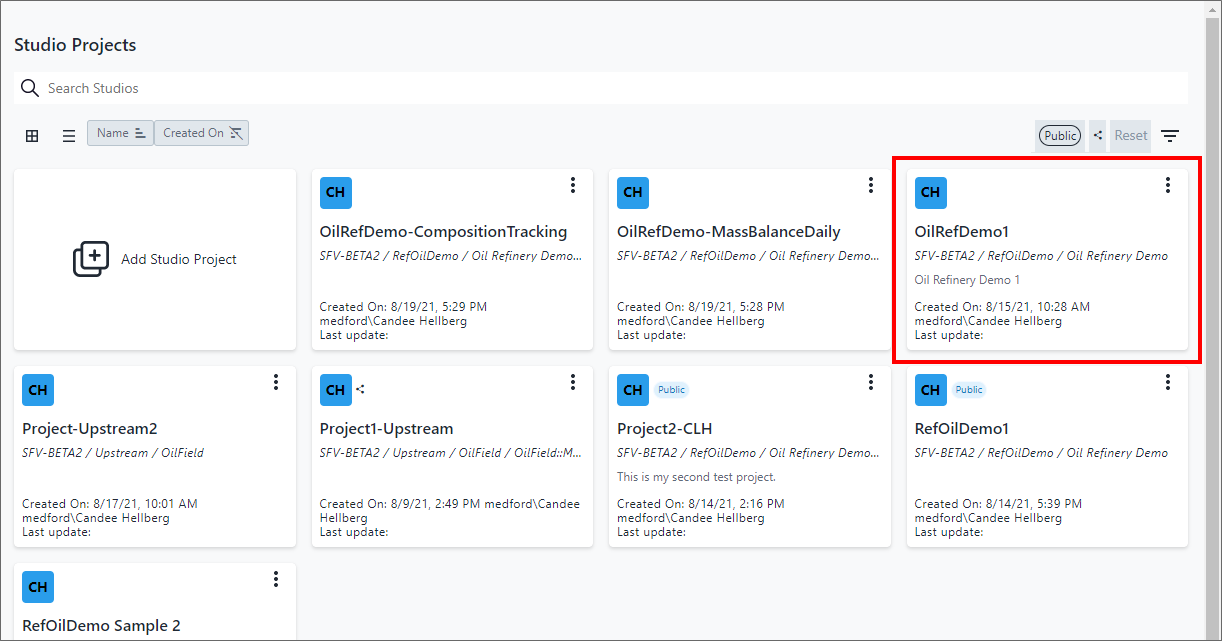
Locate and click on the Project that contains the analytic you want to use as your template.
The Studio Project [Studio Project name] dashboard opens.
The Studio Project [project name] dashboard displays the Analytics, Reports and Workflows associated with that project.
Studio Project [project name] - Analytics, Reports and Workflows
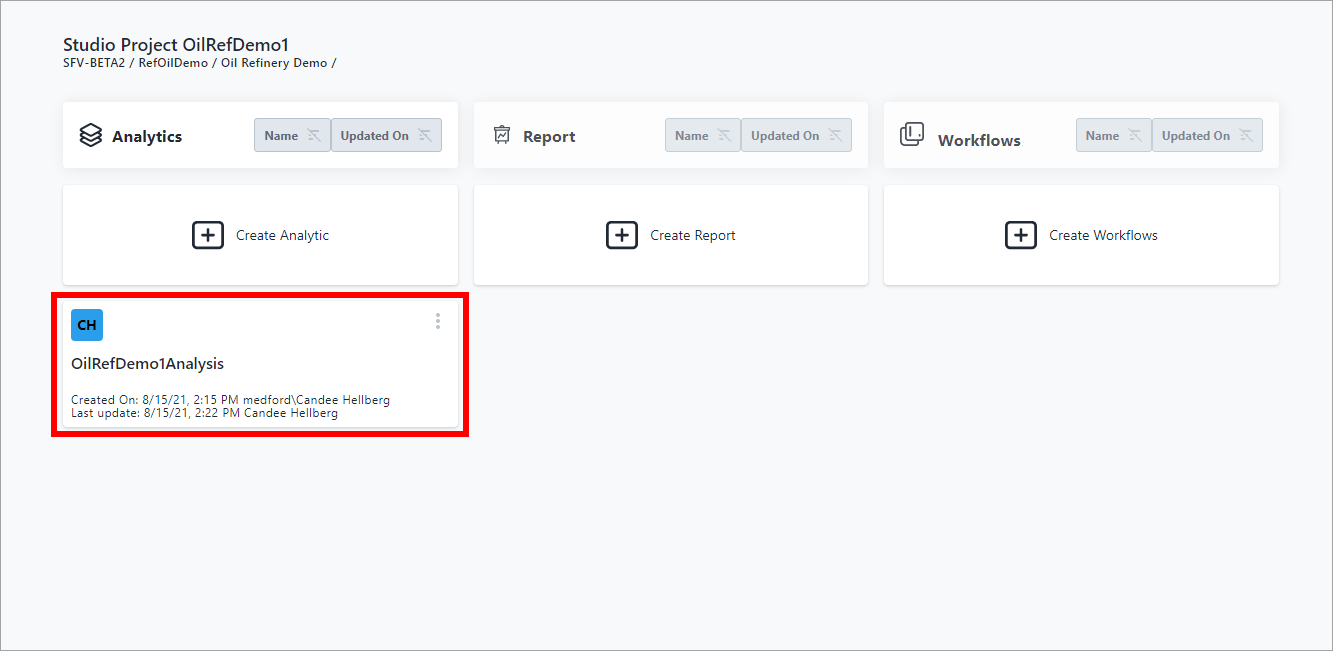
Locate the Analytic you want to copy from, as shown in Figure 2.
Click on the
 vertical ellipsis in the top-right corner of the analytic block
and choose Save As from the quick menu.
vertical ellipsis in the top-right corner of the analytic block
and choose Save As from the quick menu.Analytic Quick Menu - Edit

A SaveAs Analysis panel opens.
SaveAs Analysis panel

Highlight the current Name and type a name for the new Analytic in its place.
(Optional) Enter a Description for the new analytic.
Click Save.
Your new analytic is saved to the Analytics column on the Studio Project [project name] dashboard. All the SFCodeBlocks and their information/logic from the existing analytic are copied to the new analytic.
Click on the new analytic to open it so you can make whatever changes you need to the SFCodeBlocks and/or their respective information/logic.
When finished, click Save at the bottom right side of the Editor panel to save you changes to the newly copied analytic.