Delete an Analytic
When you no longer need an analytic or you have created it in error and want to remove it, you are able to do so using the Delete feature. When you delete an analytic, it removes all of the analytic's content (SFCode Blocks and their related code logic blocks). If an analytic happens to be referred by other analytics or reports, the application does not allow you to delete the analytic.
To delete an analytic:
On you Studio Projects dashboard, click on the Project block in which the analytic is present.
The Studio Project [project name] dashboard displays the Analytics, Reports and Workflows associated with that project.
Studio Project [project name] - Analytics, Reports and Workflows
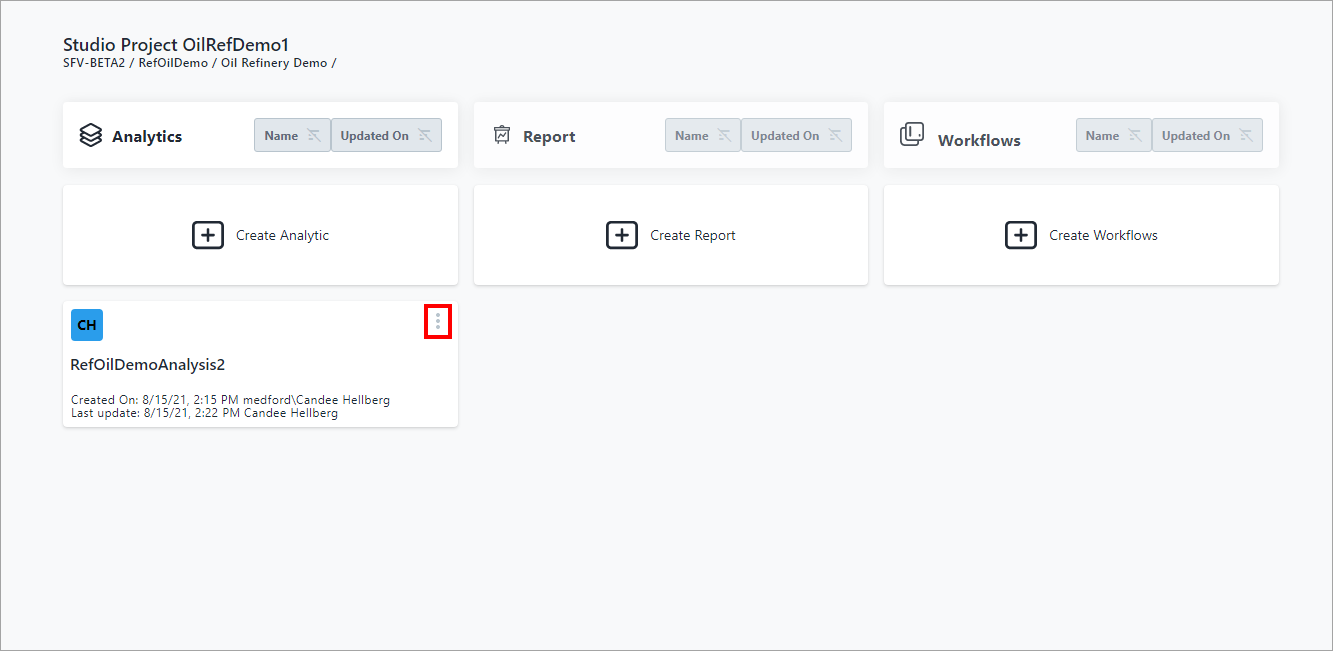
Under Analytics, find the analytic you need to delete.
Click the
 vertical ellipsis in the top-right corner of the analytic block
(as shown in Figure 1) to display the Analytic quick menu (as shown
in Figure 2).
vertical ellipsis in the top-right corner of the analytic block
(as shown in Figure 1) to display the Analytic quick menu (as shown
in Figure 2).Analytic quick menu - select Delete

A deletion confirmation panel opens.
Delete Analytic confirmation

Click Confirm.
The analytic is removed from the Analytic block on the Studio Project [project name] dashboard.