Create an Analytic
SFHub Studio Analytics includes a Web Editor that allows you to visually create the logic you want an analysis to implement. These same steps can be used to edit the logic of an existing analysis.
To create an Analytic:
Open your Studio Projects dashboard, if you have not done so already.
To open click
 Home in the command bar.
Studio Projects
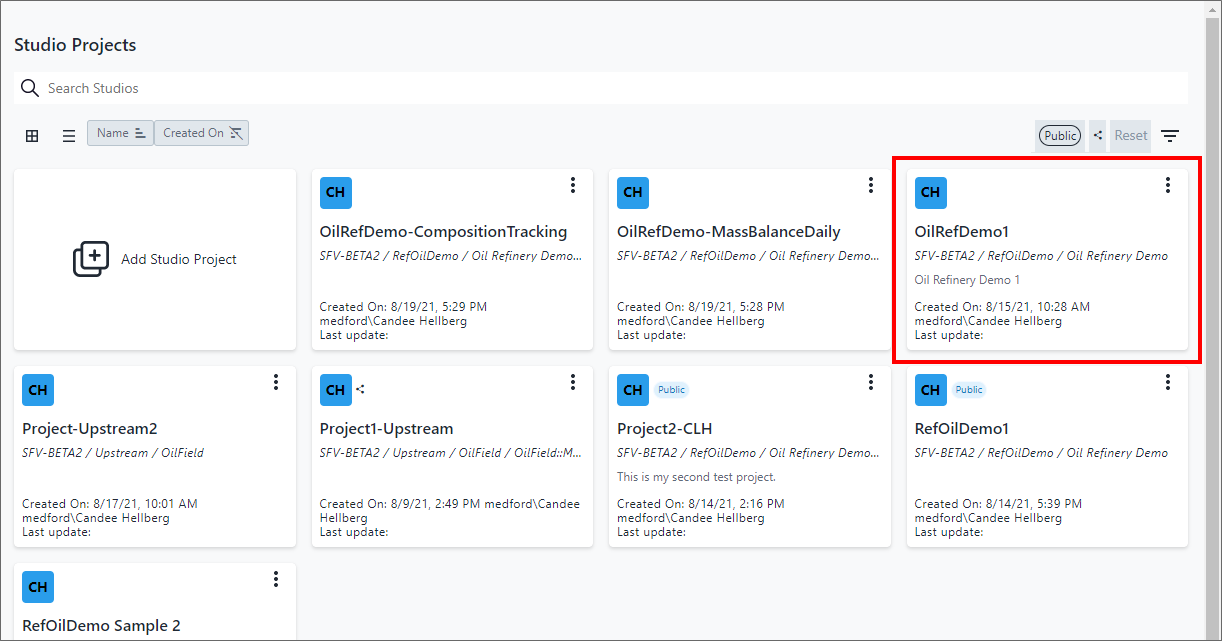
Click on the project you want to create an analytic for, as shown in Figure 1.
The Studio Project dashboard opens.
Studio Project example
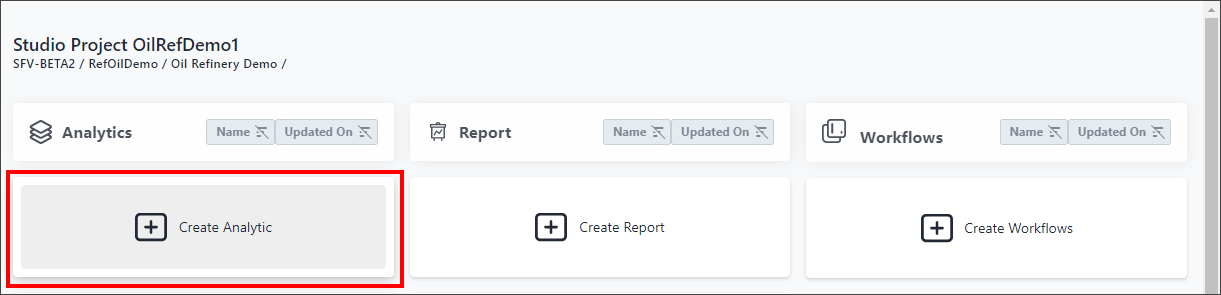
Click on Create Analytic.
The Analytic Web Editor opens, displaying a Shapes panel and the editor panel.
Shapes panel - Categories and SFCodeBlocks
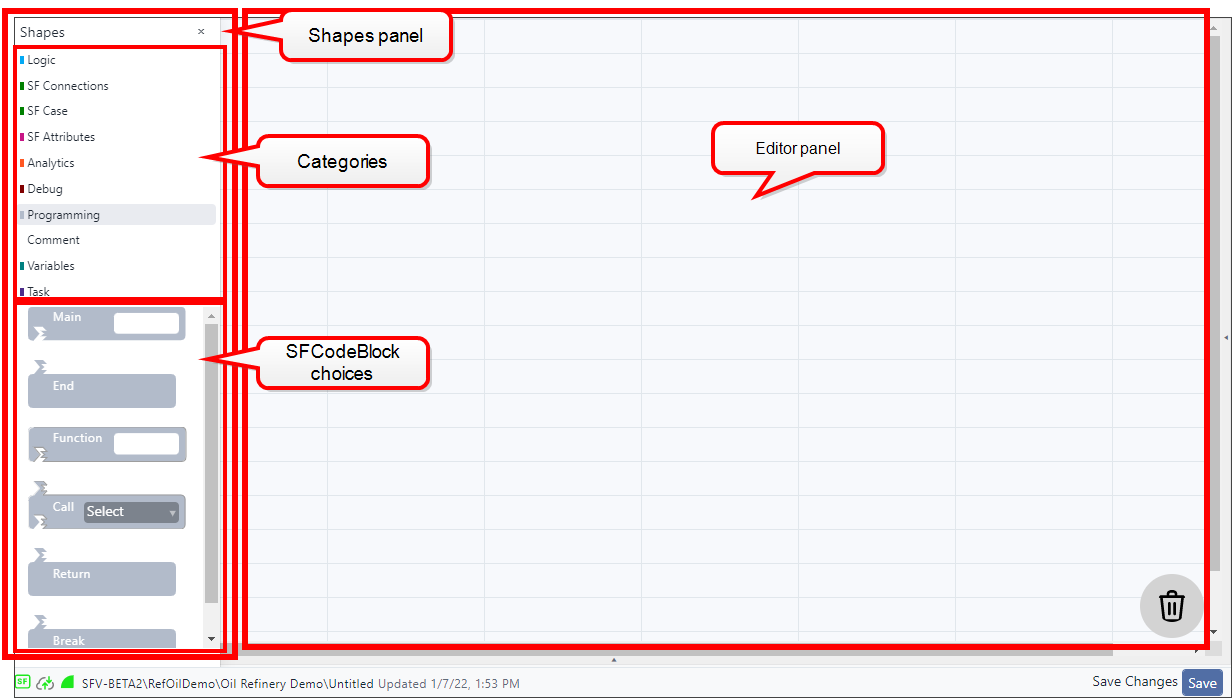
In the Shapes panel, click on a SFCode Block Category to expand its list of code block choices.
Drag an SFCodeBlock from the Shapes panel and drop it in the editor panel.
Click Add to open the panel where you can enter the information/logic for the code block.
Example information/logic panel for a SFCode Block
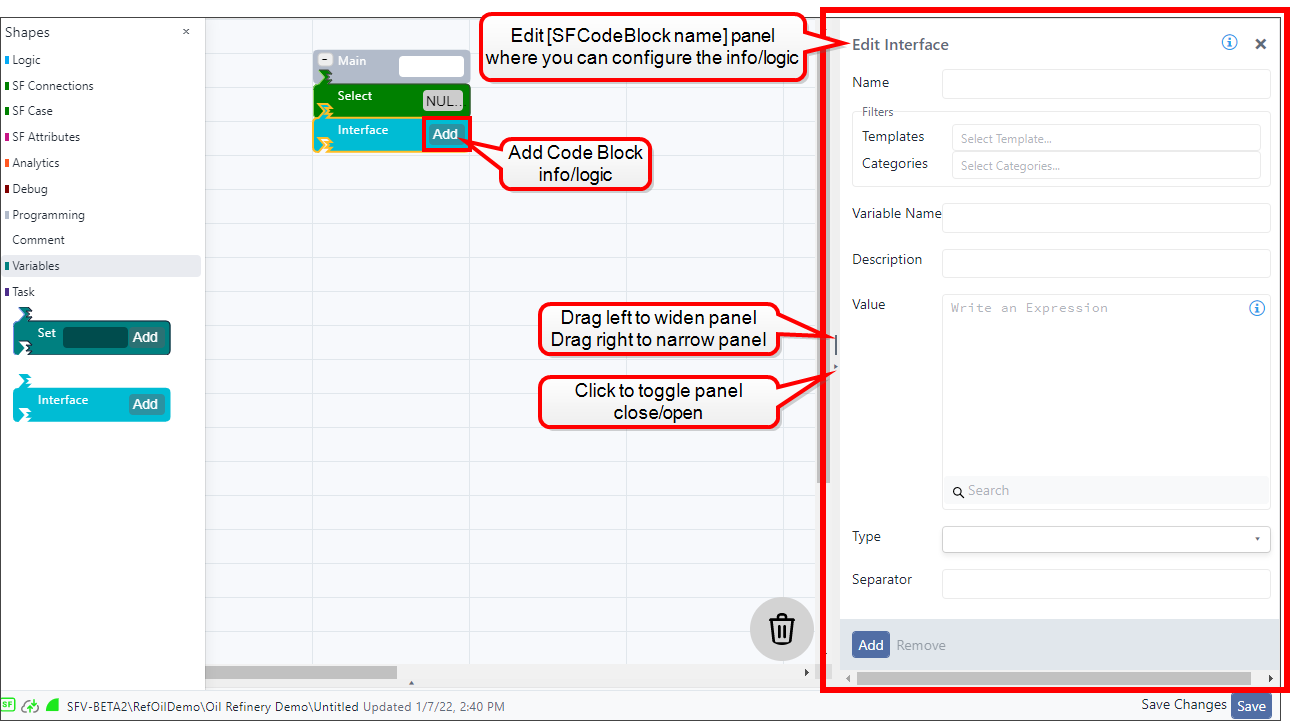
If you have chosen a code block that requires additional information or logic, you need to enter it in the Edit [SFCode Block type] panel that opens. See Edit Analytic Logic for steps on working with a SFCodeBlock Edit panel.
Select or enter the appropriate data, information and/or equations for each, as explained in the Analytic Web Editor section topic.
You can add multiple sets of elements, attributes, variables and/or logic for most SFCode Blocks.
SFCode Block showing 2 logic blocks

Click Add at the bottom of the Edit SFCodeBlock name panel, to save the new logic block and close the panel.
Repeat steps 6 - 8 for each additional logic block you need to add to a single SFCode Block.
(Optional) To remove an element, attribute, variable or logic code from a SFCode Block:
a. Click on the element, attribute, variable or logic code in the SFCode Block, to open its edit panel.
SFCodeBlock Edit Panel
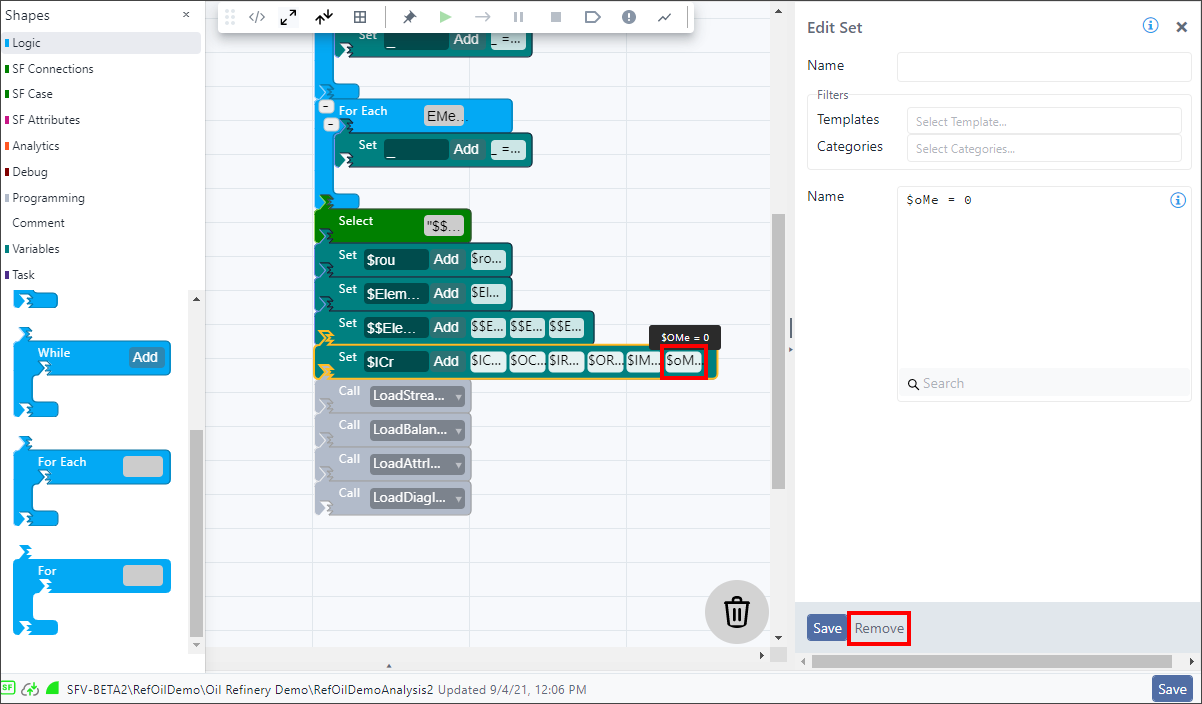
b. Click Remove at the bottom of the Edit panel.
c. Click Yes to confirm the deletion.
(Optional) To remove a SFCode Block from your analytic, drag it to the
 trash can in the bottom right
area of the editor panel, until the trash can icon turns darker,
then drop the block.
trash can in the bottom right
area of the editor panel, until the trash can icon turns darker,
then drop the block.Drag SFCode Block to trash
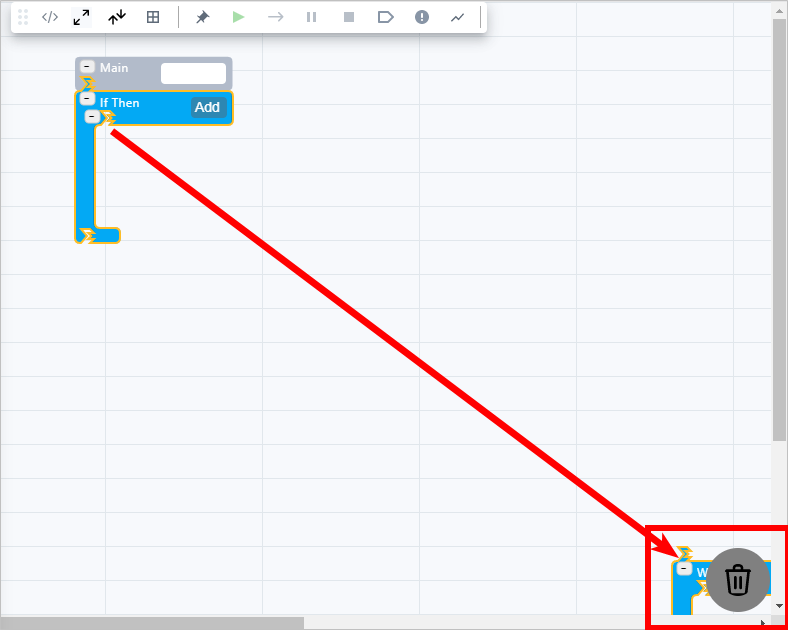
As you release your mouse button, the SFCode Block disappears.
(Optional) Click the Shapes panel or command bar Close icon to close the Shapes panel, so that you have more working space in the editor panel.
Shapes panel Close icon and Command bar Close/Open icon

To reopen the Shapes panel, click the command bar
 Open icon.
When finished, click Add to save your analytic.
NoteYou can save an Analytic at any point in time, even if you have not finished it yet.
If this is the first time you are saving the analytic, you are asked to provide the following information.
Save a new Analytic

The following table provides descriptions.
Save information for New Analytic.
Item Description Analytic Name (Required) The name you want to assign to this analytic. Description (Optional) A short explanation of the analytic and/or its purpose. Timeout (Required) The execution timeout (in milliseconds) of the analytic. In order to prevent deadlock or loss of control situations, each analytic has a property that determines the maximum execution time allowed. Studio automatically monitors the execution of each analytic, and in case of a timeout, stops the execution. Invalidated (Optional) Analytic results can be invalidated automatically on specific case runner events. As an example, if an input validation analytic has been developed, the analytic result can be automatically invalidated every time a 'Collect Input' is performed. MutEx (Optional) MutEx mode (Mutually Exclusive) is a fundamental property of each analytic, as it determines if/how the analytic will be executed when requested. If configured, MutEx mode determines if another instance of the same analytic is running on the same context. Studio supports the following MutEx modes:
None The analytic can be activated in multiple instances, in parallel.
Queue the execution request is placed in a queue and suspended until the current instance of the analytic completes.
Sync SyncMerge The execution is cancelled by the request waits for the completion of the current instance of the analytic.
The Analytic's context is typically defined by;
<Server> <Database> or by
<Server> <Database> <Case>.
If some of your inputs or equations are incorrect or unfinished, the analytic is still saved but it won't run successfully or provide accurate results. Please see Save Errors While Saving an Analytic for information about the error messages and when you might receive them.
Enter the required information and whatever optional information you deem necessary.
Click Save to save the new analytic and close the Save panel.
Errors While Saving an Analytic
When you attempt to save an analytic, errors may appear when inconsistencies occur in the SFCode Blocks. The analytic is still saved, but the error(s) needs to resolved before the code block can be used. Some of the most common error messages occur when:
- the analytic is empty
- the analytic contains only the ‘Main’ block
- an SFCode Block in detached