Configure IF Virtual Data Server
To configure an IF Virtual Data Server:
Run the Integration Framework - Configurator application.
The Integration Framework - Configurator window opens.
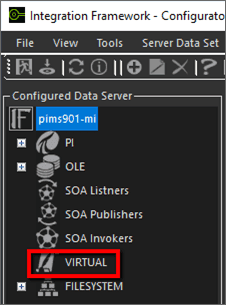
In the Configured Data Server pane, click on VIRTUAL to expand the tree of Virtual Data Servers.
In the toolbar, click the
 Add icon.
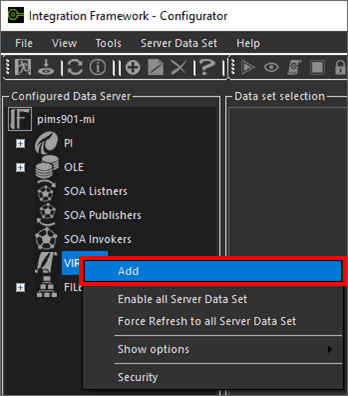
Alternatively, you can right-click on selected Data Server and select the Add option as shown in the following figure.
The Configure Virtual window opens.

In the Data Server name box, type a name for the Virtual Data Server.
Click the
 Save and Exit icon.
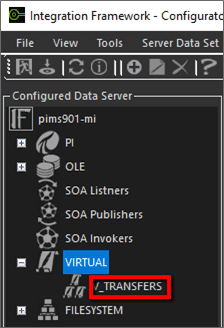
You are returned to the Integration Framework - Configurator window where the Virtual Data Server you set up now displays under VIRTUAL, in the Configured Data Server pane, as shown in the following figure.