Configuration Guidelines
The following are some guidelines you can use when making your configuration selections in the Data Importer:
Data Locations
Database
- The selections shown in the 'Database' list are the ones currently residing in System Explorer. The selection is based on all the databases available within the selected Server or System.
- You cannot modify a database within the Data Importer, nor can you create new databases. Should you need to make any modifications to a database or create a new one, you will need to use System Explorer to do so.
Model
- The selections shown in the 'Model' list are all the Models that are currently contained in the selected Database.
- Like Databases, you cannot modify a Model within the Data Importer, nor can you create a new one. Should you need to make any modifications to a Model or create a new one, you will need to use System Explorer to do so.
Analysis
- The selections shown in the 'Analysis' list are all the analyses for the selected Model.
- At least one Analysis must exist in the selected Model in order for the Analysis list to provide any selections.
- Like Models, you cannot modify an Analysis or create a new one in the Data Importer. Should you need to make any modifications to an analysis or create a new one. you will need to use System Explorer to do so.
Case
- The selections shown in the 'Case' list are all the Cases for the selected Analysis.
- At least one Case must exist in the selected Analysis in order for the Case list to provide any selections.
- There is a Search feature you can use to quickly find the Case you need, should the list be long or truncated.
- When searching for cases, you should ensure that you select the proper System (Server), Database, Model and Analysis
- Like Analyses, you cannot modify a Case or create a new one in the Data Importer. Should you need to make any modifications to a Case or create a new one. you will need to use System Explorer to do so.
Type
Two types of data are available in the Data Importer:
- Element
- Elements are the different pieces that compose a Sigmafine Model. These Elements represent Processes, Inventories, Receipt and Shipment Points and Flows.
- The Elements available are the ones that current reside in System Explorer.
- Elements cannot be modified or created in the Data Importer. To modify an Element or create a new one, use System Explorer.
- Transfer
- Transfers can be a movement from a supplier to the facility, from the facility to a customer, or transfers within the facility.
- Transfers over financial or political boundaries (co-owned facilities) can also be identified and tracked.
- The list of available Transfers are those that currently reside in System Explorer.
- As opposed to other elements, you can modify, create and add Transfers in the Data Importer during the import process using a Template. Note that new Transfers can also be modified and created in System Explorer and ProcessBook (Modeler).
Template
- If 'Transfer' is selected under the Type section, then Templates become available.
- Templates are used to add or create new Transfers from the transfer data in the import file.
- The list of available Templates are those that currently reside in the System Explorer.
- Templates cannot be modified or created in the Data Importer. To modify a Template or create a new one, use System Explorer.
Adjustments and Refresh
Adjustments
Adjustments refer on how the values are imported to the attributes.
Adjustments can be used for both Elements and Transfers.
When the Adjustment options is selected, any Attributes with an adjustment appears with an
 adjustment icon next to it.
 EXAMPLE: Adjusted Attributes showing adjustment icon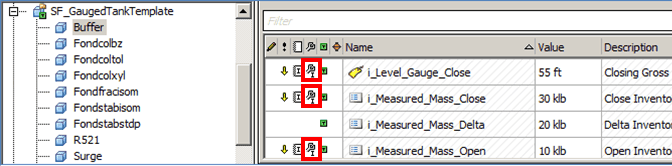
Refresh Elements
- Refresh Elements determines how the other Attributes of the Element or Transfer behave when getting new values.
Load Transfers
- Only available when 'Transfer' is selected as the Type option.
- Transfers can be loaded into a Single Case or into Multiple cases.
Load Tables
There are three options available for loading tables. Your selection depends on the type of tables you are loading and what version those tables were originally created in.
Load Tables
- Used to load Strapping Tables.
- Does not support loading into Multiple cases.
- Strapping Tables cannot be modified or updated in the Data Importer. However, new Strapping Tables can be created.
- Before loading Strapping Tables, ensure that the tables you are loading are located in the correct folder and have the correct format and configuration.
Load Data Tables
- The Load Data Tables option is provided strictly for backwards compatibility, to load Component Data Tables created in older versions of System Explorer, into Element Attributes.
- Does not support loading into Multiple cases.
- The available Elements and Attributes for Data Importer are the ones currently residing in System Explorer.
- The Attributes or Elements available in Data Importer cannot be modified (name change, Attribute removal, etc.), nor can new Attributes or Elements be created.
- Before loading Component Data Tables, ensure that the tables you are loading are located in the correct folder and have the correct format and configuration.
Load Any Data Table
- Used to load any type of data table to Element Attributes.
- Supports loading into Multiple cases.
- The available Elements and Attributes for Data Importer are the ones currently residing in System Explorer.
- The Attributes or Elements available in Data Importer cannot be modified (name change, Attribute removal, etc.), nor can new Attributes or Elements be created.
- Before loading Component Data Tables, ensure that the tables you are loading are located in the correct folder and have the correct format and configuration.
Note: Ensure that the checkboxes for 'Load Tables', 'Load Data Table', and 'Load Any Data Table' are cleared when working with Elements or Transfers.
Select Folder and File
Used to locate and select the import file.
When the proper folder is located and selected, all the available files in that folder appear in the Select Data File box in the Data Importer window.
