Data Importer Interface
There are five (drop-down) menus for the Data Importer. These menus allow you to locate the place on which you want to import values. It starts in the most general way with the System and may end up in the most specific way, the Case. The work gets simplified by choosing in the following order: System, Database, Model, Analysis, and Case.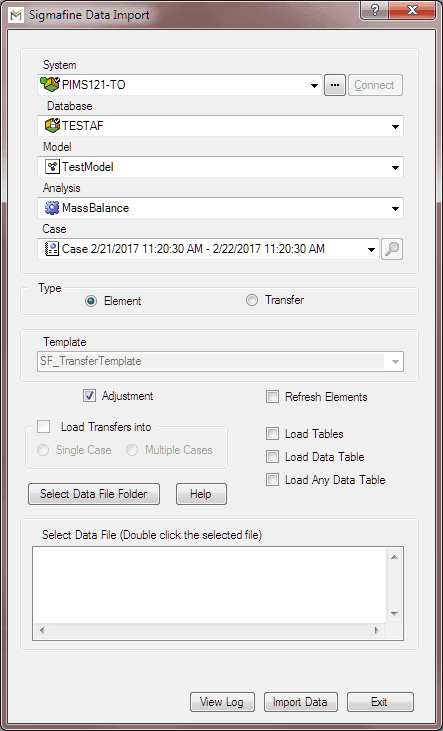
The following table provides a description for each of the configuration options available in the Data Importer, and which of those configuration options are required for all data type imports.
Data Importer Configuration Options
| Action | Option | Required | Description |
|---|---|---|---|
| Select where the data will be imported into | System | Yes | The AF Server or System.You can choose from different Servers or Systems in which the database is located. |
| Database | Yes | The database that exists on the AF Server.You can choose from different databases available on a specific Server or System. These databases may belong to different Plants, Refineries, Mines, etc. | |
| Model | Yes | The Models that exist in the selected database.For example, once a database has been chosen for a certain plant, you can choose from different Models that may refer to specific processes within that plant. | |
| Analysis | Yes | The Analysis Rule for the selected Model. It can be Sigmafine Mass Balance, Component Balance, Composition Tracking, etc. | |
| Case | Yes | The Case into which the data will be imported. | |
| Select the Type of data being imported | Element | Yes | Refers to the Meters, Analyzers, Processes, etc. |
| Transfer | Yes | Refers to the Transfers or Transactions. | |
| Select the Template to use. | Template | No | This option only applies when 'Transfer' is chosen as the Type of data being imported. This option allows you to choose which Transfer Template you want to use, if you would like to use one for the data being imported. |
| Select Adjustments and Refresh options | Adjustment | No | Checked - Values are imported into the Case as adjustments. |
| Unchecked - Values are imported as ‘Inputs’. It is not recommended to check this option, because these changes would be lost if after importing the values, ‘Collect Inputs’ is done with Reset Results turned on. | |||
| Refresh Elements | No | Checked - Other Attributes of the Elements might depend on the Attribute value being imported to update the calculation. Checking this Refresh option will reset all the Attributes of the corresponding Element so that the calculations are updated even if they are configured as Case Input category. Ex: If Mass is being calculated using Density and Volume, and new value of Density is imported; this option being checked will refresh the Mass Attribute such that it calculates using the new Density. It is recommended to use this option. | |
| Unchecked - Other Attributes of the corresponding Elements are not reset if they are Case Inputs. Even if this option is not checked, a user can prefer to manually ‘Collect Inputs’ for a Case in order to reset all inputs of all Elements. | |||
| Select where to Load Transfers into(Active only when Transfer is chosen in Type)Choose ONLY one | Single Case | Yes | Transfers get created and then automatically get pushed into the Case. |
| Multiple Cases | Yes | Transfers get created and then automatically get pushed into their respective Cases. | |
| Select which type of Table (Load Table) you are importing.Choose ONLY one | Load Tables | No | Used to Load Strapping Tables. |
| Load Data Table | No | Used to Load Component Data Tables.Note: This option is only used for backwards compatibility. For loading current Component Data Tables, use the Load Any Data Table option. | |
| Load Any Data Table | No | Used to load Composition Tracking Results and any other tables. | |
| Selecting the Data Files to import | Select Data File Folder | Yes | Used to locate where the files with the import data reside. |
| Select Data File | Yes | Used to select the file to import (mot for Strapping Tables). | |
| Select an action to perform. | View Log | No | Allows you to view the log from the most recently performed import. |
| Import Data | Yes | Initiates the import process. | |
| Exit | No | Closes the Data Importer window without saving any of the selected options. | |
| Help | No | Opens the Online Help file. |