Using Case Search
The Case Search window allows you to use specific filters in order to locate a particular case.
When you have the option to select a case, the software also provides the ability to search for a Case via a 'Search' or a 'Change' button. When the Search/Change button is clicked, it opens the Case Search window.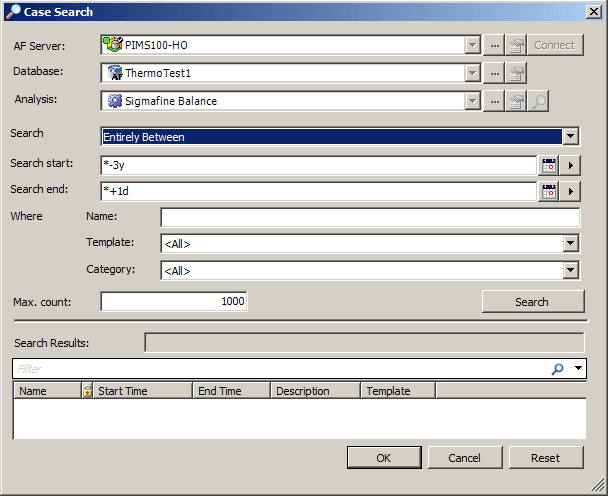
In this window, you can use either perform a simple search using the default information, or use specific filtering to change the scope of Cases that appear when you perform the search.
Note: In most instances, the AF Server, Database and Analysis boxes already contain values based on the information in the window from which you clicked on the 'Search' or 'Change' button. Therefore, you do not need to make any selections in these boxes unless the current selections are incorrect, or you are searching for a Case on another server/system, in a different database, or for a different analysis.
Simple Search
If you do not want to change the scope of related Cases by applying filters, you can perform a simple search.
To perform a simple search:
Click the
 Search button in the window to initiate the search process.
The results appear in the Search Results portion of the window.

Click OK below the Search Results to save the resulting Cases to the Data Importer 'Case' selection list and close the Case Search window.
Filtered Search
If you want to change the scope of the resulting cases, you can do so by using a filtered search. The filters can help you limit or extend the number of Cases that appear in the Search Results.
To use a filtered search:
Select the filters you want to use for your Case search.
The following table can help you with your selections.
Case Search Filters
Option Description Search This option affects the 'Search start' and 'Search end'. The default, and suggested selection, is 'Entirely Between'. Search start How far in the past you want to start the search for CASEs. You can use the Calendar button to select a date, manually enter a date, or use the following codes in place of specific dates.y for years, m for months, d for daysminus (-) for past dates and plus (+) for future datesFor example; A Search start of *-3ywould start searching for all Cases three years back.Search end How far in the future you want to end searching for cases. It is possible to have Cases that go beyond the current, actual date. As with the Search start, you can use the Calendar button to select a date, manually enter a date, or use the following codes in place of specific dates.y for years, m for months, d for daysminus (-) for past dates and plus (+) for future datesFor example; A Search end of *+1dwould end the search one day past the search date (current date).Where Name: Use this to find all Cases with a specific name (or specific letters/numbers). Enter the name (letters/numbers) into this box.Template: Use this to find all Cases using the same template.Category: Use this to find all Cases having the same category. Max. count Use this to limit the number of Cases to include in the search results. Click the
Search button in the window to initiate the search process.The results appear in the Search Results portion of the window as shown in the following figure.
Click OK below the Search Results to save the resulting Cases to the Data Importer 'Case' selection list and close the Case Search window.