Import File Format for Strapping Tables
The required format of the import file for Strapping Tables is as follows:
- Name of the file should be “\<Tank Name> Strapping Table.xlsx”
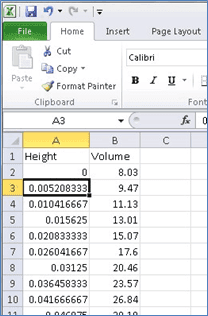
- There should be 2 columns in the file with headers “Height” and “Volume” in that order.
- The height and volume should be in numerical values.
The format of an existing Strapping Table may vary from that of the one you are attempting to import. If importing updates for an existing Strapping Table, you should convert the import Excel file to match that of the exist strapping table. Below is an example of converting the Excel file to the required format:
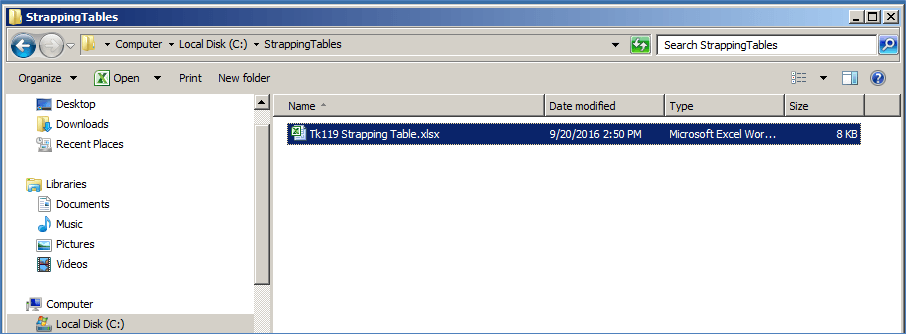
Name the excel file which you want to upload as “
\<Tank Name\> Strapping Table.xlsx” as shown in the following figure.In our example we have named the Strapping Table Tk119, as that is the tank to which our strapping table belongs.
Open the strapping table Excel file and convert it to the required format.
If the file is already in the required format then you can ignore this step and go directly to step 3.
As an example, let’s say the original format has 4 columns (Feet, Inches, 1/16 Inch, Volume), which needs to be converted to 2 columns (Feet, Volume) as shown in the following figure.
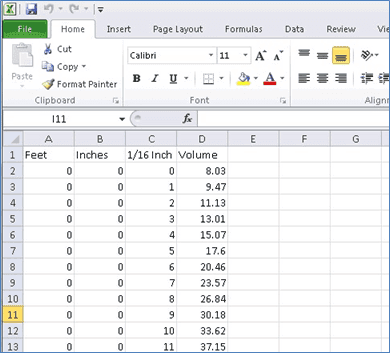
To convert the above example to the format we need for our import file we need to:
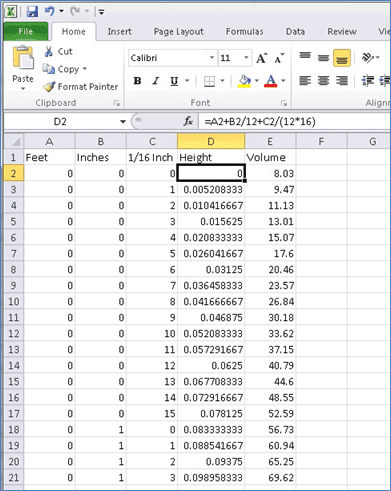
Insert a new column to the left of the "Volume" column, and name it "Height".
Convert the second and third columns from "inches" to "feet".
Add the first three columns to get the "Height" of the tank in decimal feet.
Copy the ‘Height’ Column and use Paste Values to paste only the values in the same (Height) column.
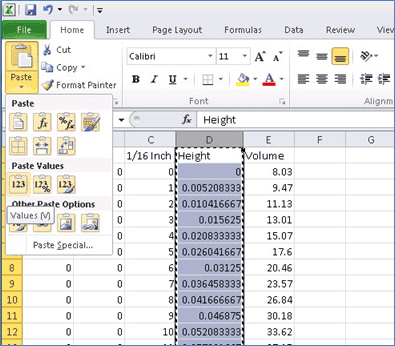
Step "d" is required to ensure that the column ‘Height’ is not dependent on the other columns (columns 1 through 3).
Delete the first three columns so you are left with two columns; Height and Volume.
The resulting table now matches the existing strapping table that we want to update in the database, as shown in the following figure.
Save and Close the Excel file.
The import file is now ready to be imported into the database.