Stream Flash Calculation Configuration
The Stream Flash Calculation configuration window is used to select the Element and Attribute that hold the composition table from which the flash pulls data when creating a stream, and to select the flash options.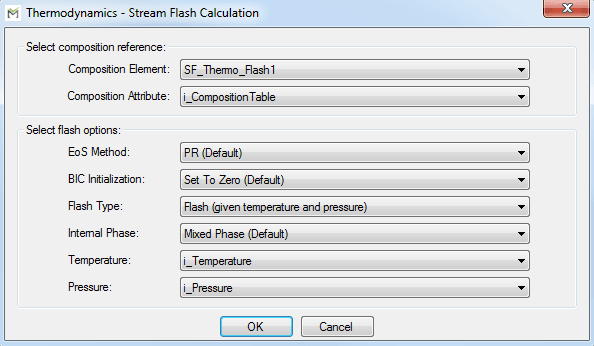
To configure the Stream Flash Calculation options:
Click the Composition Element down arrow and select the Element to use.
Only elements that have appropriate Attributes to hold composition tables are available for selection.
Click the Composition Attribute down arrow and select the Attribute to use.
Only Attributes in the selected Element with the Thermodynamics Package extension configured as 'MethodType= ComponentTable' are available for selection.
Click the EoS Method down arrow and select the equation of state method to use for estimating mixture properties and performing vapor-liquid equilibrium calculations using Pengo-Robinson (PR) or Soave-Redlich-Kwong (SRK) equation of state.
Click the BIC Initialization down arrow and select whether to disable or enable the binary interaction coefficients.
BIC Initialization Options:

Set To Zero Select this option to disables the coefficients.
Based on Equation of State Method Select this option to initialize the values according to the corresponding AF table if the component is in the unary properties table, or to estimate the value according to the Chueh and Prausnitz correlation for assay components.

Click the Flash Type down arrow and select one of the supported equilibrium options.
Your selection determines the remaining options, and those options are automatically populated.
Flash Type Option Explanations:
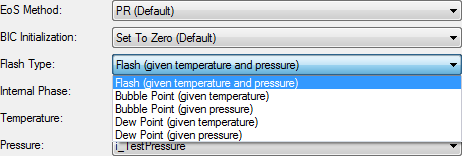
Flash (given temperature and pressure) - evaluates the vapor-liquid equilibrium of the mixture for a specified temperature and pressure. The output will be the fraction of liquid and vapor phase and the composition of both phases. In Case only one phase is detected, the other phase fraction will be 0, as well as the molar composition.
 EXAMPLE: Flash (given temperature and pressure)
When 'Flash (given temperature and pressure)' is selected:
The Internal Phase option lets you select what phases you want available after the flash is performed.
Select Liquid Only if the stream you are looking at does not contain a vapor component. This selection overwrites the vapor portion of the stream to have zero flow and zero percent compositions so that you can easily see that the stream has no vapor.
Select Vapor Only if the stream you are looking at does not contain a liquid component. This selection overwrites the liquid portion of the stream to have zero flow and zero percent compositions so that you can easily see that the stream has no liquid.
Select Mixed Phase if you are stating that you do not want to edit the stream. All values for the different phases are then calculated by the flash.
EXAMPLE: Internal Phase optionsThe Temperature option is populated with Attributes in the current Element that have the UOM class type as 'Temperature'.
The Pressure option is populated with Attributes in the current Element that have the UOM type as 'Pressure'.
Bubble Point (given temperature / pressure) – evaluates the pressure / temperature at which the first bubble forms and the composition of the vapor phase. Use this setting when the mixture is not at or above the critical point.
Dew Point (given temperature / pressure) – evaluates the pressure / temperature at which the first drop of liquid forms and the composition of the liquid phase. Use this setting when the mixture is not at or above the critical point.
When either 'Bubble Point (temperature)' or 'Dew Point (temperature)' is selected:
The Internal Phase option is removed from the configuration list.
The Temperature option is populated appropriately.
The Pressure option is removed from the configuration list.
EXAMPLE: Bubble Point (given temperature)Figure 1257Bubble Point (given temperature)
When either 'Bubble Point (pressure)' or 'Dew Point (pressure)' is selected:
The Internal Phase option is removed from the configuration list.
The Temperature option is removed from the configuration list.
The Pressure option is populated appropriately.

- Ensure that the correct options are selected and displayed.
- Click OK to save the configuration and close the window.