Configuration Application Example
Vapor Liquid Separator
The set up of a Gas Meter Element starts in the "Thermodynamics - Components Configuration" window.
The set up within a Gas Meter Element is as follows:
- Configure the ComponentTable Attribute with Value Type Anything.
- For Data Reference, select the Thermodynamics extension.
- For the Component Table Configuration, select the Settings option.
- In the Available Components list, select the following components and add them to the Selected Components list: (As shown in the example in Figure 1268.)
WATER
PROPYLENE
PROPANE
n-BUTANE
METHANE
HYDROGEN
ETHYLENE
ETHANE
ACETYLENE
A Child Element, ComponentTable, is created and displayed in the Element Properties window.
Click the Attributes tab, if not already open, to access the Attributes list.
In the Value column, assign the values to each component:
Note: These values may be measured in PI points, be the results of formula calculations, be fixed values, or be incoming from another data source. If they do not add up to 1 or 100, the extension internally normalizes the values as shown in Figure 1269\ (below).

Assign a temperature value to the 'Temperature' attribute.
Assign a pressure value to the 'Pressure' attribute. Remember to always convert relative pressure values into absolute values.
Configure the ComponentTable Attribute with Value Type Anything.
For Data Reference, select the Thermodynamics extension.
For the Component Table Configuration, select the Settings option
Open the Stream Flash Calculation window.
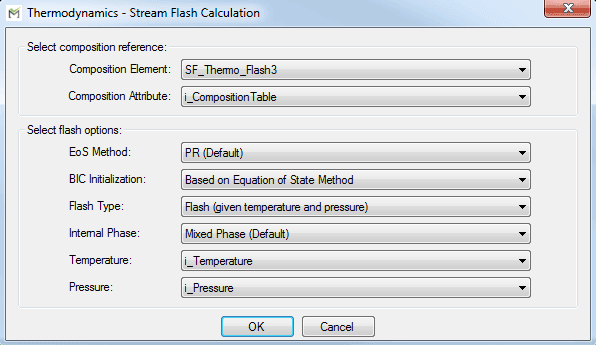
In the Stream Flash Calculation window:
Click the Composition Element down arrow and select the Element you want.
Click the Composition Attribute down arrow and select the Attribute you want.
Click the EoS Method down arrow and select the equation of state method you want (e.g. PR).
Click the BIC Initialization down arrow and select Based on Equation of State Method.
Click the Flash Type down arrow and select Flash (given temperature and pressure).
Click the Internal Phase down arrow and select Mixed Phase (Default).
Click the Temperature down arrow and select an Attribute with a temperature based UOM.
Click the Pressure down arrow and select an Attribute with an absolute pressure based UOM.
Press OK.
The equilibrium calculation is performed and the results are encapsulated in the Pimsoft.Sigmafine.DataReference.Stream object. You can retrieve or calculate properties once this object has been defined.
To retrieve the vapor composition, define a new data table attribute (e.g. VaporComponentTable) and assign the ThermoPackage extension.
Select the Stream Property Retriever Configuration option.
In the Stream Property Retriever Configuration window:
Click the Flash Attribute down arrow and select Flash.
Click the Property Retrieved down arrow and select Component Table.
Click the Internal Phase down arrow and select Vapor Only.
Click OK
The data table results display like this:
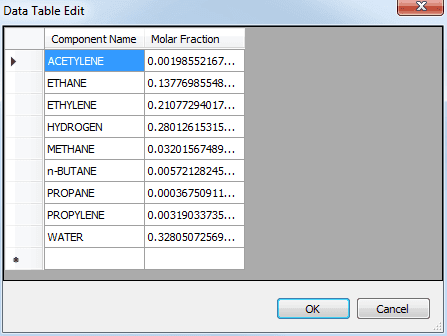
You can then calculate the enthalpy of the vapor phase to provide information for the energy balance.
To calculate the enthalpy of the vapor phase:
Select the Thermodynamics extension as the Data Reference for the Attribute MeasuredSpecificEnergy.
Click the Settings button for that Attribute and select Calculations Configuration from the options menu.
Click Next.
The Calculation Configuration window opens.

In the Calculation Configuration window:
Click the Calculation Type down arrow and select Enthalpy of Mixture.
Click the Flash Attribute down arrow and select i_StreamFlashCalculation.
Click the Phase down arrow and select Vapor.
Click OK.
The results display as:
