Configuring IF Security
To configure or change IF Security settings:
Run the IF Configurator.
Click on your Windows Start button to display the list of installed software applications.
From the list of software applications, select Integration Framework > Configurator.
The Integration Framework - Configurator window opens.
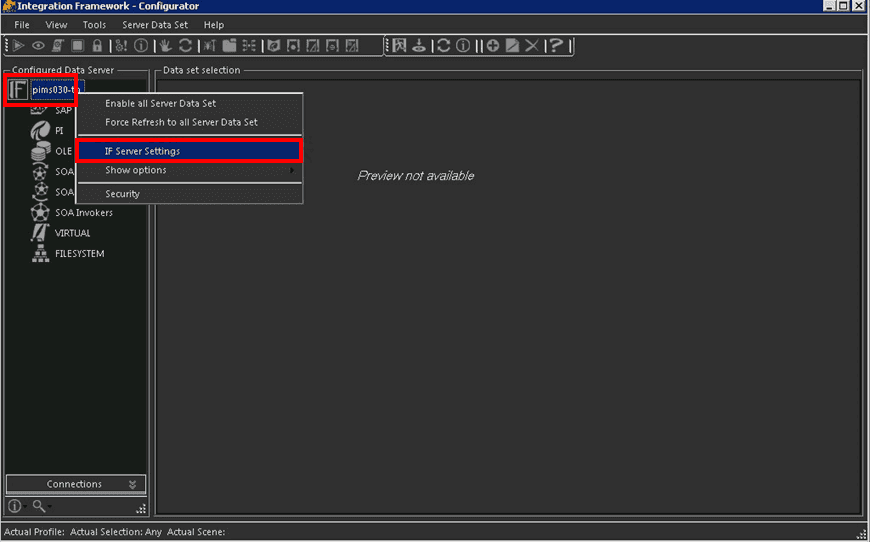
In the Configured Data Server tree, right-click on the IF Server name. and select IF Server Settings.
The Explorer window opens.
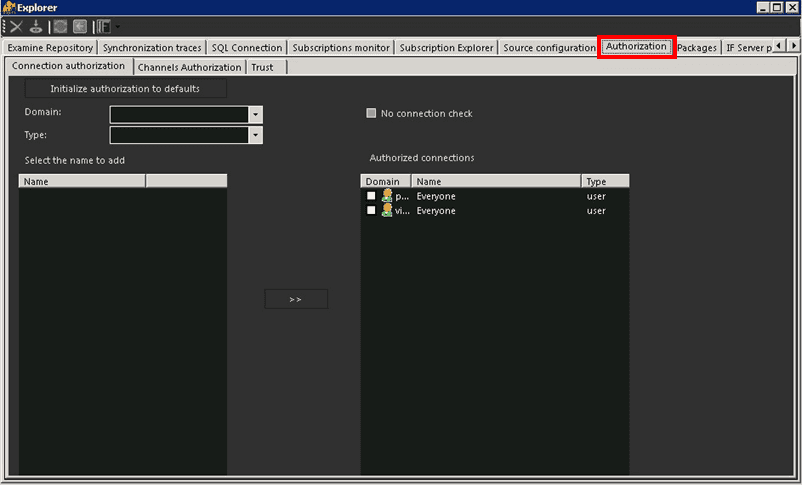
Click on the Authorization tab (as shown in the Figure 1477).
The Authorization information displays.
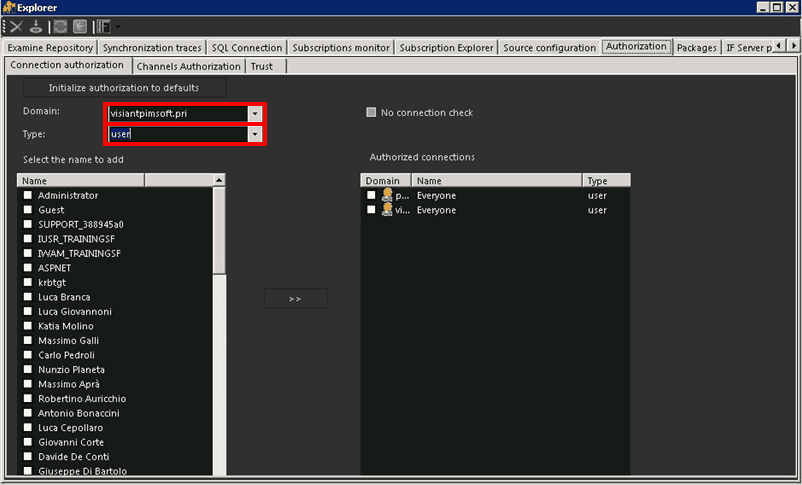
Click the Domain down-arrow and select the default initialization domain.
Click the Type down-arrow and select the type of authorization search; Users or Groups.
The 'Select the name to add' list populates with the user or group names (objects) that are users in that selected domain, while the 'Authorized connections' list is populated with the user or group names (objects) that are currently authorized to use and configure IF. (As shown in Figure 1478.)
Add or remove user or group authorization as necessary.
In the Select the name to add list, select the user(s)/group(s) you want.
Click the
 Add button.
In the Authorized connections list, select the name of the user/group to remove.
Right-click on the name and select Remove.
Repeat steps 'a' and 'b' on each user/group for which you want to remove IF authorization.
 Allow IF authorization to one of more users or groups