Installing the IF Data Reference
To install the IFDR:
Log onto the machine running IF Server with administrative credentials.
Run the Pimsoft Integration Framework Client setup.
Run the IF Configurator and setup a valid connection with the IF Server.
Test the connection and then close the IF Configurator.
Go to Services and verify the following:
The existence of
Pimsoft.IFShadow.Serviceservice.The user running the service has to be a local or domain user with administrative privileges over the machine running the IF Server and IF Shadow. In addition, the running user cannot be "Local System" or "Network Service."
Start the
Pimsoft.IFShadow.Serviceservice.Install the IFDR Plug-In over the Sigmafine Server (for AF 2.9.5) by running the following command with administrative privileges.
\PIPC\AF\REGPLUGIN.EXE /PISYSTEM: \<YOURSERVER\> “Full Path of the Pimsoft.IF.Datareference.dll” /F\PIPC\AF\REGPLUGIN64.EXE /PISYSTEM: \<YOURSERVER\> “Full Path of the Pimsoft.IF.Datareference.dll” /FNote: The “Full Path of the DLL” should be the installation folder. (e.g.
C:\Program Files\IntegrationFramework\Configurator\DR_AF2x).Open PI System Explorer.
Locate and select an Element and an Attribute.
Change the Data Reference from "\<None>" to "Pimsoft IF DataReference" and begin configuring it.
The first time you start the configuration, an Initialize IF connection... window opens. This happens because no initialization table has yet to be defined. Continue with the remaining steps to define the initialization table.

In the IF Server Name/IP box, type the name of the machine on which the IF Shadow Server is running.
This machine must be the same one that is running the IF Server.
In the IF Server Port box, leave the default Port address (8080).
The IF Server Port can only be changed at the IF Shadow level.
Click the Test button to test the connection and ensure that IF connects to the server successfully.
If the connection is successful, an IF Shadow Configuration message window opens.
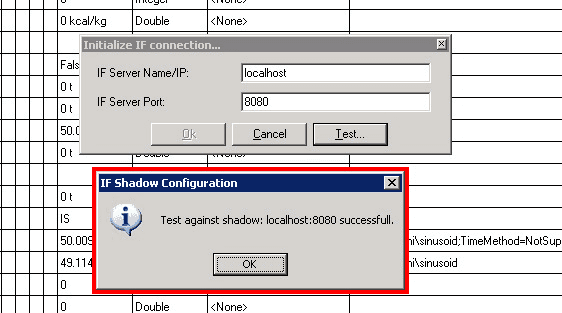
the installation is complete.
Click OK to close the message window.
You are returned to the Initialize IF connection... window.
Click OK to save the configuration and close the Initialize IF connection... window.
You can start using IFDR.
 For 32 bit machines
If you need to retrieve data from a particular Attribute of an element, the IFDR is the tool to use. For more details on this task, please see Configuring the IF Data Reference.
IMPORTANT: The creation of the initialization table should be done only once, as the table is then automatically stored in the system Database (called “CONFIGURATION”) as the "IFConfiguration" table. In the Case of a machine re-installation or another need that requires a re-install of IFDR, you can reset the connection settings by deleting the 'IFConfiguration' table. IFDR will discover that the table is missing and automatically ask you to provide the configuration parameters again.