Configuring the IF Data Reference
The IF Data Reference is normally used to retrieve data from a particular Attribute of an Element. This is done by defining the Data Reference directly in the elements, so that it gets set with the corresponding Start Time and End Time of a Case. Additionally, by editing the elements in the 'Excel AF Configurator', the other elements can be configured similarly.
As with all Data References, configuration can be done through Microsoft Excel. However, if you would rather work with data references through AF, please see the standard AF 1.x or 2.x manual for Data Reference configuration details. If you intend to configure the IF Data Reference through AF, the following steps can be used as a guide.
To configure the IFDR through AF:
Open the AF Explorer.
Expand the SF_FlowTemplate tree.
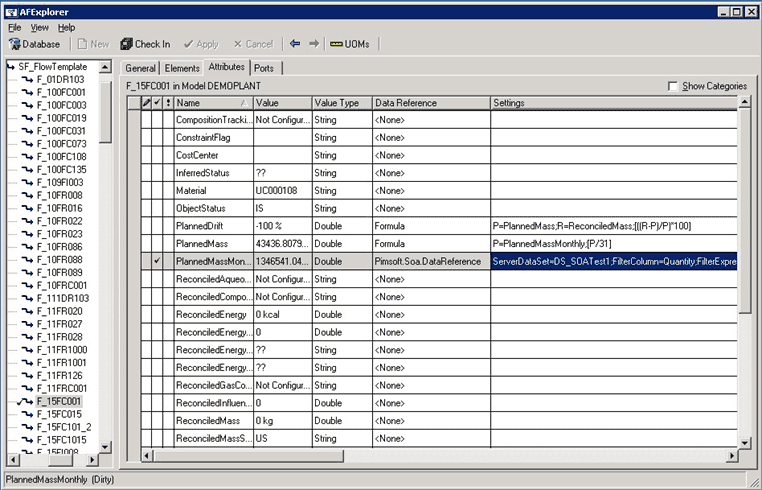
Select the template in which the Element is contained.
This is the Element from which you want to retrieve a particular attribute's data.
Click the Attributes tab to open the list of attributes.
In Figure 1502 you can see the data reference Attribute defined.
Select the row containing the data reference attribute, then click the Settings button.
The IF Data Reference Configuration Form window opens.
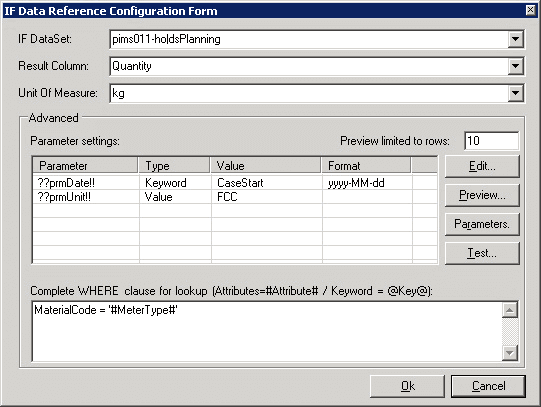
This window is divided into three sections; Main, Advanced and Complete WHERE clause for lookup.
Click the IF DataSet down-arrow and select the DataSet.
The Dataset list displays all the DataSets configured and available from the IF Server. \The Syntax for the Dataset is: \<IFSERVERNAME>|\<IFDATASETNAME>.
Click the Result Column down-arrow and select the column to be returned in the results.
The Result Column list displays all the columns returned by the selected DataSet. \If \<NONE> is selected, the entire table is returned as a value.
Click the Unit of Measure down-arrow and select the unit of measure for the conversion.
The Unit Of Measure list displays all the possible UOMs available for conversion. The UOMs are in the same class of the Attribute 'default' UOM. \This setting is not available if \<NONE> is selected in the Result Column.
(Optional) To configure or modify the parameter settings, click the Edit button.
The Parameter Name: \<actual parameter name> window opens.

This window allows you to define a new, or edit an existing parameter's settings.
In the Parameter Definition section, select the type of parameter (Value, Attribute or Keyword).
Refer to Parameter Settings Table for additional information on parameter types.
Click on the Parameter Definition down-arrow and select the name of the parameter as defined in the IF Server (e.g., for a Case start time 'Keyword' parameter you would select 'CaseStart').
In the Parameter format box, type the output format for the parameter (e.g., 'yyyy-MM-dd' for the CaseTime date parameter).
Click OK to save your parameter settings and close the Parameter Name: \<actual parameter name> window.
(Optional) Click the Preview button to run a preview with the IF Dataset parameter defaults read from the configuration.
The results from the preview display in a separate window.

(Optional) Click the Parameter button to view the parameter values according to the settings in the table.
The results display in a separate window.

If you made any changes, click the Test button to run a test of the IFDR configuration prior to saving it and going into runtime mode.
This test considers the runtime values and local look-up condition.
(Optional) In the Complete WHERE clause for lookup box, type the local client look-up for getting the data from the client side.
This clause works like the standard OSIsoft “TableLookup” DataReference. For further information please review the "OSIsoft TableLookup DataReference" manual.
In order to evaluate some dynamic fields at RunTime, you can insert:
#\<AttributeName\>#- use for automatic AF Attribute value substitution.#\<Keyword\>#- Use for automatic IFDR Keyword value substitution.These values work like the parameters that run on the server-side.
- When finished configuring parameter settings, click OK to save the configuration and close the IF Data Reference Configuration Form window.
Parameter Settings Table
The following table provides the parameter and client look-up runtime settings for each parameter type.
IF Data Reference Keywords and Other Settings
| Type | Value | Expected Value at Runtime |
|---|---|---|
| Value | A 'String' value | The value in 'String' format inserted in the "Value" column. |
| Attribute | Any 'Attribute Name' of the same element.Note: Attributes from other elements are not supported. | Inside a case, this is the Case value, otherwise it is the Element configuration value. |
| Keyword | ElementNameElementDescriptionTransferNameTransferDescriptionTransferSourceTransferDestinationCaseStartCaseEndCurrentTimeCurrentTimeUTC | Element Name of the configured attributeElement Description of the configured attributeTransfer Name of the configured attributeTransfer Description of the configured attributeTransfer Source Object NameTransfer Destination Object NameStart Time of the actual CaseEnd Time of the actual CaseCurrent time in the actual localeCurrent time in UCT representation |