Input Data Mode
Input Data Mode allows you to create the input composition table that you need. You can select the materials you want for your Input Composition table, edit their associate quantities (i.e. Volume or Mass), and normalize the entire table’s contents using the Input Data Mode.
To set up this mode after clicking the "Setting..." button in System Explorer:
Under Select Mode, choose the Input Dataoption (as shown in the following figure).
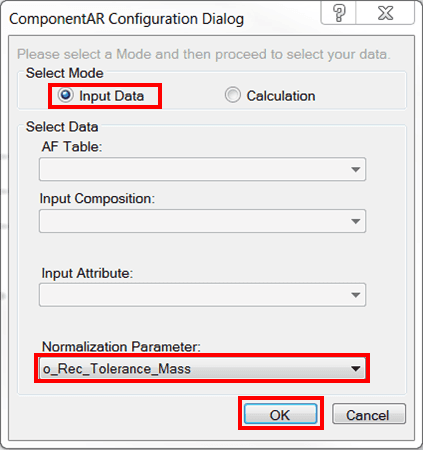
Note: The Select Data and Input Attribute sections are not available for the Input Data mode, they are only available for the Calculation mode.
Click on the Normalization Parameter down-arrow and select the normalization attribute.
Note: Any Normalization Parameter with a value less than or equal to zero will need to be given a new value greater than zero to proceed.
Click OK to save your selections and close the window.
Now you are ready to generate your Input Composition Data Table.
To open the window that allows you to set up your Input Composition, press the ellipsis (…) button shown in the far right side of the following figure.

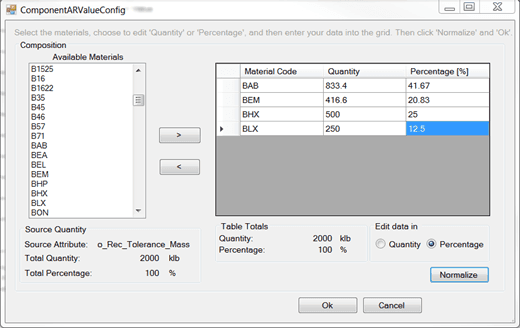
The ComponentARValueConfig window opens.
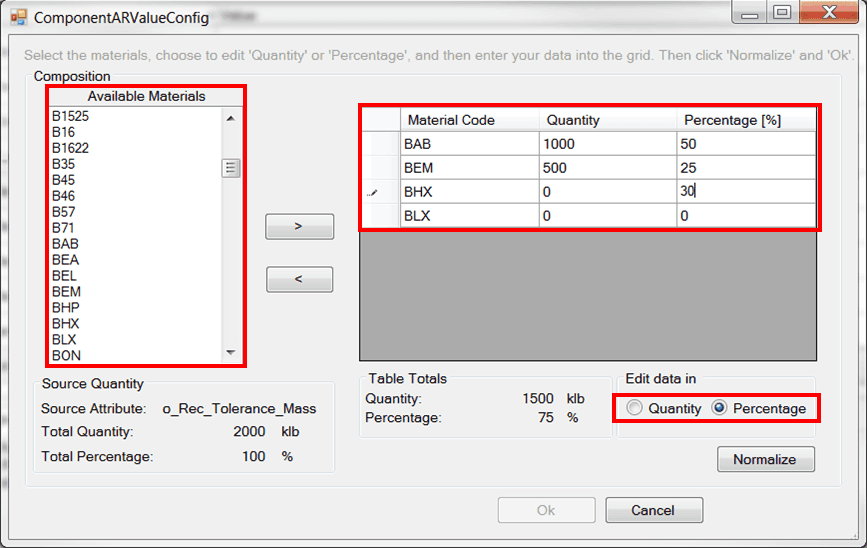
Select either Quantity or Percentage to choose how you would like to edit your table’s data.
You can change your selection at any time while the dialog remains open.
In the Available Materials list, select the materials you would like to use in the Data Table.
- Use the
 Add button to add materials to the table on the right.
 - To remove materials from the table, select the material(s) in the table on the right and click the
 Remove button.
Edit the material values in the column of the table that represents the edit mode (Quantity or Percentage) that you had selected.
In our example we had selected "Percentage" as our edit mode, so we would need to edit the values 'Percentage' column.
With each entry you make, an automatic calculation of the corresponding quantity or percentage is presented once you press enter. This calculation uses your entry as well as the Source Quantity (i.e. Normalization Parameter) to produce the corresponding quantity or percentage.
 EXAMPLE: Results of Editing the Populated Data Table
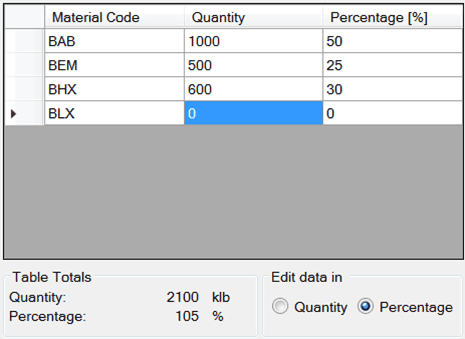
In Figure 623 (above) you can see that we were in the process of typing 30% for “BHX”. Once we press enter, the corresponding “Quantity” will equal 600 klb and the Table Totals will be 2100 klb and 105 % respectively, as shown in the following figure.
Finish entering all your quantities/percentages.
Click the Normalize button.
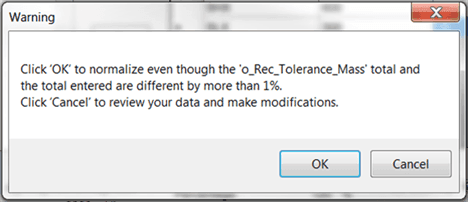
If your Table Totals exceed or are less than the Source Totals (i.e., Normalization Parameter) by more than 1%, the following warning appears.
Do one of the following:
Click OK if you would like to continue with the normalization of the table values.
Click Cancel if you want to continue editing the table values.
If you clicked OK, the “Table Totals” will now approximate the Source Quantity Totals, as shown in the following figure.
- Click OK to save the Data Table to the Attribute being given this data reference.
- If you ever want to edit the table, just repeat steps 4 – 11.