Calculation Mode
Calculation Mode allows you to tailor the Input Composition using specific inputs, linear interpolation, and normalization. The inputs are: AF Table (i.e. Xmin, Ymin, Xmax, and Ymax), Input Composition, Input Attribute (i.e. X), and the Normalization Parameter. Each input plays a part in formatting and calculating the resulting table.
To set up this mode after clicking the "Setting..." button in System Explorer:
Under Select Mode, choose the Calculationmode (as shown in the following figure).
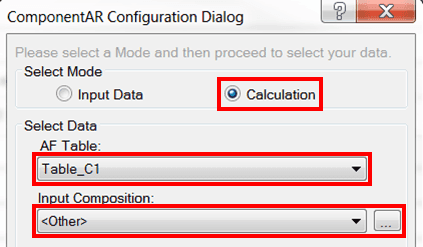
Click on the AF Table down-arrow and select an AF Table.
Only tables with specific columns will be accepted. See AF Table under the Glossary to learn more.
Select an Input Composition using one of the following methods:
If your Input Composition is located on an Attribute from the same Element as the current Attribute being used by Calculation Mode, then select it from the list.
Click on the Input Composition down-arrow.
Select an input composition attribute (i.e., the Data Table created in Input Data Mode) from the list.
If your Input Composition is located on a different Element from the current attribute’s Element, then select it from a search window.
Click on the
 ellipsis button next to the Input Composition box.
An Attribute Search window opens.
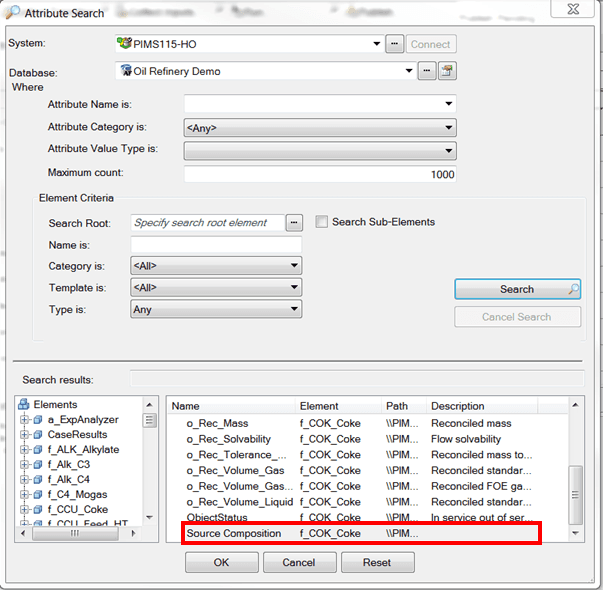
In the Search results list, locate and select the input composition attribute.
We chose the Source Composition 'f_COK_Coke' as our Input Composition.
Click OK to save your selection and close the Attribute Search window.
You are returned to the ComponentAR Configuration Dialog window where your selection is displayed under the Input Composition box (as shown in Figure 629).
To learn more about Input Composition requirements see Input Composition \under Glossary.
Select an Input Attribute using one of the following methods:
Just like with the Input Composition, there are two ways in which you can select the Input Attribute.
Click on the Input Attribute down-arrow.
Select an input Attribute from the list.
Click on the
ellipsis button next to the Input Attribute box.In the Search results list, locate and select the input composition attribute.
We chose 'o_Rec_Influence' as our Input Attribute.
Click OK to save your selection and close the Attribute Search window.
You are returned to the ComponentAR Configuration Dialog window where your selection is displayed under the Input Attribute box (as shown in Figure 629).
To learn more about Input Attribute requirements see Input Attribute \under Glossary.
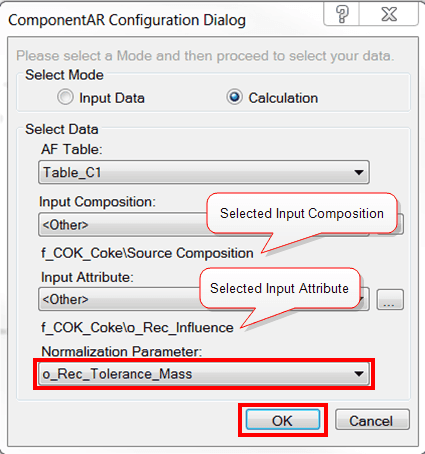
Click on the Normalization Parameter down-arrow and select the normalization attribute.
To learn more about Normalization Parameter requirements see Normalization Parameter (or Source Quantity) \under Glossary.
Click OK to save your selections and close the window.
At this point, several calculations occur using your inputs. From those calculations the resulting composition table is created. (See AF Table, Input Attribute, Linear Interpolation Function, and Composition Results Function to learn precisely how the calculations produce the resulting composition table shown in Figure 631)
To view the results of your ComponentAR calculation, press the ellipsis (…) button shown in the far right side of the following figure.

The ComponentARValueConfig window opens.
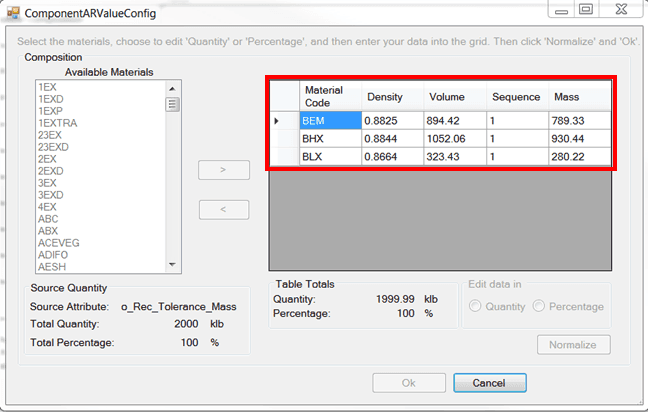
As you can see in Figure 631, “BAB” has been eliminated from the composition table. The reason for this is that “BAB” did not exist in the AF Table selected in step 2 ('Table_C1' was the AF Table we selected in step 2).
 Select from the list