Visualizer Settings Overview
SFHub Admin provides an SFHubVisualizer® Settings feature that allows you to set default personal preferences for viewing and working with SFHub Visualizer in general and with Displays, Cases, Elements and Attributes details. The SfHubVisaulizer® Settings feature contains several sub-panels that allow you to handle default configuration settings for the SfHub Application Server and SFHub Visualizer. While any configurations set by an SFHub Visualizer user are unique to them and therefore visible only to them, any set by an SF Administrator in the SFHub Admin application are used as the defaults for any users who have not defined their own settings.
Settings are divided into several categories; Upload Results, user preference management, general SFHub Visualizer settings, and Display management.
User Preference Settings on SFHub Visualizer Settings page
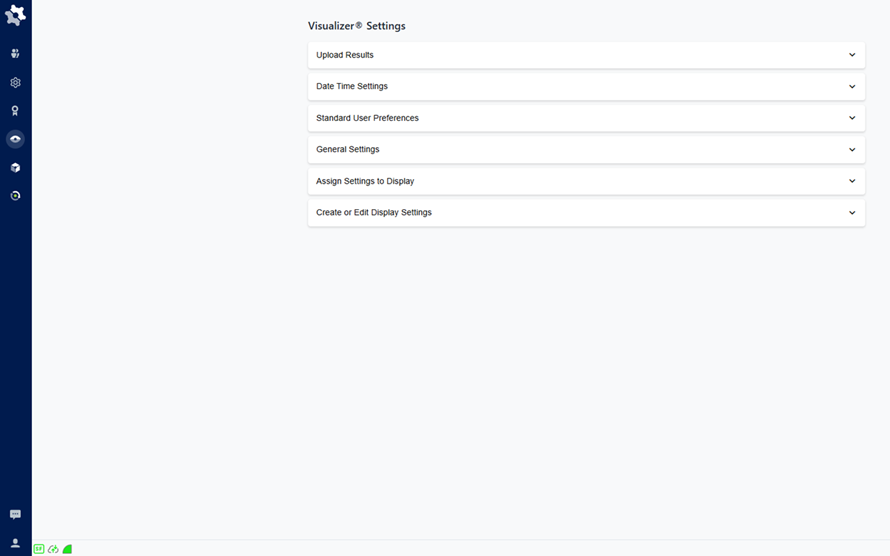
Prior to creating SFHub Visualizer default settings, please review the Visualizer Settings sectiontopic.
The following are the SFHub Visualizer management features:
View Display Uploads
- View Display Upload Results (See View Upload Results)
- Remove a Display (See Remove a Display From SFHub Visualizer)
Manage SfHub Application Server Settings (See Manage SfHub Application Server Settings)
- Date Format
- Decimal Digits
Manage Default User Settings (See Manage User Preference Defaults)
- Localization (See Localization Settings)
- Display Settings Preferences (See Standard User Preferences)
- Display Transfer Settings (See Display Transfer Setting)
- Case Runner Properties (See Case Runner Properties)
- Notifications (See Notifications Settings)
Manage General Settings (See Manage General Settings)
- Display Security (See View / Change Display Security)
- Managed Transfer Mode (See Enable / Disable Managed Transfer Mode)
- Manage Transfer Attribute (See Enable / Disable Manage Transfer Attribute)
- Case Search (See Manage Case Search Number of Days)
- Transfer Search (See Manage Transfer Search Number of Days)
Manage Default Display Settings (See Manage Default Display Settings)
- Assign Settings to Displays (See Manage Display Settings Defaults)
- Create or Edit Display Settings (See Manage Display Settings Defaults)