Remove a uploaded Display
As a SigmafineHub Admin user, you can use the Upload Results panel on the Visualizer Settings page to remove any display of which you are the owner, in lieu of using your User Settings in SFHub Visualizer.
To remove a display file you own:
Log into SigmafineHub ® as an SFHub Administrator.
The SigmafineHub® main page opens showing all SFHub applications assigned to you.
Click on the SigmafineHub ® Admin block to open the SFHub Admin application.
The User settings page automatically opens; go directly to step 4.
If you are already in the SFHub Admin application, but have a different panel open, continue with step 3 to open the Visualizer Settings panel.
You may be asked to login again. If this happens, just use the same 'Administrator' login credentials as you used in step 1.
Click on the
 Visualizer Settings icon.
The SfHubVisualizer® Settings panel opens.
: SfHubVisualizer® Settings panel
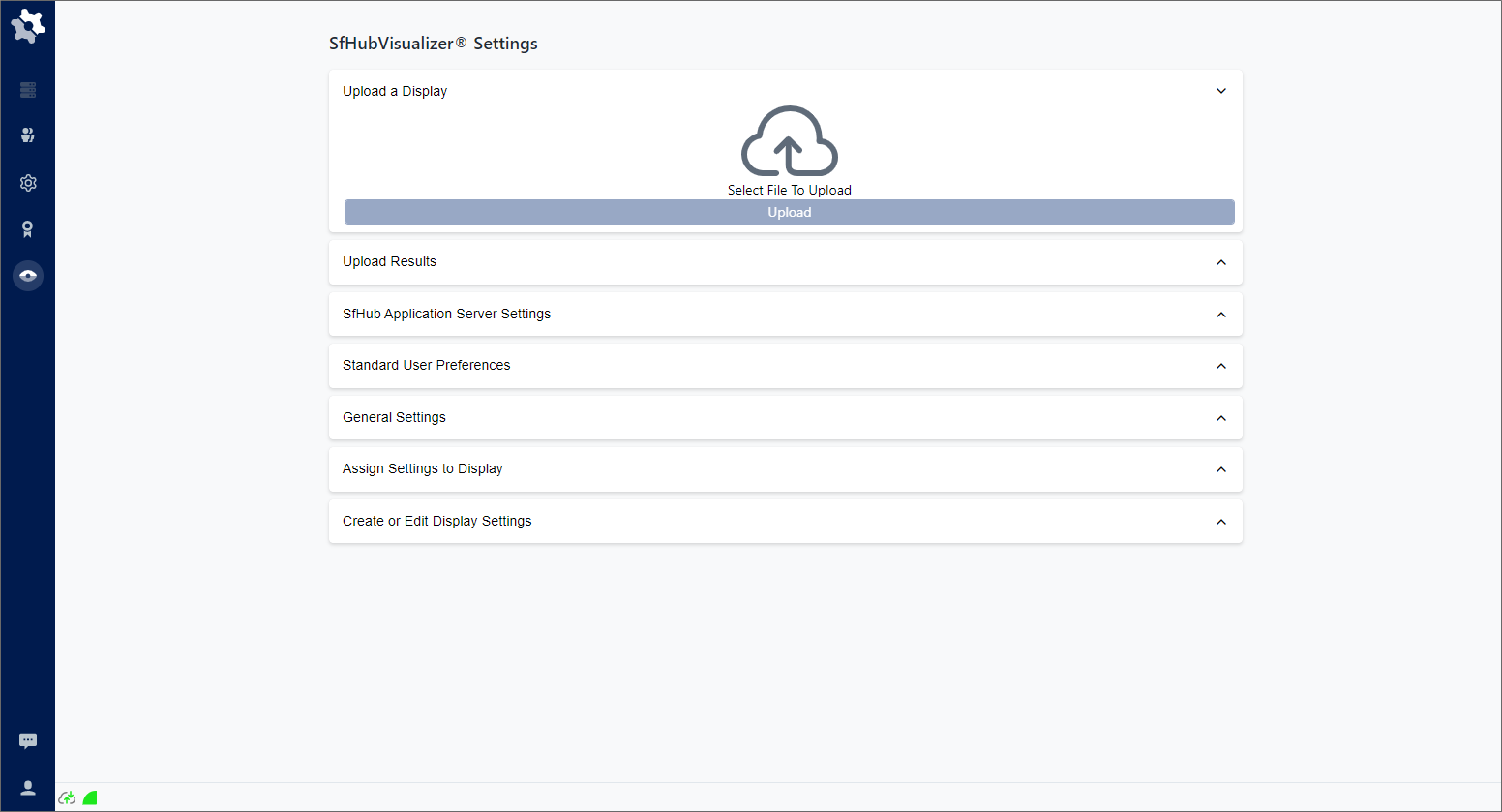
Click on image to enlarge it.
Click on Upload Results to open the Upload Results panel.
: Upload Results panel
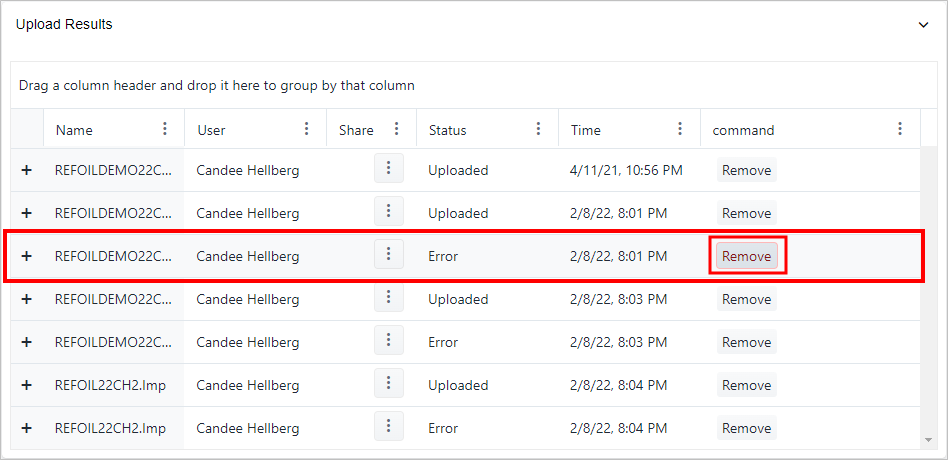
Click on image to enlarge it.
The Upload Results panel shows all the Display files that have been uploaded, and whether or not the upload was successful.
Locate the Display you need to remove and click on Remove.
You are asked to verify the removal, click Yes.
The file is removed from the Upload Results displays list.
When finished, click on Upload Results, or click its [Ú]{style="font-family: 'Symbol'; font-weight: bold;"} down-arrow icon to close (collapse) the panel.