Step 1: Add / Remove Break Points
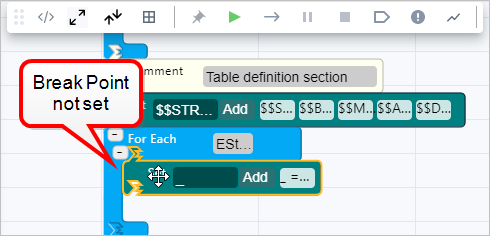
A Break Point is a point at which you want an analytic to pause or stop executing for the purpose of debugging the analytic. Break Points can be set or removed before starting the execution of an analytic or while it is in debug mode. In SFHub Analytics, Break Points are set on the SFCode Block in an analytic. Multiple Break Points can be set in a analytic; the only limit is the number of SFCode Blocks included in the analytic. A Code Blocks on which a Break Point has been set, can be identified by a red bar on its left side.
Setting Break Points is the first step when you want to run and debug an analytic.
To add (set) or remove a Break Point:
Locate the SFCode Block on which you want add or remove a Break Point.
Long-press (press and hold your mouse button) on the SFCode Block where you want to set or remove the Break Point.
What happens next depends on whether a Break Point is currently set or not. If set, the long-press removes the Break Point. If not set, the long-press adds (sets) a Break Point. Break points are indicated as follows:
- A red bar on the left side of a Code block indicates that a Break Point is set.
- No red bar indicates that a Break Point is not set.
Break Point is Set Break Point is Not Set 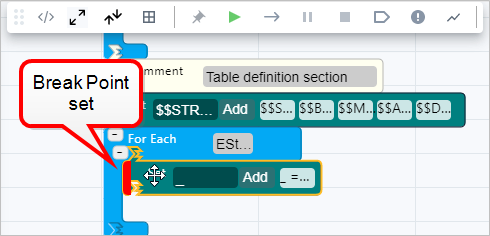
See SFCode Block Debug Panel for a brief overview of the Debug panel. See SFCode Block Debug Status for additional information Debug information.