Sigmafine Registration (Management) Tab
The Sigmafine Registration tab gives an administrator the ability to register Databases for SQL Access.
The Sigmafine Registration tab’s toolbar includes:
Sigmafine Registration Toolbar Controls
| Control Icon | Control Name | Control Description |
|---|---|---|
| Add | Opens the "Register Sigmafine Database" window where an administrator can register a new database for SQL Access use. Note that in order to register a database, you must select a server from the Server/Database section. Once a server has been selected, the “Add” button becomes accessible. | |
| Remove | Unregisters all selected databases. | |
| Enable Registration | Unlocks all of the selected databases from the registered list, allowing them to be used in SQL Access. | |
| Lock Registration | Disables all selected databases from the registered list, disallowing them from being used in SQL Access. | |
| Create Database | Submits a “Create Database” request to the Publishing service for the selected database(s) to be created on the SQL Server.Note: Databases registered for PI Servers will not be able to use this button. | |
| Update Database | Submits an “Update Database” request to the Publishing service for the selected database(s) to be updated on the SQL Server.Note: Databases registered for PI Servers will not be able to use this button. | |
| Refresh | Refreshes the list of registered databases. |
There are a few additional restrictions to note when using the Sigmafine Registration tab’s icons:
- If a registered database has already been created, that database cannot be unregistered or recreated.
- If an admin disables/locks a registered database, all requests made to the publishing service for that database remain in the request queue until the database is enabled again.
Register Sigmafine Database
To register a Sigmafine database:
- From the primary menu, select either the Publisher or Configurator menu.
- Click on the Sigmafine Server down-arrow and select the server on which you want to register a database.
- Click OK to accept your server selection.
- From the primary menu, select Admin to open the administration pane.
- Click on the Add icon to open the Register Sigmafine Database window.
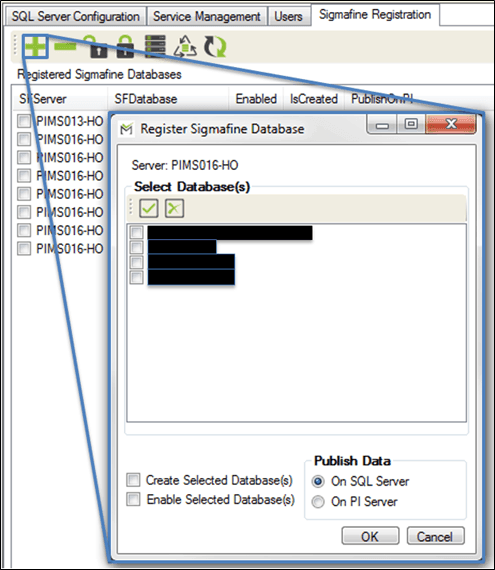
- In the Selected Database(s) list, check the box to the left of each database you want to register on the selected server.
- To quickly check all of the databases listed, click the
 Select All button.
 - To quickly uncheck all of the databases selected, click the
 Deselect All button.
Check the Create Selected Database(s) checkbox if you want all the checked databases created after being registered and enabled.
When you check this checkbox, the 'Enable Selected Database(s)' checkbox automatically defaults to 'checked'. This is necessary to ensure that the create request processes. If 'Enable Selected Database(s)' is not checked, the "create" request stays queued until the database is enabled.
Note that the SQL Access "create" request can only create databases on a SQL Access server. Therefore, if 'On PI Server' is selected (in step 9) as the Publish Data option, this 'Create Selected Database(s) checkbox is automatically unchecked and the option becomes grayed out.
Check the Enable Selected Database(s) checkbox if you want all the checked databases to be enabled.
When you check the 'Create Selected Database(s)' checkbox, this checkbox automatically defaults to being checked. This is necessary to ensure that the create request processes. If 'Enable Selected Database(s)' is not checked, the "create" request stays queued until the database is enabled.
Select a Publish Data option.
This option indicates the type of server functions with which the selected database(s) is registered.
On SQL Server: If selected, the database will be registered for SQL server functions only and will not be able to access functions meant for PI Server registrations.
On PI Server: If selected, the database will be registered for PI server functions only and will not be able to access functions meant for SQL Server registrations.
Note: Starting with Sigmafine SQL Access Add-In 4.7 SP2, you can configure the same database to publish on both SQL Server and PI Server.
- Click OK to save the new user profile and close the User Profile window.
If you need to register a database that was published by an older version of SQL Access, see Registering a Database Published by an Older SQL Access Version.