SQL Server Configuration Tab
The SQL Server Configuration tab allows you to define the SQL Server Instance and Authentication.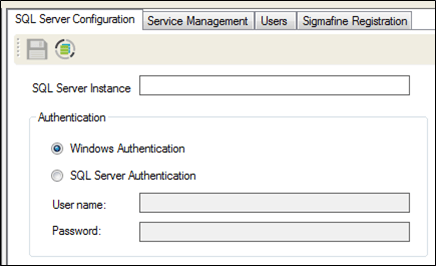
The SQL Server Configuration tab has the following options:
- SQL Server Instance: Shows the server you are connected to. To connect to a different server, refer to the table in Primary Menu, where it describes the use of the "Connect to Sigmafine Services" option.
- Authentication: There are two options for authentication.
- Windows Authentication: Allows you to use windows authentication protocols for connecting to the SQL server.
- SQL Server Authentication: Allows you to use a preexisting user that has been defined in the SQL Server as “sysadmin”. Use a valid SQL Server User name and Password to set up this option.
- Test Authentication: The test icon is only meant for use on Authentication configurations that have already been submitted via the Save icon . So, whenever you press this button, please be aware that this is testing the last configuration that has been submitted using the Save icon.
- Save: If any of the settings on this page are changed, the Test Authentication icon is grayed out and the Save icon becomes accessible. The Save icon commits your configuration to memory and allows you to access the Test Authentication button to verify the connection is working.
If SQL Server Authentication is chosen, then the credentials are encrypted and saved to the web.config file.
Configuring the MS SQL Server Instance Connection
To configure the MS SQL Server Instance Connection:
In the Admin interface, click on the SQL Server Configuration tab to access the configuration options.
The 'SQL Server Instance' box should be displaying the server to which you are currently connected. To connect to a different server, follow the steps provided under Primary Menu Tabs.
Select the Authentication option that coincides with your Sigmafine SQL Access installation.
- Windows Authentication: Allows you to use windows authentication protocols for connecting to the SQL server.
- SQL Server Authentication: Allows you to use a preexisting user that has been defined in the SQL Server as “sysadmin”. Use a valid SQL Server User name and Password to set up this option. When you select this option, you must also provide a User name and Password.
Click the
 Save icon to save the configuration.
(Optional) To verify that the connection is working, click the
 Test Authentication icon.
The Test feature tests only the most recent configuration that has been submitted using the 'Save' button.
Note: The 'Test' icon is only available when either no changes are made to the configuration, or changes made are saved.