Data Source, Data Sets and Connections
Once you have created a new project in BID, you need to create a Data Source, a Data Set and a connection to the database.
To perform these tasks:
Ensure that the Report Data window is visible.
If not visible, select View > Report Data from the Microsoft Visual Studio main menu.
In the Report Data list, right-click on Data Sources and select Add Data Source.
The Data Source Properties window opens.
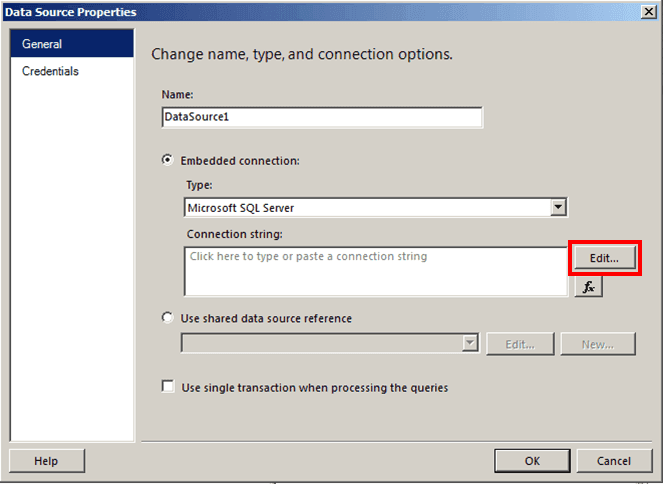
Click the Edit button.
The Connection Properties window opens.
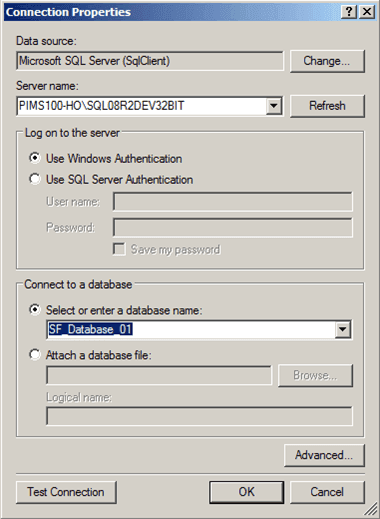
Click on the Server name down-arrow and select the name of the server to which you need to connect.
Under Connect to a database, select the Select or enter a database name option.
Click on the Select or enter a database name box down-arrow and select the database to which you need to connect.
Click the Test Connection button to ensure that the connection works.
A Test Results window displays.

Click OK to close the message window.
You are returned to the Connection Properties window. If the connection succeeded, continue to the next step. If the connection did not succeed, try selecting the server and/or database again, or select a different server and/or database.
In the Connection Properties window, click OK to save your selections and close the window.
You are returned to the Data Source Properties window.
Make note of the 'Connection string' listed in the Data Source Properties window, as shown in the following figure.

In the Data Source Properties window, click OK.
We now have a Data Source that will appear under Data Sources in the Report Data window. (In our example, our Data Source is named DataSource1).
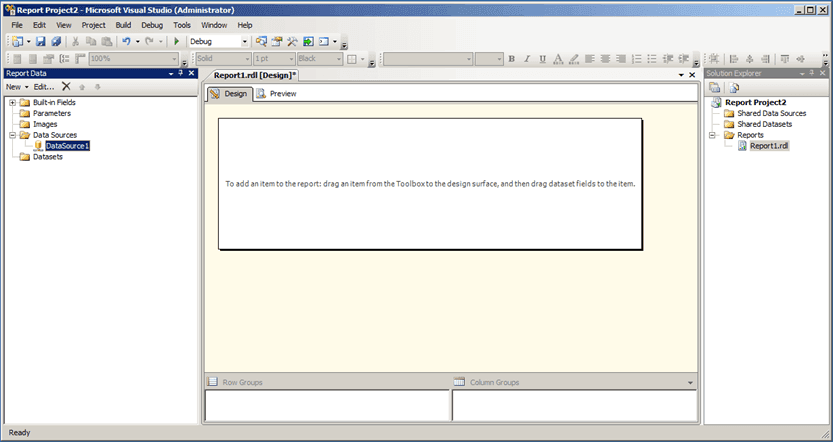
Right-click on Datasets and select Add Dataset.
The Dataset Properties window opens.
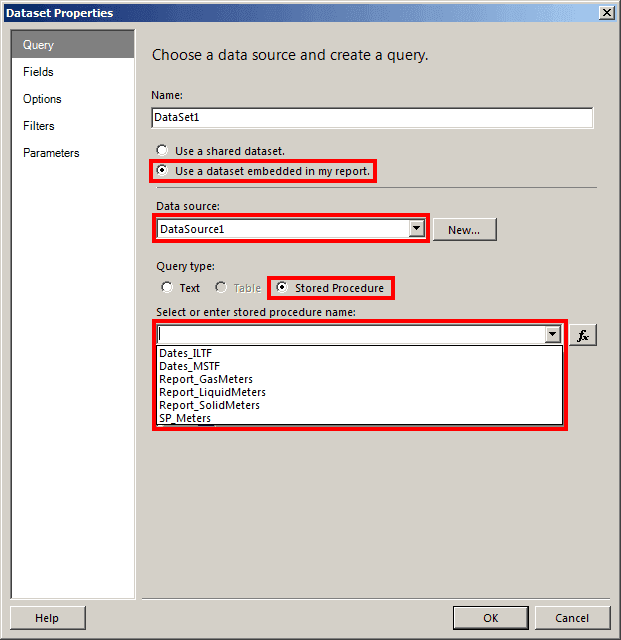
Under the 'Name' box, select the Use a dataset embedded in my report option.
Click on the Data Source down-arrow and select the data source you created in the previous steps.
In our example our Data Source is named 'DataSource1'.
Under Query type, select the Stored Procedure option.
In the Select or enter stored procedure name box, type or click the down-arrow to select, the stored procedure query to use.
In our example, we used an 'SP_Meters' stored procedure that we had previously created.
Click OK to save your selections and close the Database Properties window.
The Dataset you just created is added to the Report Data window.

You are now ready to view your Dataset in the Report Data window.
Select the newly created Dataset to view its Design pane, as shown in the following figure.
](/DocumentDepot/DocSFHub/docs_2026/assets/images/data-source-data-sets-connects_dataset-design-pane-e4300a4f47e293b18efb2d56959afcef.png)