Adding Attributes to a Display
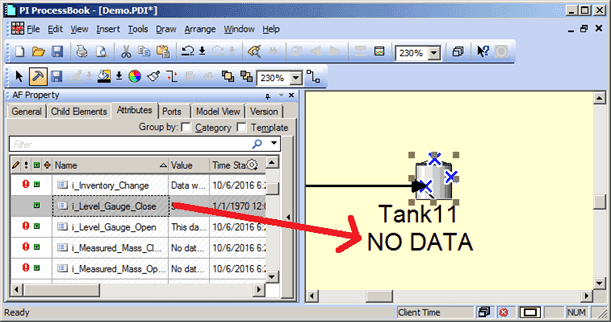
In addition to adding an Attribute from a shortcut (the context menu), you can also drag one or more Attributes from the Attribute tab of an Element onto the display. If you drop the Attribute within one symbol size around the perimeter of its parent element, it automatically attaches to the element’s symbol. Therefore, as you move the parent symbol, the Attribute moves with it. Note that you can drag an Attribute away from the parent symbol without moving the parent. This allows you to place Attributes on the display without attaching them to an element.
Note: Remember that when moving an attribute, in order to maintain the relationship between the Attribute and its parent element, you can move the Attribute only one symbol width away from the perimeter of the parent element. This width limitation is referred to as the "critical distance" between the Attribute and the parent element.
To add an Attribute value symbol to the display:
Open the AF Property window.
Select the Attributes tab.
Select the Attribute and drag it to the display, as shown in the following figure.
(Optional) To select additional elements:
Select Edit > Search from the menu, to open the Element search window.
Select the element(s) you want.
You can use the Ctrl or Shift key on your keyboard to select multiple attributes, or you can drag the element(s) to the display from the Element search window.
Click OK to save your selections and close the Element search window.
Note: If you place a ProcessBook trend in a display, you can drag and drop an Attribute on the trend. The trend then displays the changing value of the attribute.