Working with IF Changer
To use IF Changer to migrate between IF Servers:
Stop the IF Servers (both the source and destination).
Make a backup of the IF Server "Repository" folder and save it to a specific source path (for example
C:\IFChanger\SourceFolder).On the source IF Server machine, create a folder called “Repository” and save it to a specific destination path (for example
C:\IFChanger\DestinationFolder).On the source IF Server machine, go to the IF installation folder.
Double-click on the IFChanger.exe file to run IF Changer.

In the Source Repository box, type the path to the source repository folder (as shown in Figure 1845).
In the Destination Repository box, type the path to the destination repository folder (as shown in Figure 1845).
Click the Run button.
In the left side box, the IF Changer loads into the IF Server repository configuration information.
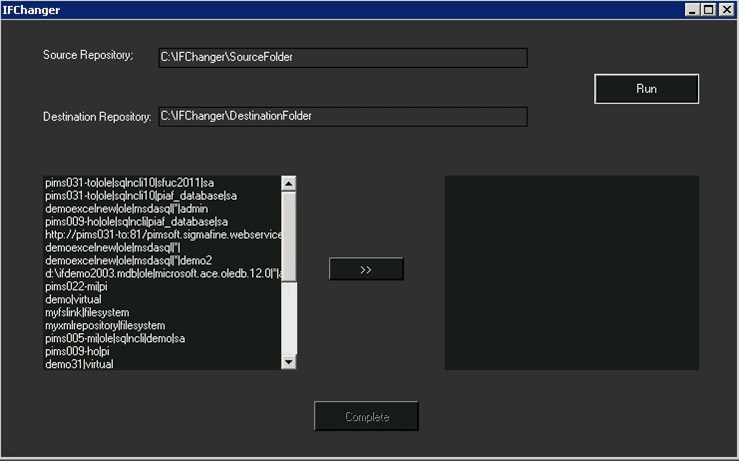
Select the first Dataset to migrate and click on the Add (>>) button.
Note: Datasets must be selected in the following order; 'PI', 'OLE' then 'VIRTUAL'.
The following window opens.
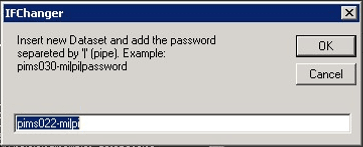
Type a new Dataset name and password in
name|passwordformat, separated by the "pipe" symbol.EXAMPLE:
pim022-milpi**|**ds1pwIf the password is blank, then just add the "pipe" symbol.
EXAMPLE:
pim023-milpi|When adding the VIRTUAL Dataset, instead of a password use "virtual" in the following format:
name**|virtual**.EXAMPLE:
demo31|virtualClick OK to save the Dataset and close the window.
Repeat steps 9 through 11 to add the remaining Datasets.
The following figure displays all three types of Datasets ready to be completed.
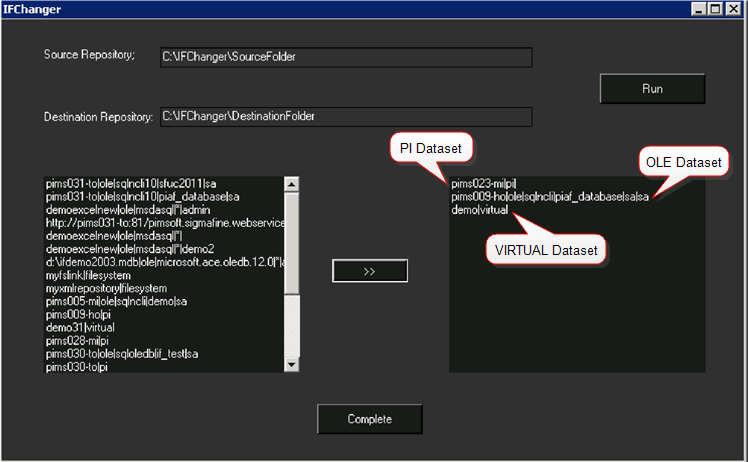
Click the Complete button.
Upon a successful completion, a “Files have been written without problems" message appears.
Copy the files from inside the 'Destination Repository' folder to the Repository folder on the destination IF Server.
Restart the Source and Destination IF Servers.