Migrating Identical IF Versions
The following migration instructions are provided for instances in which the new environment you are migrating to is running the same version of IF as your old environment.
- In the Case of identical versions:
Copy all
.repfiles from both repository folders from the old machine to the new machine.DO NOT REPLACE the original '
IF_Settings.rep', 'IF_Authorization.rep', and 'IF_AssemblyList.rep' files on the new machine.The first Repository folder is located in the main IF directory.
The second is located within the “Configurator” folder in the main IF directory.
All .rep files must be copied to both folders without replacing the original three files mentioned.
To migrate your existing configuration to the new environment:
ON THE NEW ENVIRONMENT MACHINE: Open your Windows Task Manager as an Administrator.
Navigate to Services and access the
Pimsoft.IF.Service.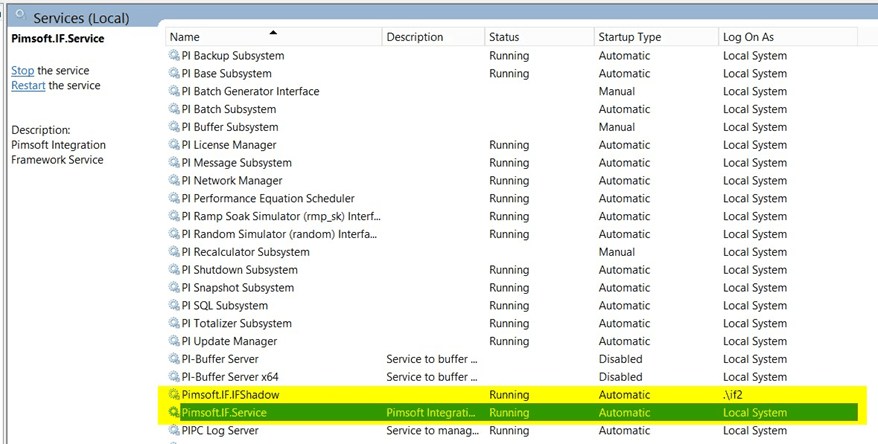
Select
Pimsoft.IF.Servicein the list of services, then click the "Stop the service" link.Select
Pimsoft.IF.IFShadowin the list of services, then click the "Stop the service" link.Using Windows Explorer, open the main IF Repository folder (usually
C:\Pimsoft\IF\Repository).Ensure that the
IF_AssemblyList.repfile exists in the Repository folder.Open the secondary Repository folder.
Again, check for the presence of the
IF_AssemblyList.repfile.Note:
Should you not see the '
IF_AssemblyList.rep' file in the Repository folders on the new environment machine:Start the
Pimsoft.IF.ServiceandPimsoft.IF.IFShadowon the new environment machine.Open the IF Configuration Tool.
The IF_AssemblyList.rep file should get generated in the Repository folder.
Again, check for the presence of the '
IF_AssemblyList.rep'. If it is now in the folder, continue with step 'd'. If it is not, contact Pimsoft Support for further help.Stop the IF Services again on the new environment machine.
ON THE OLD ENVIRONMENT MACHINE: Repeat steps 2 through 4 to stop the
Pimsoft.IF.ServiceandPimsoft.IF.IFShadowservices.Using Windows Explorer, open the main IF Repository folder (usually
C:\Pimsoft\IF\Repository).Copy all of the .rep files except for 'IF_Settings.rep', 'IF_Authorization.rep', and 'IF_AssemblyList.rep' (do not copy these three files).
ON THE NEW ENVIRONMENT MACHINE: Open the IF Repository folder on the new environment machine.
Paste the copied .rep files into the Repository folder.
ON THE OLD ENVIRONMENT MACHINE: Open the second Repository folder on the old environment machine.
Repeat the same steps to copy the files as you did for the main IF Repository .rep files.
ON THE NEW ENVIRONMENT MACHINE: Open the second Repository folder on the new environment machine.
Repeat the same steps to paste the copied files as you did for the main IF Repository .rep files.
IMPORTANT: Ensure that you do not replace the new environment 'IF_Settings.rep', 'IF_Authorization.rep', and 'IF_AssemblyList.rep' files with files of the same names from the old environment.
Using Task Manager, restart the Pimsoft.IF.Service and Pimsoft.IF.IFShadow services.
ON THE OLD ENVIRONMENT MACHINE: Use Task Manager to restart the Pimsoft.IF.Service and Pimsoft.IF.IFShadow services.
Note: If the SF or PI server names have changed, you will need to adjust the configurations in your connectors and or “virtuals” accordingly. You may also add aliases of your old PI, AF, or SF servers.