Configuring - Transfer Summary Data Reference
The Transfer Summary Data Reference can be configured at the template level or the Element level. Where to do the configuration depends if you want the configuration for all elements associated with a template or whether you want it to apply to just one element. Since the filter and the rule of selection of the transfers are strongly depending on the Model configuration and specific business rules, Pimsoft strongly recommends using the Data Reference only at an Element level rather than at the template level.
Configuration Procedure
To configure data reference with the wizard, follow the steps below using either the System Explorer or the Modeler.
Though the steps below are shown in System Explorer, the options are the same in Modeler.
In the System Explorer navigation pane, click on Model Analyses.
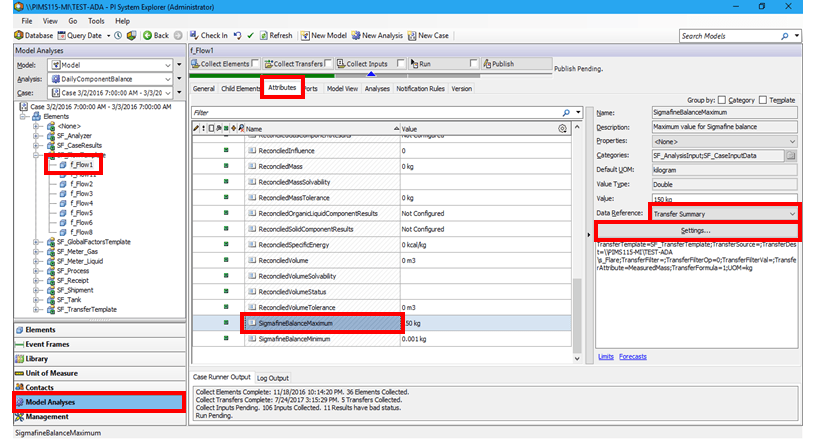
From the Elements tree, select the Element or Element template.
In our example, we selected the 'f_Flow1' element.
Click on the Attributes tab (or Attribute Templates tab if you select an Element template).
In the Name column, select the Attribute for which you want to do the conversion calculation.
In our example, we chose the 'SigmafineBalanceMaximum' attribute.
In the Data Reference column select UOM.
Click the Settings button to open the Sigmafine Transfer Summary Data Reference configuration form window.
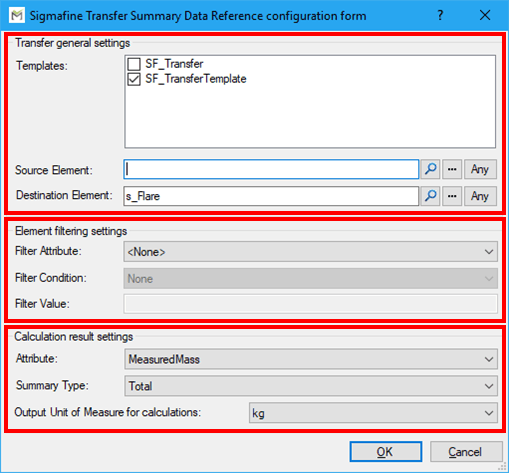
Using the following Transfer general settings table, select the Attributes for Transfer general settings.
For additional details regarding the available options, see Transfer General Settings.
Using the following Element filtering settings table, enter/select the Attributes for Element filtering settings
For additional details regarding the available options, see Element Filtering Settings.
Using the following Calculation results settings table, enter/select the Attributes for Calculation results settings.
For additional details regarding the available options, see Calculation Result Settings.
Transfer general settings
Input Box / Button Description Templates Select the template(s) you want to use in the calculation/summaries. Source Element If needed, select the filter for the Source of the transfer. Destination Element If needed, select the filter for the Destination of the transfer. Element filtering settings
Input Box / Button Description Filter Attribute Select the Attribute for filtering. Filter Condition Select the type of condition (equal, greater than..., etc.). Filter Value Select the value used for filtering. Calculation results settings
Input Box / Button Description Attribute Select the Attribute to be summarized. Summary Type Select the type of Summary/Operation to be performed. Output Unit of Measure for calculations Select the output UOM for conversion. Click OK to save your configuration and close the window.
The Data Reference will perform the configured calculation based on the configuration.