Load/Unload the ADA Add-In
The Sigmafine Advanced Diagnostic Add-In (ADA) is added using the Add-In Manager.
When ADA is loaded the 'Sigmafine Diagnostic Addin' toolbar is created and the 'Sigmafine Diagnostic Addin' option appears on the View Menu. The Sigmafine Diagnostic Addin option is used to launch the ADA Results window.

When you unload the SF-ADA, the Toolbars, the View menu option, Results window, and the displays no longer interact with any underlying AF Database; nor can you retrieve AF Data. However, this does not uninstall the SF-ADA.
The following instructions provide the steps for loading and unloading ADA in ProcessBook.
- Open ProcessBook.
- Go to Tools > Add-In Manager to open the Add-In Manager window, as shown in the following figure.
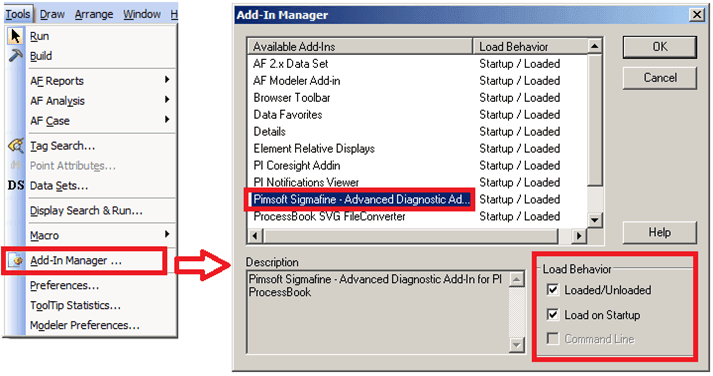
- From the Available Add-Ins list, select Pimsoft Sigmafine Advanced Diagnostic Addin.
- Follow the step below that coincides with what you want to do:
To load the ADA add-in:
Loaded/Unloaded- Ensure that this checkbox is checked.If it isn't checked, click on it to check it.
Load on Startup- If you would like ADA to load upon start-up, check this checkbox.
Note: Check the Load on Startup checkbox only if all the displays are related to running Models with analysis and Cases. Otherwise leave it unchecked.
To unload the ADA add-in:
Ensure that the Loaded/Unloaded checkbox is not checked. If it is, click on the checkbox to uncheck it.
- Click OK to save your selections and close the Add-In Manager window.