Sigmafine Load Library Utility
The Load Library Utility has been added to several Sigmafine product installations as an optional feature. There are two useful tools provided by the Load Library Utility:
- The first allows you to load the product’s XML library to an AF System that you specify.
- The second allows you to select which databases within the selected AF System you would like to pre-load the product’s categories, templates, or tables in.
The Sigmafine products that have this feature attached to their installation are:
- Management (Server Management)
- Sigmafine Quality Tracking (Analysis Rules)
- Sigmafine Advanced Diagnostic Add-In (ADA or SF-ADA)
- Sigmafine Intelligent Movement Management (IMM)
- Sigmafine Thermodynamics Extension
- Sigmafine LNG, NGL & LPG Extension
To learn how to use the utility, please refer to the following walk-through (below) that uses the Sigmafine Quality Tracking product installation as the walk-through example:
Walk-through
After the installation process is finished, the LoadLibrary Utility automatically opens.
Note: If you do not see the window shown in Figure 1834, please make sure that it has not been minimized on your screen.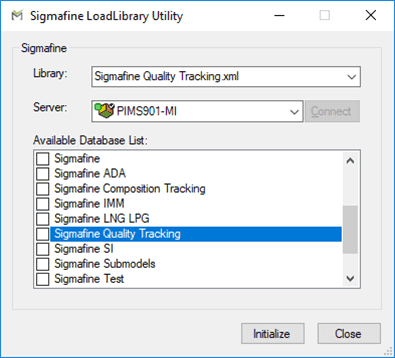
As you can see in , the list of available databases on the server has a checkbox associated with each database on the list. You can check however many databases you would like to have initialized.
In the Available Database List, check the checkbox next to each database you want initialized.
The table below provides examples of which databases to choose for the product you are installing.
Product Associated Databases
Product Associated Database Intelligent Movement Management (IMM) Ensure that you check the Sigmafine IMM database checkbox. System/Server Management There is no specific database when installing Management. Instead, you check the checkbox for each database you want to manage. Quality Tracking (Analysis Rules) Ensure that you check the Sigmafine Quality Tracking database checkbox. LNG, NGL & LPG Extension Ensure that you check the Sigmafine LNG LPG database checkbox. Thermodynamics Extension Ensure that you check the Sigmafine Thermodynamics database checkbox. Advanced Diagnostic Add-In (ADA) Ensure that you check the Sigmafine ADA database checkbox. When finished selecting databases, click the Initialize button.
If the load was successful, the Notification of success (see Figure 1835) pop-up appears.
Note: The notification can take a minute to appear.

On the Notification of success pop-up, click OK.
You are returned to the LoadLibrary Utility window.
Do one of the following:
- If you have more databases you want to initialize, repeat steps 1 - 3 for each one.
- If you have no other databases you want to initialize, click Close.
(Optional) View the 'LoadLibrary Utility' results by opening the PI System Explorer and following the instructions below.
Go to AF Server Properties.
Select the Libraries tab
A library appears, displaying a list of the product that was just installed.
To view the categories that were added:
Close the AF Server Properties window.
Open one of the databases that was initialized.
Click the main Library tab.
The expected categories, templates, or tables for the product that was just installed should be listed in the Library sections.
Note:
If Load Library produces an error when importing the library:
- Use PI System Explorer to open your database.
- Use its Import from file feature to load the library manually.
- From the Import from file menu, navigate to your Sigmafine Installation directory.
- Double click on the Library sub-directory.
- Select the XML library file that you tried to import using the Load Library Utility.
- Submit the load request.
This issue is often UOM based. For more information on resolving UOM conflicts, please review the OSIsoft’s Live Library subject: “Configuration of case-sensitive UOM abbreviations”.
\ To view a table example, click on its link above.