Install Sigmafine ADA
The Sigmafine Advanced Diagnostic Add-In is typically installed from an installation setup kit that can be downloaded from the Pimsoft website. The installation of Sigmafine does not check for the PI Asset Framework requirement. It assumes that The AF server and AF client have already been installed and configured.
Along with the setup kit for the Sigmafine Advanced Diagnostic Add-In (ADA or SF-ADA), a license key file and four XMLfiles are provided. These additional files are necessary to complete the installation procedure.
Note: Prior to starting the installation, please verify that all PI-ProcessBook displays are closed.
Follow the steps below to install the Advanced Diagnostic Add-In:
Open Windows File Explorer.
Locate the new Advanced Diagnostic Add-In installer file.
Right-click on the installer file and select Run as administrator.
The setup program unzips the necessary installation files, and then opens the installation wizard Welcome window.
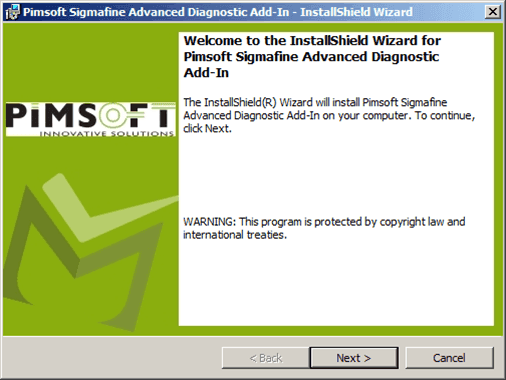
Click Next to open the License Agreement window.
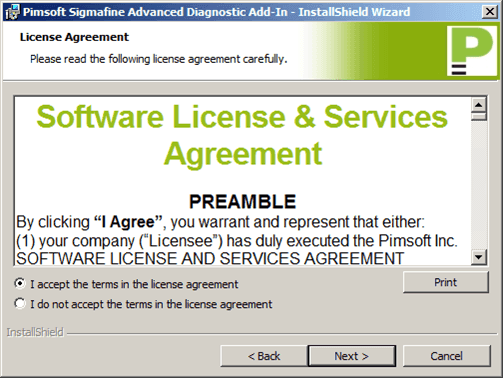
The License Agreement must be read and accepted in order to proceed with the installation.
Select the I accept the terms in the license agreement option.
Click Next to open the Customer Information window..
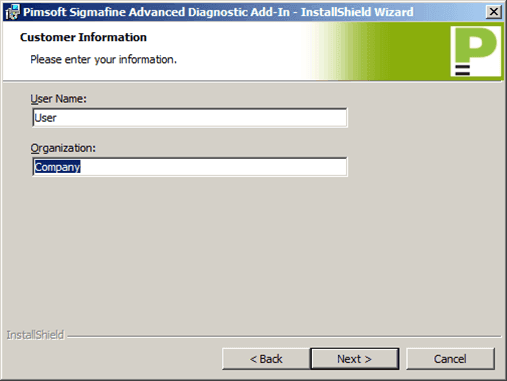
In the User Name box, type your user name.
In the Organization box, type your company's name.
Click Next to open the Destination Folder window.
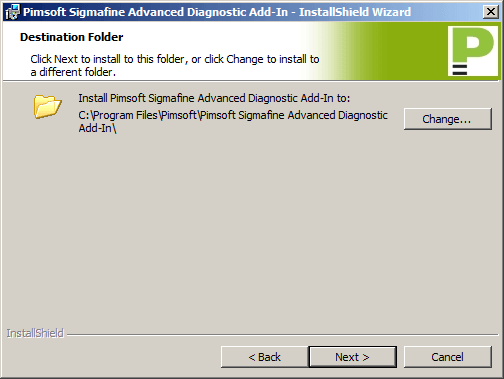
Click Next to open the Ready to Install the Program window.
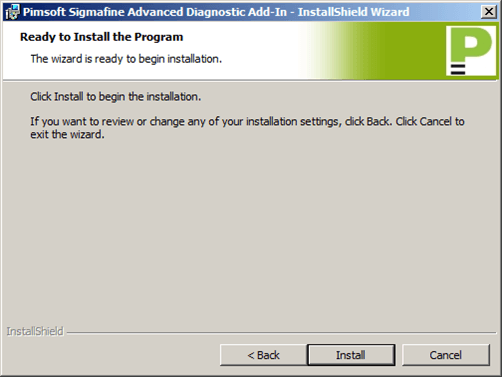
Click the Install button to initiate the installation.
When the installation completes, a completed window opens.
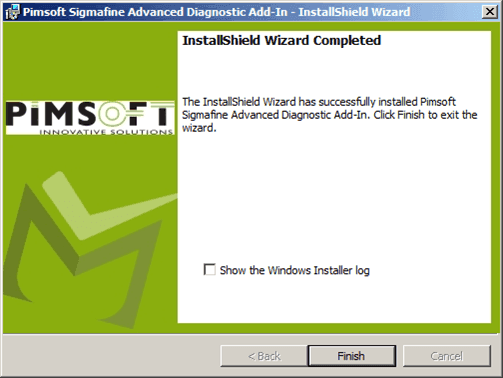
If this SF ADA installation is being installed on the server side, the "Sigmafine Load Library Utility" is launched. Please refer to the Sigmafine Load Library Utility or Sigmafine Load Library Utility 4.7 SP1 \topic for further details.
(Optional) If you would like to view the Installer Log file after finishing the installation, check the Show the Windows Installer log checkbox.
Click the Finish button to complete the installation.
You are ready to load the library. \See one of the following for instructions, depending on the version of ADA you are installing.