Notification Settings
The Notifications settings panel allows you to turn on/off the audible tone that sounds when a Chat or Message notification is received. By default, these notification sounds are turned on. Any change made to this setting in the SigmafineAdmin application is used as the default for all users, who do not define their own Notifications preference.
Turn On/Off Chat Notification Sound
To turn on/off the Chat Notification sound:
Scroll down to the Notifications section.
Settings - Notifications - Silent Chat Notification

To turn on/turn off Silent Chat Notification, do one of the following:
Turn on the notification sound for Chat Notifications - click its
 blue dot; the dot slides to the left and turns white

Turn off the notification sound for Chat Notifications - click its
white dot; the dot slides to the right and turns blue
If you are finished configuring settings:
SFHub Admin: Close the SfHubVisualizer Settings panel.
SFHub Visualizer: Click on the SFHub Visualizer link at the top of the Settings panel.
Your setting is automatically saved.
Turn On/Off Messages Notification Sound
To turn off the Messages Notification sound:
Depending on which settings you are defining:
Default settings in the SFHub
- Click on the
 Visualizer Settings icon to open the SFHubVisualizer Settings panel.
User Preference settings in SFHub Visualizer
a. At the bottom left corner, click on the
 �User icon, as shown in the
following figure.
�User icon, as shown in the
following figure.User Settings - Settings option
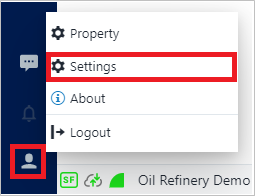
b. Select the Settings option, to open the Settings panel.
- Click on the
Scroll down to the Notifications panel.
Settings - Notifications panel - Silent Messages Notification

Click User Preference (Standard User Preferences in SFHub Admin) to open the panel.
Scroll down to the Notifications section.
To turn on/off the Silent Messages Notification, do one of the following:
Turn off the notification sound for Messages Notifications - click its
white dot; the dot slides to the right and turns blue
Turn on the notification sound for Messages Notifications - click its
blue dot; the dot slides to the left and turns white
If you are finished configuring settings:
- SFHub Admin: Close the SfHubVisualizer Settings panel.
- SFHub Visualizer: Click on the SFHub Visualizer link at the top of the Settings panel.
Your setting is automatically saved.