Display Transfer Setting
The Display Transfer Setting allows you to define the color, weight and line style that represents Transfers in the SFHub Visualizer Display panel. Display Transfer Setting preferences are applied to all displays that you view in Sigmafine SFHub Visualizer. Should you not set a personal Display Transfer setting preference, then the setting defined by the SFHub Administrator is applied to all the displays you view in SFHub Visualizer.
To define the Display Transfer settings:
Scroll down to the Display transfer setting panel, as shown in the following figure.
Choose Display Transfer Color

Follow the steps below for each setting you want to modify.
Modify the Transfer line
To modify the Transfer Color:
a. In the Selected color for transfer row, click on the current color block, to open the color picker panel.
Display Transfer - Color Picker
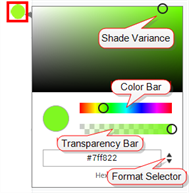
b. To change the shade of the current color, drag the Shade Variance circle around the display until you reach the shade you want.
c. To change the color itself, drag the Color Bar circle across the bar until you reach the color you want.
d. To change the transparency of the color, drag the Transparency Bar circle along the bar until you reach the transparency you want to use.
e. If you prefer to enter a color setting in Hexadecimal, RGB or HSLA format, use the Format Selector to select the format, and then enter the applicable color code(s).
f. When finished, click outside the panel to close it.
Modify the Transfer line
To change the weight (thickness) of the Transfer line:
a. Double-click in the Selected weight for transfer line box, to highlight the current weight, as shown in the following figure.
Transfer line weight setting

b. Type a new weight.
The new weight must be an integer (whole number) that expresses the line weight. We recommend a number between 5 and 20, according to the display dimensions.
Remember that this is the thickness of the line for every Transfer in the Display panel, so you will want to choose a weight that isn't too large (i.e., too thick).
Modify the Transfer line
To change the style of the Transfer line:
Click on the Selected transfer line style down-arrow and select the style of the line to be used for Transfer lines in the Display panel, as shown in the following figure.
Select Transfer line style

If you are finished configuring settings:
- SFHub Admin: Close the SfHubVisualizer Settings panel.
- SFHub Visualizer: Click on the SFHub Visualizer link at the top of the Settings panel.
Your setting is automatically saved.