Installing the SQL Access Server Kit
To install the SQL Access Server Kit, you basically follow the same procedure as the SQL Access Client kit instructions, but running the Server Kit executable instead or the Client.
The Server Kit’s installation directory doesn’t require the same read/write privileges as the client kit’s installation directory does.
To install the SQL Access Server kit:
Navigate to the Sigmafine SQL Access Server .exe executable file.
Right-click on the file and run it as an administrator.
The Installation Welcome window opens.
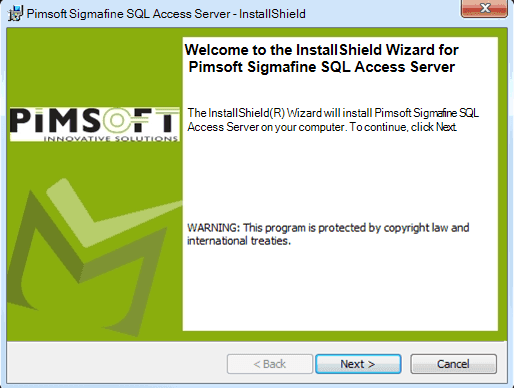
Click Next to open the License Agreement window.
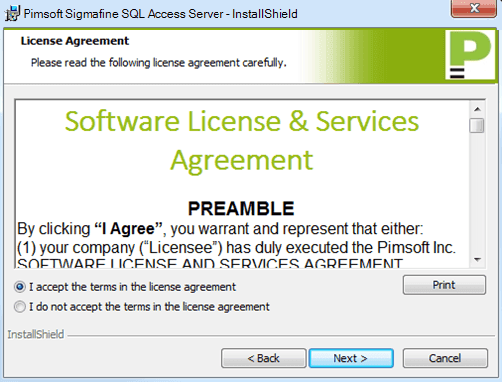
After reading through the License & Services Agreement, select the I accept the terms in the license agreement option.
You can click the Print button to print a copy of the agreement.
Click Next to open the Customer Information window.
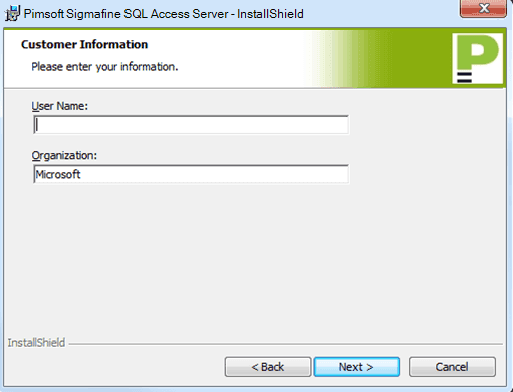
In the User Name box, type the sign in name for the user of this client.
In the Organization box, type the name of your company or organization.
Click Next to open the Destination Folder window.
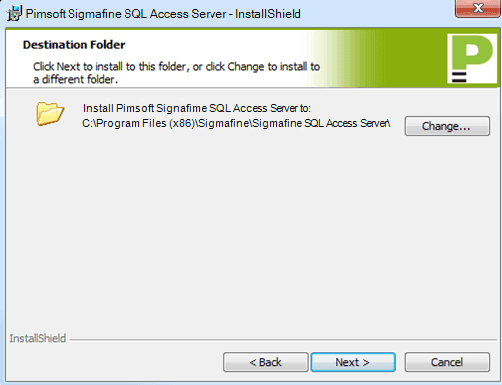
(Optional) To change the folder from the default location, click the Change button.
This action opens a standard Windows Explorer window in which you can locate and select the folder for the Client Kit installation.
Click Next to open the Ready to Install the Program window.
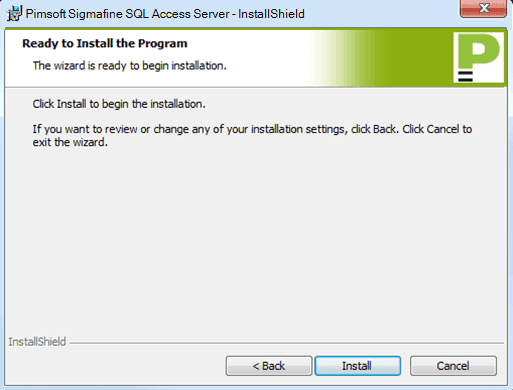
The installation begins.
When the installation finishes an install completed window opens.
Click the Finish button to close the window.
Once you have installed the Server Kit, you can then proceed to SQL Access Server Installation section for further instructions on how to set up the SQL Access Server.