Saving to External Files
Following is the process of saving what you see in the Sigmafine Quality Tracking Viewer main window to an external ‘.CSV’ or ‘.TXT’ file.
To save the data in the Quality Tracking Viewer main window to a CSV or TXT file:
In the Qualities list, select the quality (or qualities) you want to save.
 EXAMPLE: Save only the FLS quality row
In our example, we only want to save the FLS quality.
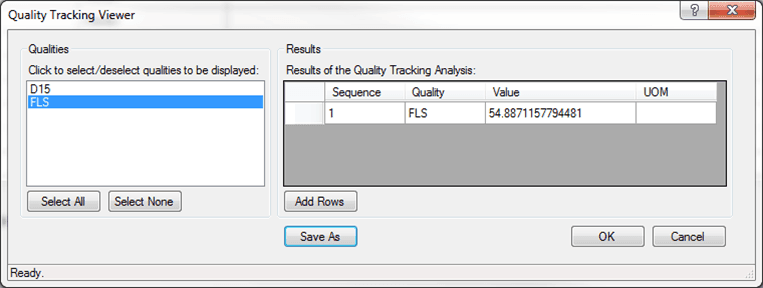
Click the Save As button.
A Save As Prompt window opens.

Click on the File Type down-arrow and select the type of file (csv or txt) to which you want to save the data.
In the File Name box, type a name for the csv or txt file.
Click the Select Save Location button to open a folder selection window in which you can select the destination folder for the csv or txt file.
Click the Save button.
If you accidentally pick a file path and name that already exists, you are prompted to either overwrite the existing file or provide a new file name and path. if you would like to overwrite the existing file or not.
If you select No, you are given the option to change the file name and path and then attempt to save again.
If you select Yes, the existing file will be overwritten. This process cannot be reversed, so make sure that you are confident before selecting to overwrite.
When looking at the new file, it will have one row of headers, followed by the data for all the rows that were visible in the main dialog.
The following figure shows how the FLS data would appear when saved to a TXT file.
