Defining Element Attribute Templates
The Attribute Templates tab allows you to set the properties (attributes) for an element. The essence of an Element is defined by its attributes (properties). For templates derived from base templates, only new (or overridden) Attributes are listed in the template. Elements created from a derived template contain both the new attributes, as well as all the base template attributes. To override the definition of an Attribute defined in the base template, create a duplicate Attribute of the same name.
To define the Attributes for elements that are based on this template:
In the AF Property window, click on the Attribute Templates tab, if not already open.
The Attribute Templates options display.
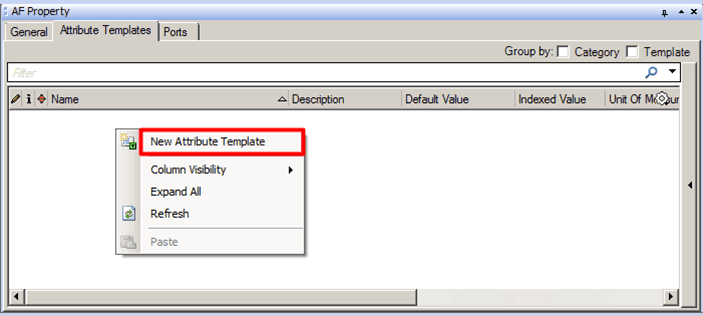
Right-click in the window and select New Attribute Template, as shown in Figure 815.
Note: You can also create a new Attribute by typing a name in the Name column of the last row (row marked by the asterisk).
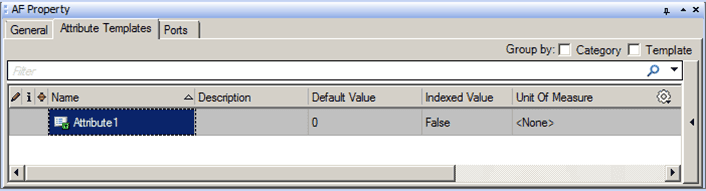
The new Attribute with a default name appears in the tab.
(Optional) Check the Template checkbox if you want to organize the Attribute templates by template name.
Under the Name column, type a name for the new attribute.
(Optional) Under the Description column, type a short description of the new attribute.
Under the Default Value column, type a default value for the attribute.
(Optional) Check the Category checkbox if you want to organize the Attribute templates by grouping them into categories.
Under the Configuration column:
Select True for Attributes that, when a change occurs to their values, will result in a revision change to the element.
Select False for Attributes with values that will change with the process.
For example, the diameter of a tank is normally considered a configuration item; the level of a tank is not.
- Under the Indexed Value column:
- Select True if you want the Attribute values to be indexed.
- Select False if you do not want the Attribute values to be indexed.
Under the Unit Of Measure column, type the unit of measure for the attribute.
After a UOM is established, then all values written to the database are stored in this UOM. Although the client tools can change the UOM that is displayed for a particular element, they cannot override the internal storage. If you change the UOM for the template, this does not rescale any values already stored in existing elements or cases.
Under the Value Type column, select the data type of the attribute.
If you select ‘Anything’, the value of the Attribute determines the data type. It becomes selectable on the Attributes tab for the element. Begin by setting the type to a specific type other than ‘Anything’ so that the default can have a meaningful value that you can edit. Then set it back to ‘Anything’.
(Optional) Under the Data Reference column, select a data reference for determining the value of the attribute.
If you chose a data reference, click Settings to configure the data reference.
You are now ready to configure the port settings for the element.
Continue with Defining Ports.