Creating a New Element Template
To create a new Element template:
Open the AF Browser window.
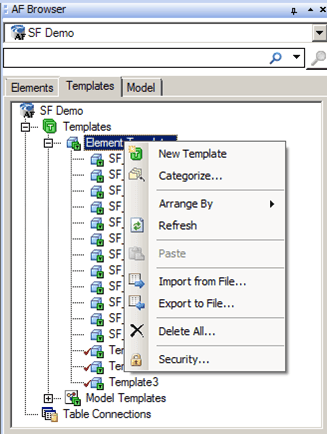
Click the Templates tab, as shown in Figure 813.
Right-click on the Element Templates and select New Template, as shown in Figure 813.
The AF Property window opens, creating a new template of the same type.

The General tab allows you to configure the type of template you want to create.
In the Name box, type a name for the new template.
(Optional) In the Description box, type a short description of the type of template.
(Optional) To base the new template on an existing one, click the Base Template down-arrow and select the existing template.
The new template inherits all the Attributes and ports from the existing template, and continue to reflect any changes that are made to the base template.
Click the Type down-arrow and select the AF Element type (i.e., node, boundary, flow, etc.).
(Optional) To organize templates by grouping them into categories, click the Categories button and select the desired option.
You can use categories to provide additional meaning to the analysis rules or to a client application.
Click on the Attribute Templates tab and use the steps found under Defining Element Attribute Templates, to complete the setting under that tab.
Click the Ports tab and use the steps found under Defining Element Ports, to complete the setting under that tab.