View Active Connections
SigmafineHub Admin users can use the Active Connections panel on the System info page, to control the active connections of each browser session to the SigmafineHub application server. Statical information is shown, in order to monitor the workload of the SigmafineHub Server, as well as the usage of each SigmafineHub Application.
To view the Active Connections panel:
Log into SigmafineHub Admin.
Click the
 System info icon.
The System info page opens.
System info page
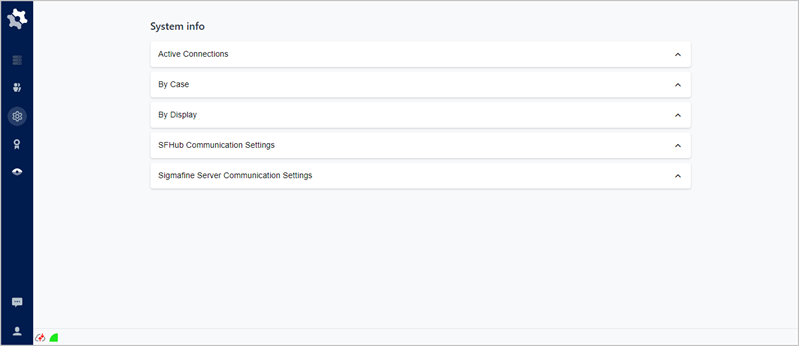
Click on Active Connections to open the panel.
Active Connections panel
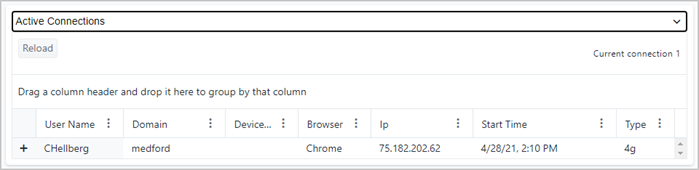
The Active Connections panel provides the following information.
Active Connections Panel Descriptions
Item Description Current connection # The number of concurrent browsers sessions. This is typically less or equal to the maximum number of licensed concurrent sessions. For each browser session, the following information is shown
Item Description User Name The name of a user who is currently logged by the browser session. Domain The domain of the user current logged on by the browser session. Device Name The name of the device where the browser session has been launched (i.e., the computer name). Browser The name of the browser used to connect SigmafineHub (i.e., Chrome, Edge, etc.) IP The IP address of the device. Start Time The time at which the browser session started. Type The type of internet connection being used. noteIf a user logs into SigmafineHub using different browsers, two distinct connections will be in place. The same applies when the same user login into SigmafineHub from different devices.
Each browser session can have multiple tabs opened on the same SigmafineHub session. In such case the admin user can see more detailed information about the network traffic generated by each browser tab and by each SigmafineHub application.
Item Description Application The name of the SigmafineHub application in use (i.e.,SFHub Visualizer, SFHub Admin). Https tot. bytes The total number of exchanged bytes. Https packets The number of exchanged HTTPS messages. Ws tot. bytes The total number of exchanged bytes by th ewebsocket. Ws packets The total number of exchanged packets by the websocket. Start Time The start time of the browser tab was opened over the browser session. Click on the a user's + (expand) icon to show all the details listed in the table above.
When finished, click Active Connections or click its icon, to close the panel.