Create a Severity
Through the Severities configuration panel, you can create your own severities to use in your SFHub Studio Analytics, to generate specific messages (Report).
To create a severity:
Click the
 Settings icon in the command bar, to open the Settings page.
Settings page

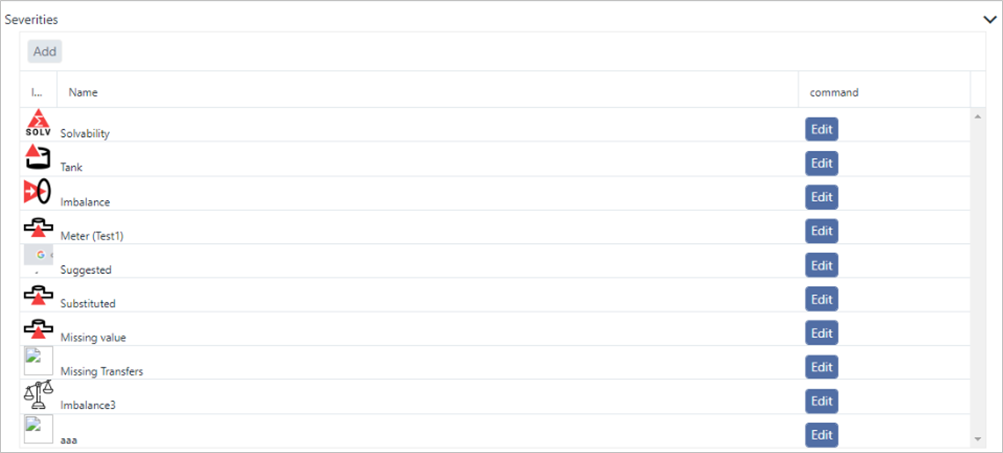
Click on Severities to open the Severities panel.
Severities panel
 info
infoCurrently, there is no way to see the configuration of the workflow. You can however, see the configured steps by selecting the workflow from SFHub Visualizer.
Click
 Add to open the Create Severity panel.
Create Severity panel

Click in the Name box and type a name for the severity you are creating.
This name is visible in the configuration panel of the Report SFCodeBlock, where you assign it to the message you are generating.
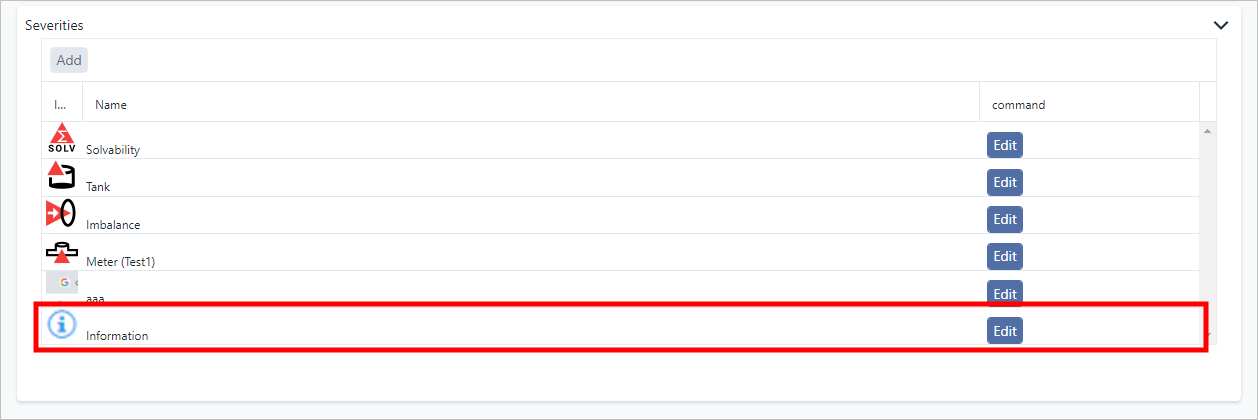
Click on Choose File and choose the image you want associated with this severity. The image appears next to the severity in the Severities list.
infoThe image file can be a .png or .jpg file, and contain a 48 x 48 pixels image, with a maximum weight of 125kb.
Severities list showing the newly created severity
- Click Upload to upload and store the image and save the defined severity.