Troubleshoot Sigmafine Excel Add-In Upgrade Problems
The following procedure is an administrative task that should be performed carefully. For this reason, it is suggested that you make a back-up or create a restore point of the system registry prior to attempting any clean up activity on it (see https://support.microsoft.com - "How to back up and restore the registry in Windows").
Clearing the Registry
If you are in the process of upgrading to a new version of the Sigmafine Excel Add-In, but do not have the install kit that was used to install the previous version, you may run into a registry key issue. As you attempt to remove the Sigmafine Excel Add-In, if you still see the SF and/or the SFAutomation.SFFunctions math library when you open Microsoft Excel, you can clear the registry of the Sigmafine Excel Add-In keys to finish removing the old version of the add-in.
To clear the registry of keys that relate to the Sigmafine Excel Add-In:
Verify that the old version of the Sigmafine Excel Add-In is uninstalled.
Search for the Windows application named regedit.exe and run it in administrator mode.

The Registry Editor window opens.
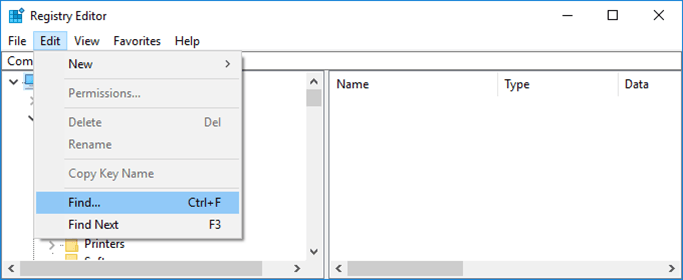
In the registry, select Edit > Find to open the Find window.

In the Find what box type sfaddin.
Under Look at, ensure that all checkboxes (Keys, Values and Data) are selected (checked).
Delete every instance of the sfaddin key that is found.
After deleting all the instances of SFAddIn, perform steps 3 through 6 again, but use the "find" term sfautomation in place of SFAddIn.
Once all the keys have been deleted, open Excel and verify that the SF tab and SFAutomation.SFFunctions math library no longer exist.
Note: If either of the add-ins still exist, it indicates that there are still keys in the registry that were not deleted. Repeat the steps for clearing the registry.
 EXAMPLE: SFAddIn in Registry Editor window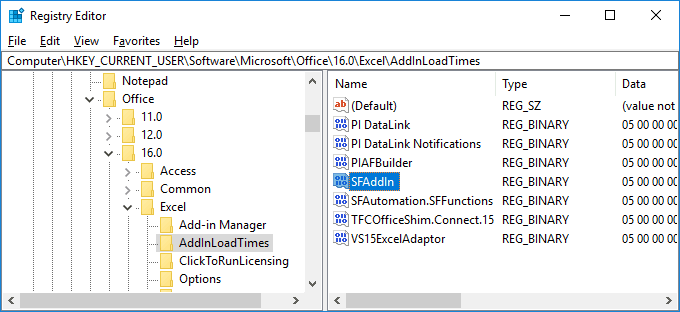
At this point you should have a clean Microsoft Excel environment to install the new version of the Sigmafine Excel Add-In.