Manually Install the Sigmafine SQL Access Publisher Service
Should the Sigmafine SQL Access Publisher Service not get installed during the installation of the SQL Access Server, you can manually install it.
To manually in stall the Sigmafine SQL Access Publisher Service:
In Windows Explorer, go to the Sigmafine SQL Access Installation directory.
Locate and run the InstallService.bat file as an administrator.
Once the service appears in the list of Windows services (in Windows Service Manager), you can then select its properties.
Open the Sigmafine SQLAccess Publisher Properties window.
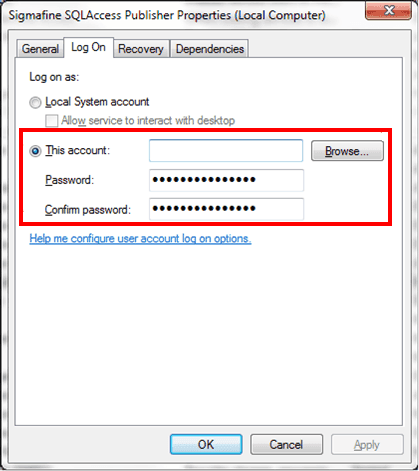
Click on the Log On tab to access the log on information.
Select the This account option.
Assign a specific Windows user.
In the This account box, type the login name of the user, or click the Browse button to find and select the name from another window.
In the Password box, type the user's login password.
In the Confirm password box, type the user's login password again.
Click OK to save your changes and close the window.
Note:
The selected Windows user must have the following privileges over the MS SQL Server instance that will be used to publish Sigmafine cases:
- Can create a database
- Can modify the table schema
- Can Read/Write data over the tables
In addition, the same Windows user must be configured in the SQL Access user accounts with Admin authorization.