Configuring - Quality Tracking Analysis Rule
A Quality Tracking analysis is configured as part of a Sigmafine based model, which is a Model with elements built on the Sigmafine Element templates. To review the specific requirements for this analysis, refer to Quality Tracking Analysis Rule Requirements.
Note: If you change any of the configuration parameters after you have previously configured the Quality Tracking Analysis and have previously run the analysis on cases, you must reinitialize the starting (first) analysis Case and re-run the analysis on the cases.
To configure the analysis rule, follow the steps below using either System Explorer or ProcessBook Modeler.
Follow the steps under either System Explorer or Modeler to select the Model and start to create a new analysis.
In the Sigmafine Analyses navigation panel select the Model for which you are creating the analysis.
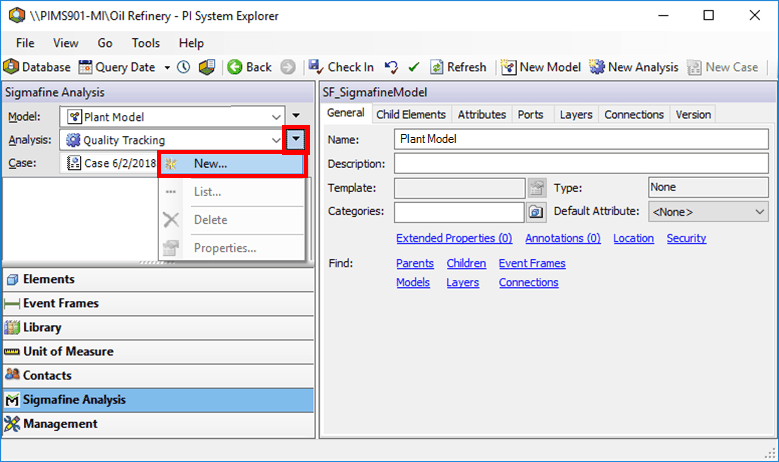
Click the Analysis
 menu button and select New from the menu, to open the Choose Analysis Template window.
 System Explorer
On the SF Analysis Toolbar, click the New Analysis button to open the Choose Analysis Template window.

The remainder of the steps are the same regardless if you are using System Explorer or Modeler.
The Choose Analysis Template window opens.

In the Choose Analysis Template window, \<None> is selected by default; this value is fine for what you need to do.
Click OK.
An analysis properties window opens.
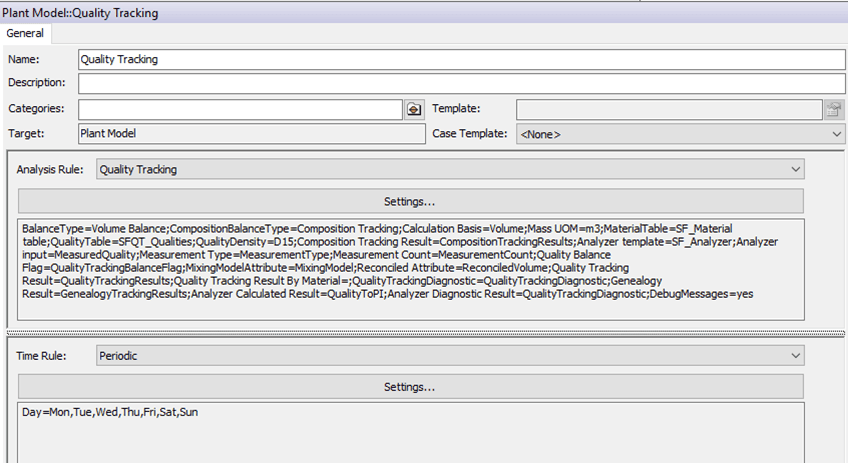
In the Name box, type a name for the new analysis.
(Optional) In the Description box, type a short description of the analysis.
Click the Analysis Rule down-arrow and select Quality Tracking.
Click on the Time Rule down-arrow and select Periodic.
The time rule must be configured with the same periodicity of the Composition Tracking analysis.
In the Periodic Time Rule Configuration window, click OK to save your settings and close the window.
You are returned to the analysis properties window.
Under the Analysis Rule box, click on the Settings button.
The Quality Tracking Configuration window opens.
This window contains three tab:

Control Parameters: The general configuration of the analysis.
Input Attributes: The Attributes from which the analysis retrieves data.
Output Attributes: The Attributes to which the analysis writes data.
For information regarding the options on each tab, please refer to the appropriate \topic listed below.
- When finished with your selections for all tabs, click OK to save your selections and close the Quality Tracking Configuration window.