Displaying AF Data as Value / Trend / Bar
The following steps describe how to add an AF value to the display as a value, bar, or trend symbol. Though the steps below use an example for the value, the procedure is similar for a bar or trend.
To add an AF value to the display:
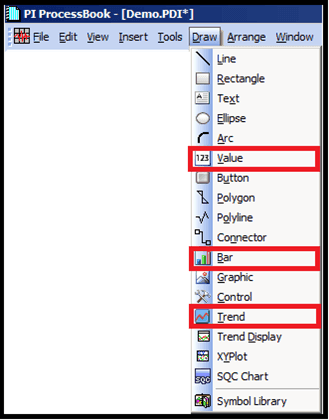
Select Draw > Value, Bar or Trend, as shown in the following figure.
Do one of the following, depending on which option you selected in step 1.
For Bar or Trend:
Drag an area the size you want the bar or trend to be.
Click in the display.
A "Define Bar" or "Define Trend" configuration window opens.
For Value:
Click in the display.
A Define Value configuration window opens.
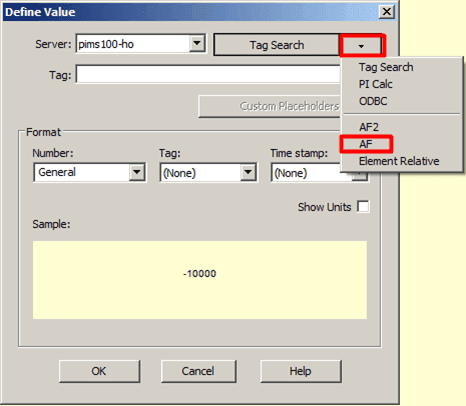
Though the following steps focus on the selection of the 'Value' options, the steps for 'Bar' and 'Trend' are much the same.
Click on the Tag Search down-arrow and select AF, as shown in Figure 902.
The AF Element Configuration window opens.
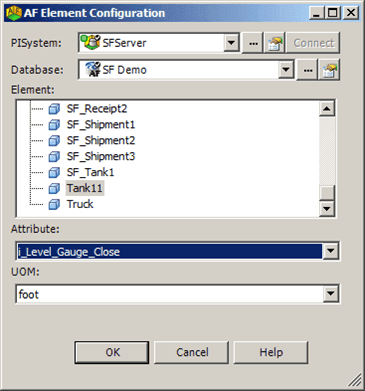
In the Element list, select the Element you want to configure.
Click on the Attribute down-arrow and select the Attribute of that element.
Click OK to save your selections and close the AF Element Configuration window.
The AF value, bar or trend appears in the display. Since we chose 'Value' for these steps, the following example shows the AF 'value' (i.e., "value" of the Element attribute) appearing in the display.
 EXAMPLE: AF Value appears in Display pane