Sigmafine Load Library Utility
The Sigmafine LoadLibrary Utility has been added to this installation for the following purposes:
- To allow you to load the Sigmafine LPG LNG XML library to a System that you specify.
- To allow you to select which databases to pre-load the product’s categories, templates, or tables in, from within the selected System.
This LoadLibrary Utility opens automatically after the installation process has finished.
To learn how to use the utility, please refer to the following walk-through that uses the LNG LPG product installation as an example:
After the installation process is finished, the LoadLibrary Utility automatically opens.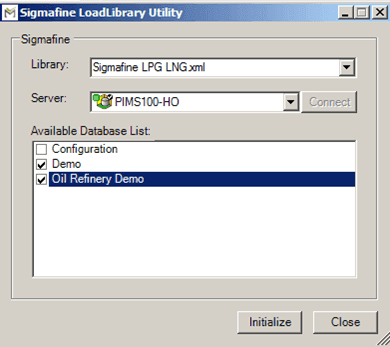
Note: If you do not see the Sigmafine LoadLibrary Utility window (shown in Figure 1) on your desktop, make sure that it has not been minimized on your screen.
Click the Library down arrow and select the Library you want to load, if not already displayed in the box.
Click the Server down arrow and select the server containing the databases you want to initialize.
In the Available Database List, check the checkbox next to each database you want to initialize.
Click the Initialize button to start the initialization process.
When the initialization completes, a notification of success window opens.
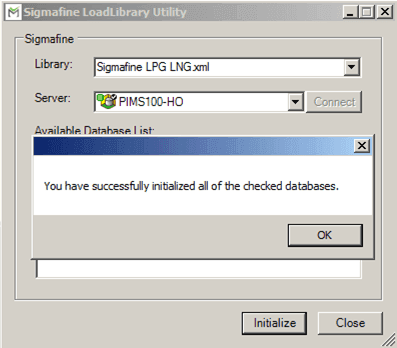
In the notification window, click OK.
You are returned to the LoadLibrary Utility window. Here you can select to initialize more databases (following the steps 1 through 5 again) or simply close the window.
Click the Close button to close the window.
(Optional) If you want to check on the results of the LoadLibrary Utility initialization process:
Open the PI System Explorer.
Open the AF Server Properties window.
Click the Libraries tab to view the library of the product that was just installed.
To see the categories that were added:
Close the AF Server Properties window.
Open one of the databases you have initialized with the utility.
Click the main Library tab.
The expected categories, templates, or tables for the product that was just installed should be listed in the Library sections.
After the installation process, the selected databases contain the following AF tables:
\ To view a table example, click on its link above.