Register a Studio Package
SigmafineHub Studio Packages are delivered through a distribution file having the .pkg extension. The registration process is organized by following steps:
Open the SFHub Studio Basic app if not already open. See Getting Started for instructions.
Selection, Preview and Validation
To select, preview and validate a Package:
Open the SFHub Studio Basic app if not already open.
The Studio Basic Settings page appears.
SFHub Studio - Settings
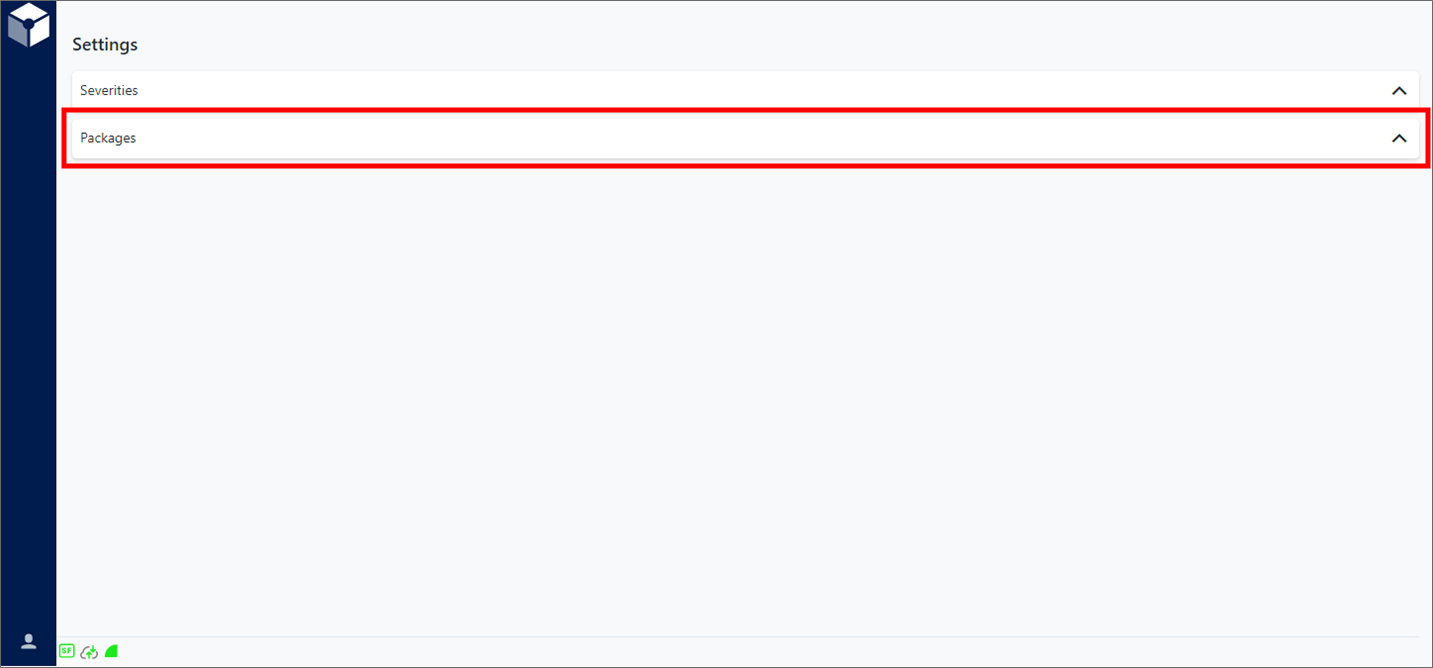
Settings is the "main page" for the Studio Basic app.
Click Packages on the Settings page, to expand the Registered Packages panel.
Registered Packages panel

Click the Add button to open the SFHub Package registration window.
This window allows you to select and register a Package on your SigmafineHub system. You can also preview and then validate the Package prior to registering it.
SFHub Package registration window
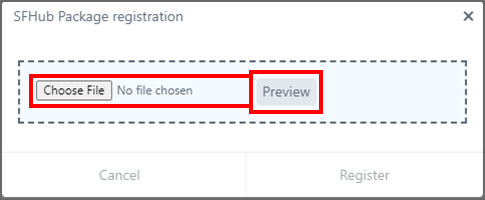
This window allows you to choose the Package file, preview and validate it then register it.
If you don't wish to register the Package right now, click the
 (Exit) icon to close the window.
Click the Choose File button and select the Package you want to register.
Click the Preview button to view the general information on the Package before registering it.
The following window opens.
Preview window
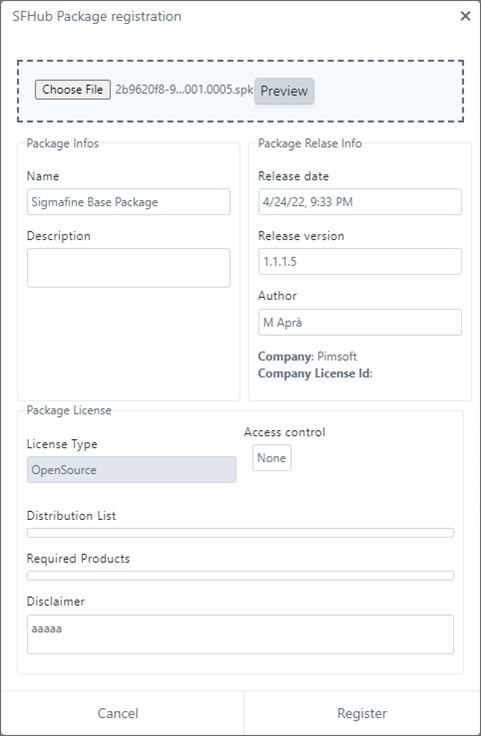
When you initiate a Preview, the system automatically cycles through the Validation step. This validation step verifies whether the Package is already registered and then detects if the registration of a Package upgrade is coming or not.
The following cases must be distinguished:
No Studio Project was created with the previous version
Studio Projects have been created with the previous version, but the package is released in a protected way, i.e., you have no possibility of modification
Studio Projects have been created with the previous version and the Package is not protected
In the first two cases, the upgrade is performed automatically and subjected to user confirmation.
You could in fact, decide not to upgrade but rather to keep more versions.
If you confirm the upgrade, the registration should be extended in order to process all the Projects created with the previous version, thereby updating their content.
In principle it is not a complex operation, but it could cause malfunctions if performed while other users are working. For example, if a user is activating an analytic and this is replaced.
If we accept these potential errors, then the upgrade consists of the following:
For each project created with the Package
- The Package reference is changed
For each entity of the Project (Analytics, Reports, Workflows ...)
The list of the previous ones is compared with the new ones
Those with the same name are replaced (as if a Save was made)
The new ones are added
The following table provides a list of the possible validation errors you may receive.
| Error Message | Description |
|---|---|
| Package already registered | In case a packaged with the same version has already been registered, the following error message is shown: 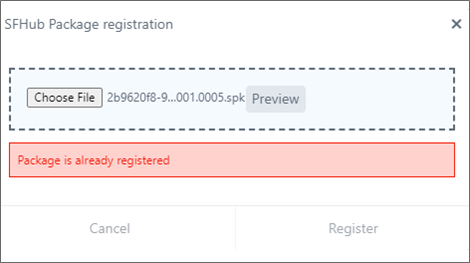 |
| Package cannot be downgraded | In case you are attempting to upload an earlier version of an already registered package, the following error message is shown: 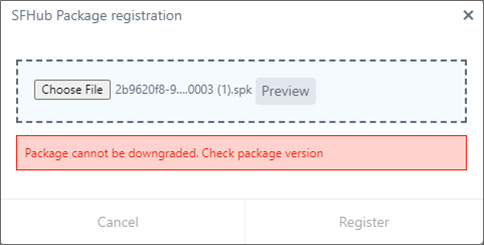 |
Registration
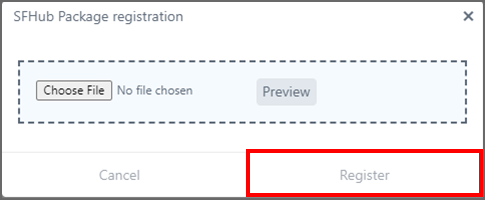
The registration process of the selected Package on your SigmafineHub system is activated by the Register button.
The Register button is enabled only if the Studio Package Admin or Studio Package Register access has granted to you.
To register a Package that you have already selected and previewed/validated:
Click the Register button.
The Package is registered and appears in the list of the registered Packages in the Registered Packages panel.