Start the Business Intelligence Development Studio (BIDS)
Before you can use Business Intelligence Development Studio (BIDS) for our reporting service, you first have to set it up by creating a new report project.
Note: While there are several versions of SQL Server that can be used for connecting with Sigmafine SQL Access, we are using SQL Server 2008 R2 as a basis for our explanation of how to create a new report project.
To create a new project in BIDS:
Ensure that you are logged into Windows as an Administrator.
From the Windows Start button, run SQL Server Business Intelligence Development Studio.
Microsoft Visual Studio opens.
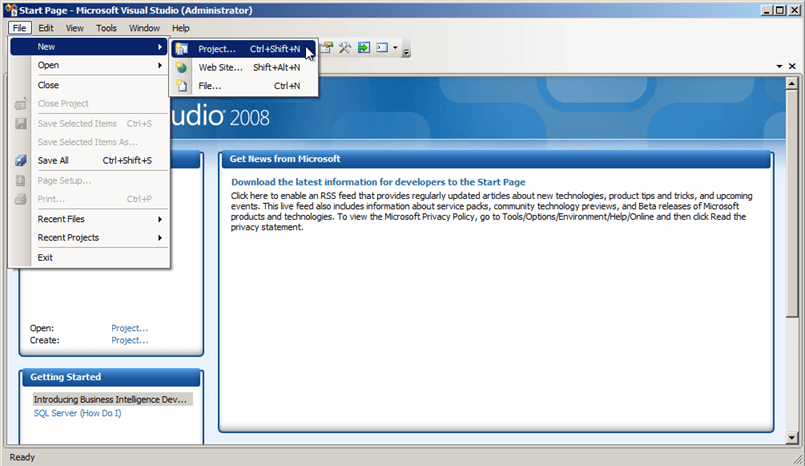
From the File menu, select New > Project, to open the New Project window.
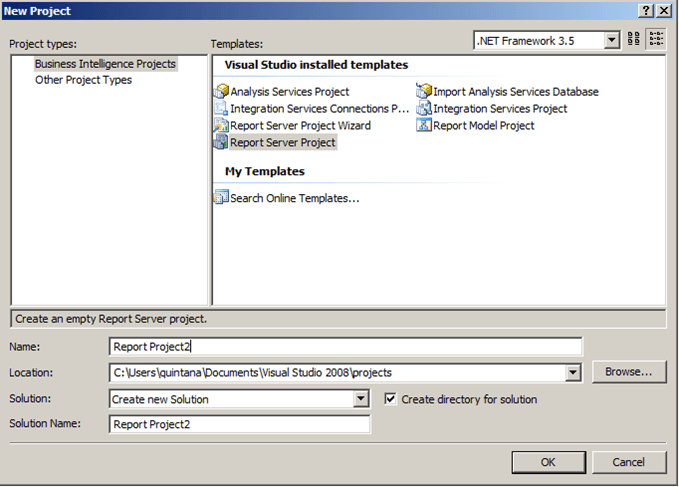
In the Project types list, select Business Intelligence Projects.
In the Templates list, select Report Server Project.
In the Name box, type a name for your new project.
Click on the Location down-arrow and select the location for your new project, or click the Browse button to select it from a Find window.
Click on the Solution down-arrow and select Create new Solution.
Check the Create directory for solution checkbox.
In the Solution Name box, type a name for the solution (it can be the same as the project name).
Click OK to save your entries and close the New Project window.
You are returned to the Microsoft Visual Studio window.
In the Recent Projects pane, click on the report project you just created.
If the "Solution Explorer" window is not visible, select View > Solution Explorer from the menu, as shown in Figure 1173.
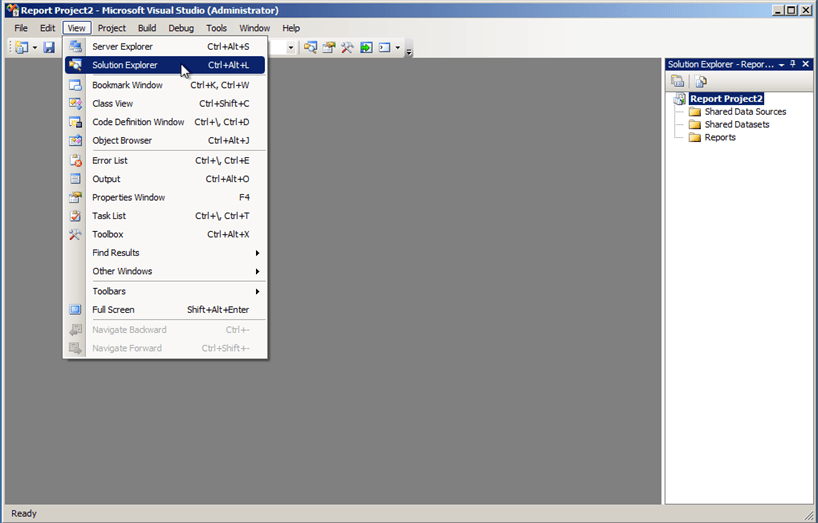
In the Solution Explorer list, select Reports.
Right-click on Reports and select Add > New Item to open the Add New Item window.
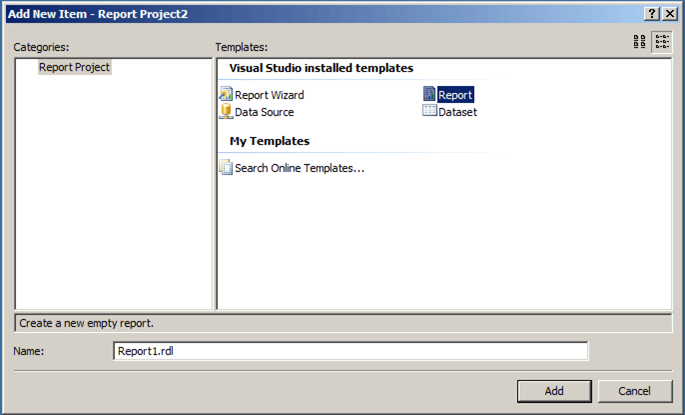
In the Templates list, select Report.
(Optional) In the Name box, if you don't want to use the default, type a name for the report.
Click the Add button to add your report and close the Add New Item window.
If the Report Data window is not visible, select View > Report Data.
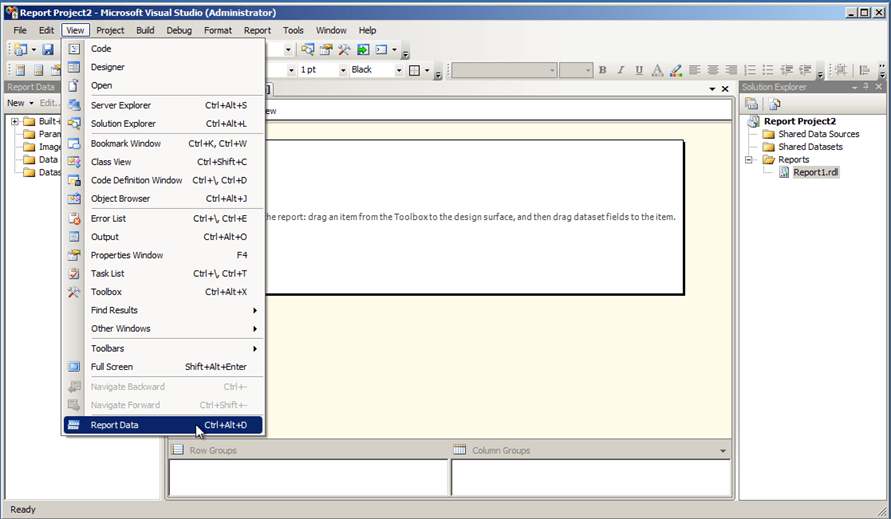
For more information about the Report Data window, see Data Source, Data Sets and Connections.